How to Configure PS5 HDR Settings for GTA 6

Article Overview & Key Takeaways
Learn to enable HDR on your PS5 for GTA 6, from TV setup to PS5 system options, and get the most vivid visuals the game offers.
Gaming gear to check
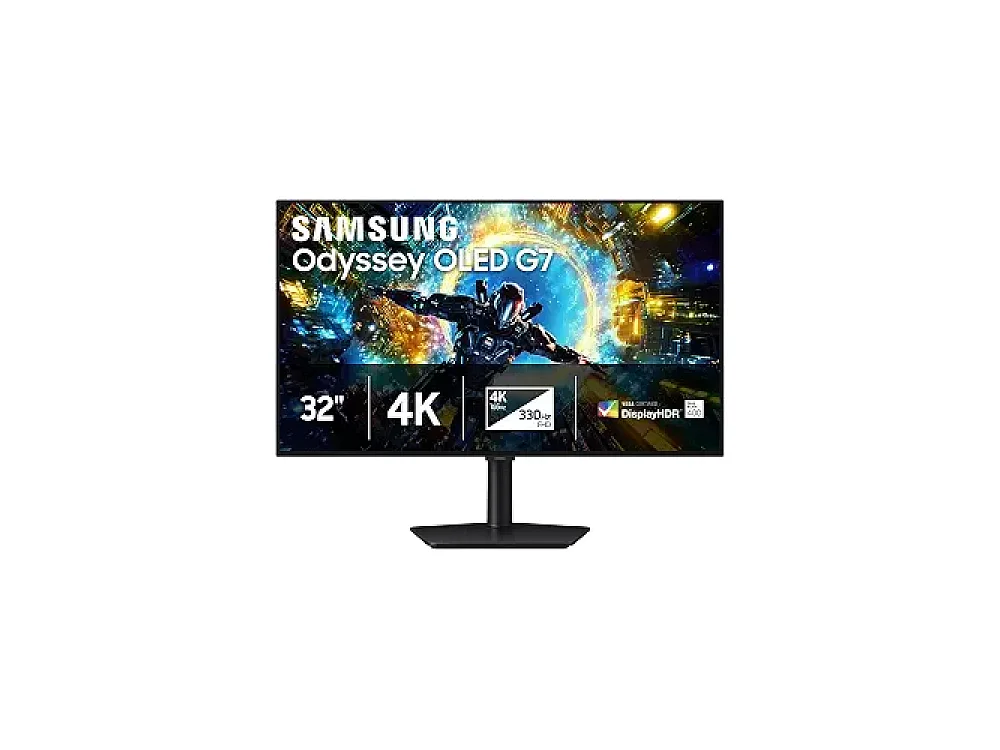 Samsung Odyssey OLED G73SH S32HG732S
 TeamGroup T-Force Xtreem ARGB DDR4-3600
By following this guide you will enable HDR on your PS5 and experience Grand Theft Auto VI with richer colors, deeper blacks, and brighter highlights. The steps cover everything from checking your display’s capabilities to fine‑tuning PS5 tone‑mapping so GTA 6 looks exactly as the developers intended.
First, make sure you understand the launch context: GTA 6 release date, price and PC status confirmed the game launched worldwide on 19 November 2026 for PS5 and Xbox Series X|S. With HDR enabled you’ll see the game’s night‑time neon streets and sun‑drenched beaches in their full dynamic range.
What you need
- PlayStation 5 (PS5) console with the latest system software.
- A TV or monitor that supports HDR (HDR10 or Dolby Vision).
- High‑speed HDMI cable (HDMI 2.0 minimum, HDMI 2.1 recommended for 4K 120 Hz).
- Internet connection for system updates.
- Basic knowledge of your TV’s picture settings.
Step 1: Verify Your TV or Monitor Supports HDR
Not every display can output HDR. Look for specifications that list HDR10 or Dolby Vision. If you are shopping for a new display, the Gaming Monitors section offers several HDR‑capable options. For example, the AOC Gaming Q27GAZD provides a 1440p panel with HDR support, while the ASRock Phantom Gaming PGO27QSA and the ASUS ROG Swift OLED PG27AQWP-W deliver OLED‑level contrast for the most vivid GTA 6 visuals. Even a solid IPS monitor like the AOC 24G2 can be used for non‑HDR play, but you will miss the expanded color gamut.
Want to buy a gaming monitor? Here are 3 similar picks:
- ASUS ROG Swift OLED PG32UCDM Gen3: Best Overall / Premium
- ASUS ROG Swift OLED PG32UCDP: Best Dual-Mode OLED
- KOORUI GN02: Best Budget High Refresh
Open a product to see its full details, then use the Amazon button there.
Step 2: Connect the PS5 with the Correct HDMI Port
Plug the HDMI cable into the PS5’s HDMI OUT port and into the HDMI input on your TV or monitor that is labeled “HDMI 1” or “HDMI 2” and supports the highest bandwidth (often marked “HDMI 2.1” or “HDMI ARC”). Some TVs have a dedicated “HDMI‑eARC” port for HDR; use it if available. Ensure the cable is firmly seated on both ends.
Step 3: Enable HDR on Your TV or Monitor
Access your TV’s picture menu and look for an HDR toggle. On most brands this is called HDR Mode, HDR+, or Dolby Vision. Turn the setting On and select a picture preset optimized for gaming, often labeled “Game” or “Game HDR”. If your TV offers a separate “HDMI Enhanced Mode” (sometimes called “HDMI UHD Color”), enable it for the HDMI port you used. This step is crucial; without it the PS5 will still output HDR data, but the display will treat it as SDR.
Step 4: Configure PS5 HDR Settings
- From the PS5 home screen go to Settings > Screen and Video > Video Output.
- Select HDR and set it to On. The console will automatically detect an HDR‑capable display.
- Choose HDR Tone Mapping. The default is Standard, which works for most TVs. If you have an OLED or a high‑end LCD, you may prefer Custom to adjust brightness and contrast manually.
- Leave Adjust HDR set to Off unless you want the PS5 to run an automatic calibration routine.
Step 5: Fine‑Tune HDR Tone Mapping for GTA 6
Launch GTA 6 and navigate to the game’s graphics settings. While the game does not have a dedicated HDR slider, you can adjust the overall brightness and contrast in the console’s Custom HDR Tone Mapping screen. Use the following approach:
- Set Brightness so that dark areas (e.g., night streets) are visible but not washed out.
- Increase Contrast until bright surfaces (like neon signs) pop without clipping.
- Play a few minutes of gameplay and revisit the settings if the image looks too dim or too bright.
Step 6: Test the Settings in GTA 6
Start a mission that takes you from bright daylight in Vice City to a night chase in the Leonida Keys. Pay attention to how the sky transitions, how reflections on water appear, and whether the city lights retain detail. If anything looks flat, return to the PS5 HDR Tone Mapping screen and make minor adjustments. Remember that HDR performance can vary between TV models; a few iterations will give you the best result.
Tips & Common Mistakes
- Don’t forget HDMI Enhanced Mode. Many users enable HDR in the PS5 but leave the TV’s HDMI setting on standard, resulting in a washed‑out picture.
- Use a high‑speed HDMI cable. Cheap cables may not carry the full 4K 120 Hz HDR signal, causing flicker or down‑scaled resolution.
- Avoid SDR‑only displays. If your TV only supports SDR, the PS5 will fall back automatically, but you won’t get the visual boost.
- Calibrate in a dark room. Ambient light can fool your eyes into thinking HDR looks too bright.
- Check firmware updates. Both PS5 and TV manufacturers release HDR‑related patches that improve compatibility.
If you’re unsure whether your hardware can handle HDR, the Can I run it? tool can help you verify display specifications. For broader PC‑related queries, the PC requirements of 2,400+ games page offers a quick compatibility check, though it is not directly needed for PS5 HDR.
FAQ
How do I know if my TV is truly HDR capable?
Check the product specifications for HDR10, Dolby Vision, or HDR10+. The TV’s on‑screen menu will usually have an HDR indicator when the correct HDMI input is active.
Why does GTA 6 look washed out after enabling HDR?
Most often this is caused by the TV’s HDMI Enhanced Mode being disabled or the PS5’s HDR Tone Mapping set to the default on a very bright display. Adjust the tone‑mapping settings or enable the TV’s enhanced mode.
Can I use HDR on a monitor that isn’t OLED?
Yes. Many LCD panels support HDR10, though they may have lower peak brightness than OLED. Choose a monitor with a high nits rating (300 nits or more) for the best experience; examples include the ASUS ROG Swift OLED PG27UCDM and the ASRock Phantom Gaming PGO27QSA.
Conclusion
Setting up HDR on your PS5 for GTA 6 is a straightforward process that pays off with dramatically richer visuals. By confirming your display’s HDR support, using the correct HDMI connection, and tweaking the PS5’s tone‑mapping options, you’ll enjoy Rockstar’s open world exactly as it was meant to be seen.
More on GTA 6
- GTA 6 release date, price and PC status
- GTA 6 PS5 vs Xbox Series X: HDR Cost and Performance Gap (News)
- Xbox Controllers Hit Lowest 2026 Price for GTA 6 Launch (News)
- Black Friday 2026: XR Glasses, RTX 5090 PC and GTA 6 Ready Hardware (News)
- GTA 6 PC Price: GPU Guide for the Future Port (Blog)
- Best Monitor for GTA 6 PS5 Pro: TV or Monitor, What to Look For (Blog)
- Best headset for GTA 6 PS5 – Top picks for PS5 & Xbox (Blog)
- Xbox HDR Calibration Guide for GTA 6 on Series X|S (Guide)
Keep reading
Gaming gear on Run On Console
 Intel Core i5-13600K
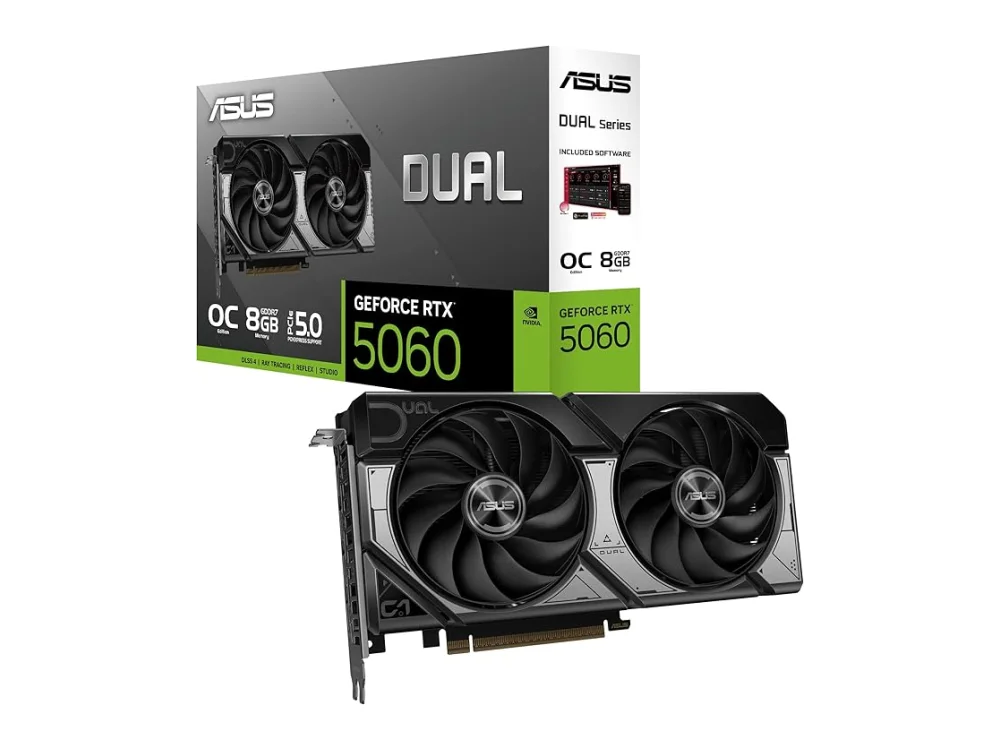 NVIDIA GeForce RTX 5060
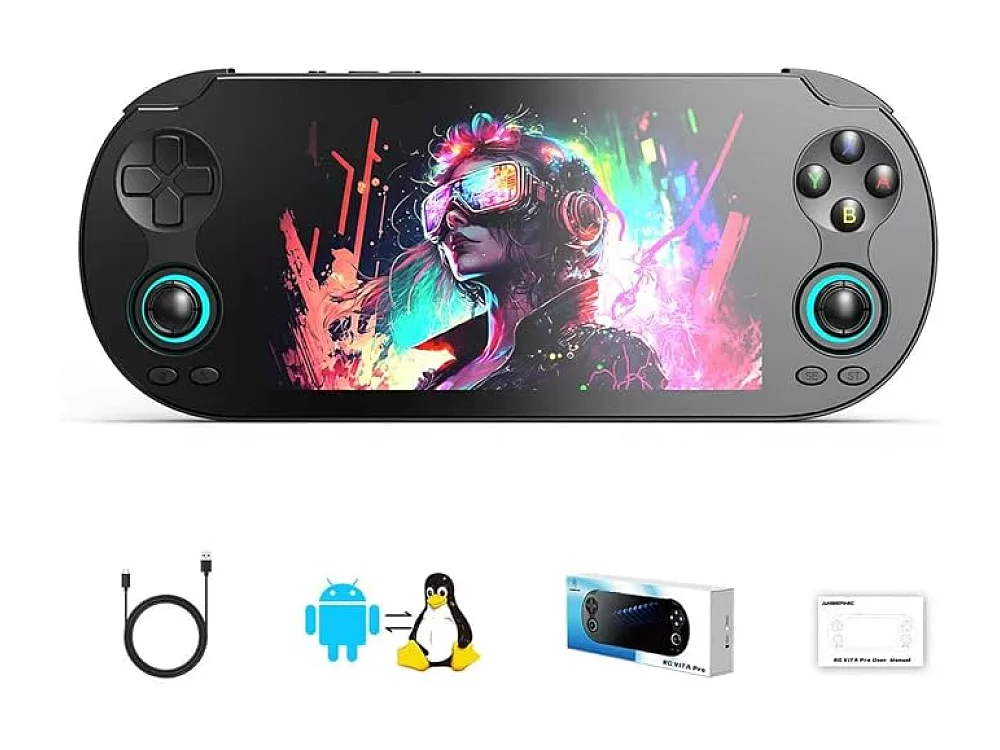 Vita Pro Handheld
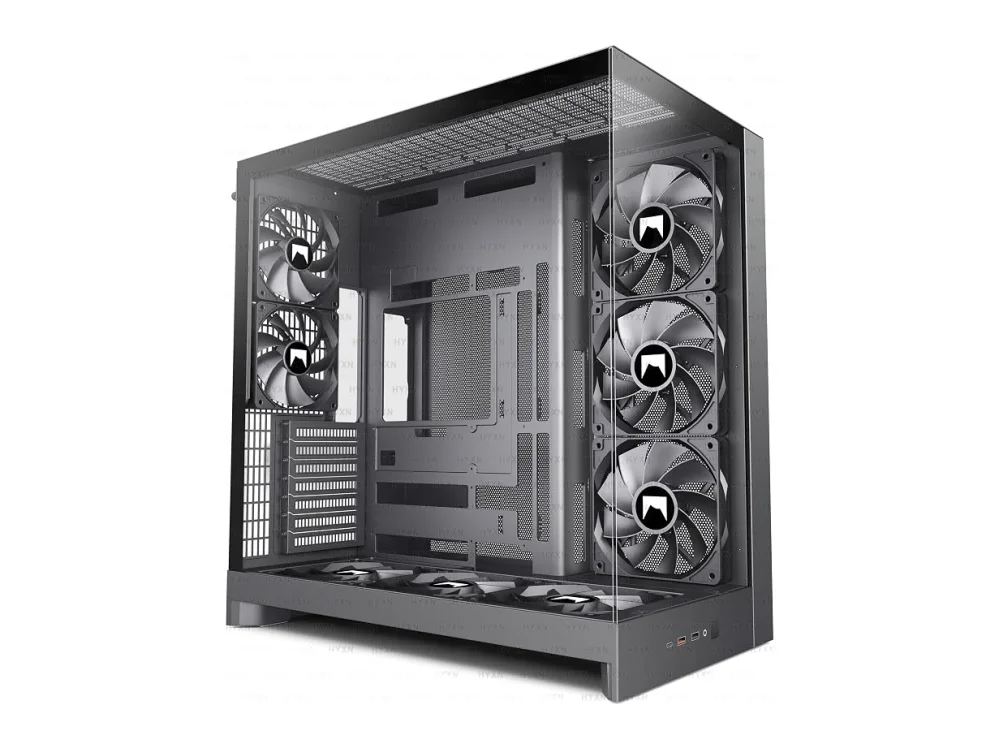 Montech TG3
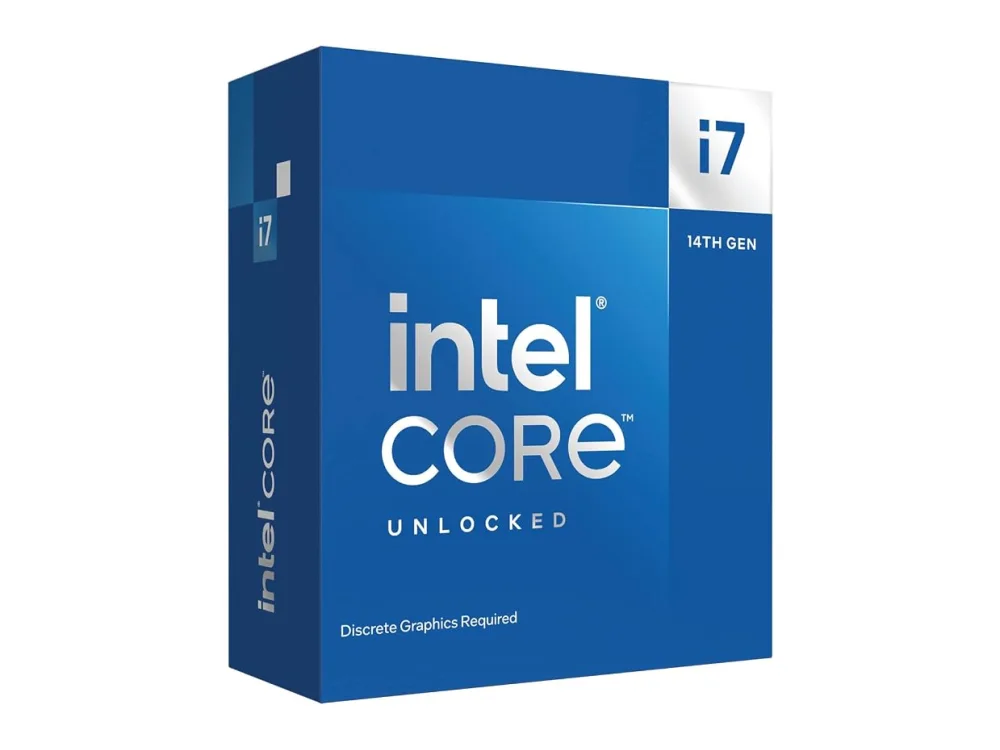 Intel Core i7-14700K
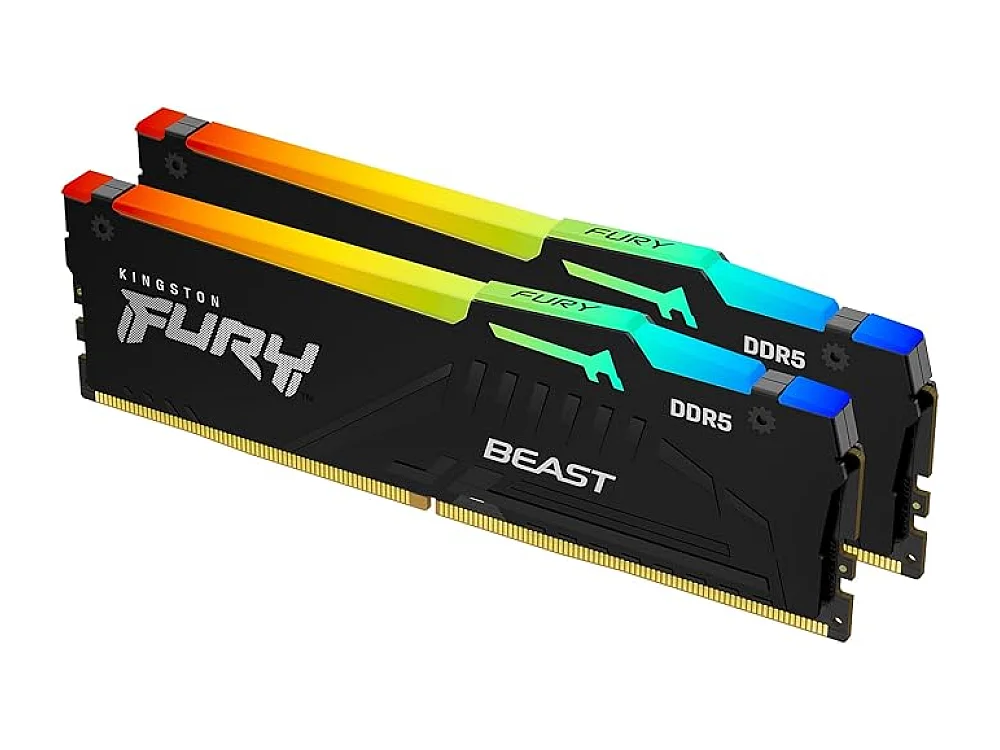 Kingston Fury Beast DDR5-6000
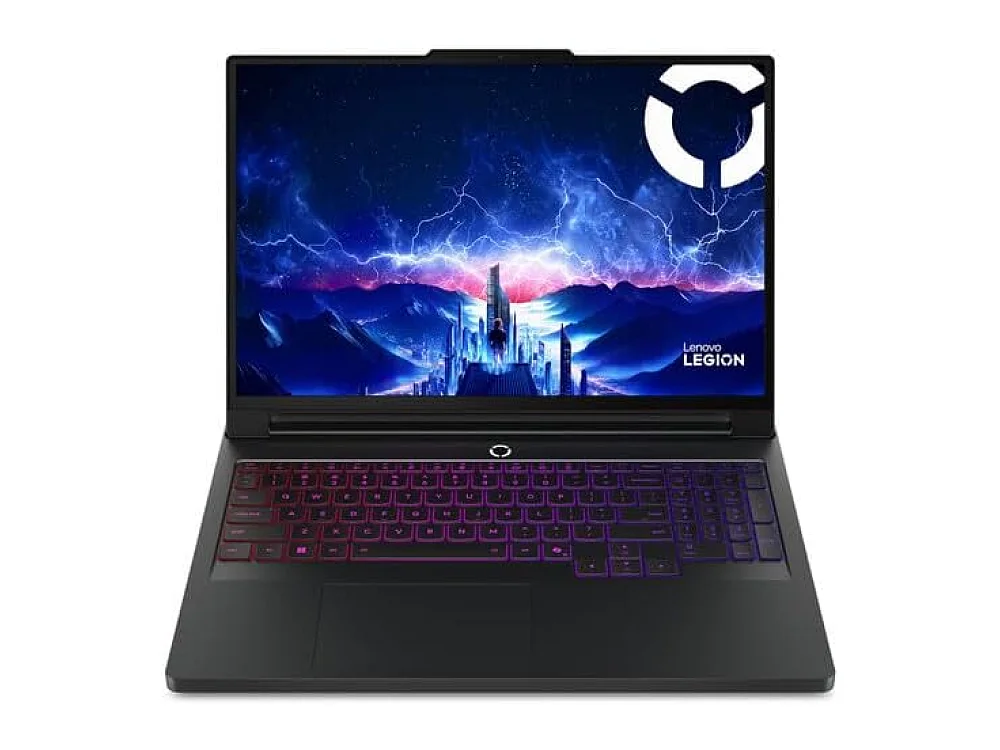 Lenovo Legion Pro 7i Gen 10
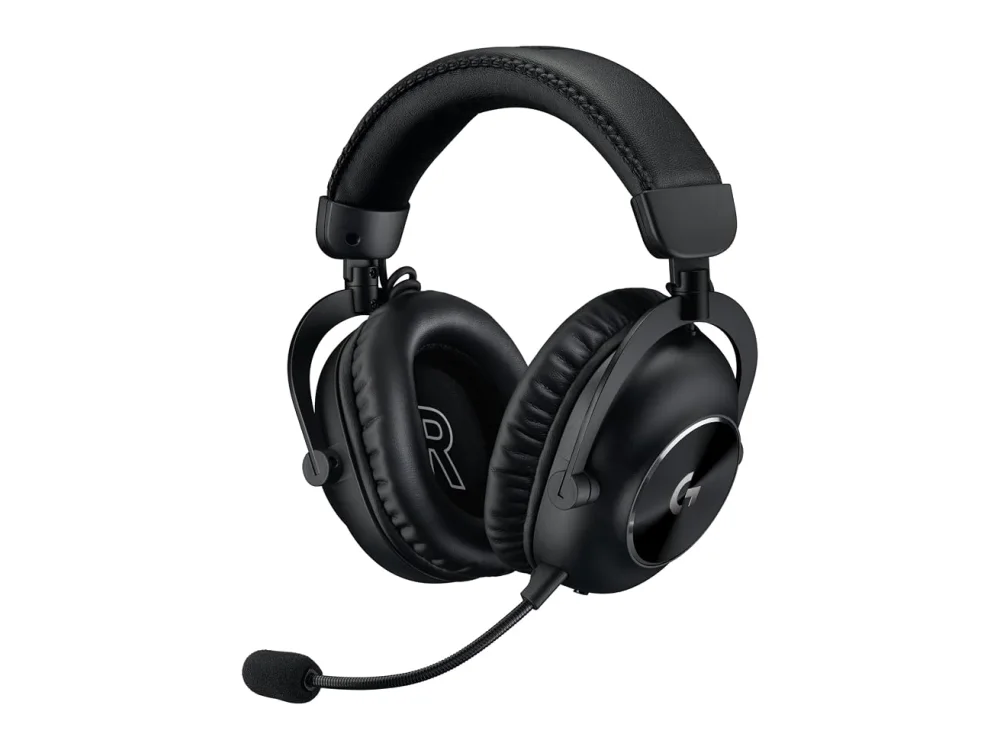 Logitech G Pro X 2 LIGHTSPEED
Leave a comment
Questions, corrections or your own experience: it goes to our team at comments@runonconsole.com and you get a copy.