How Much RAM for Gaming? 16 GB vs 32 GB Explained

Article Overview & Key Takeaways
This guide breaks down the difference between 16 GB and 32 GB of RAM for gaming, helping you decide the optimal amount for your rig.
Gaming gear to check
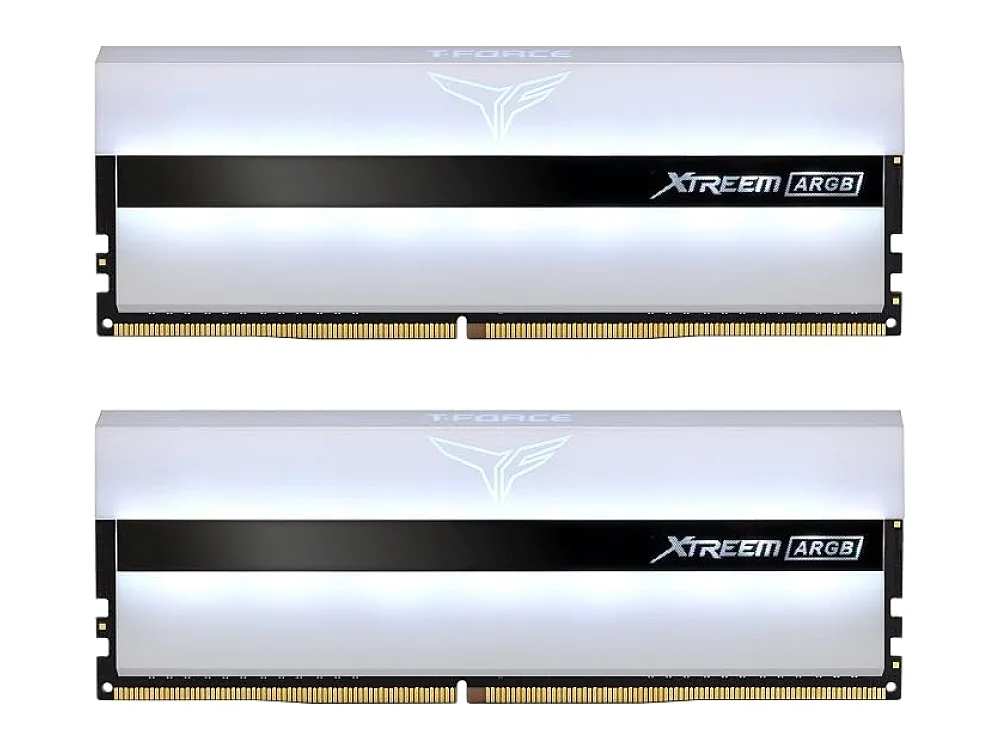 TeamGroup T-Force Xtreem ARGB DDR4-3600
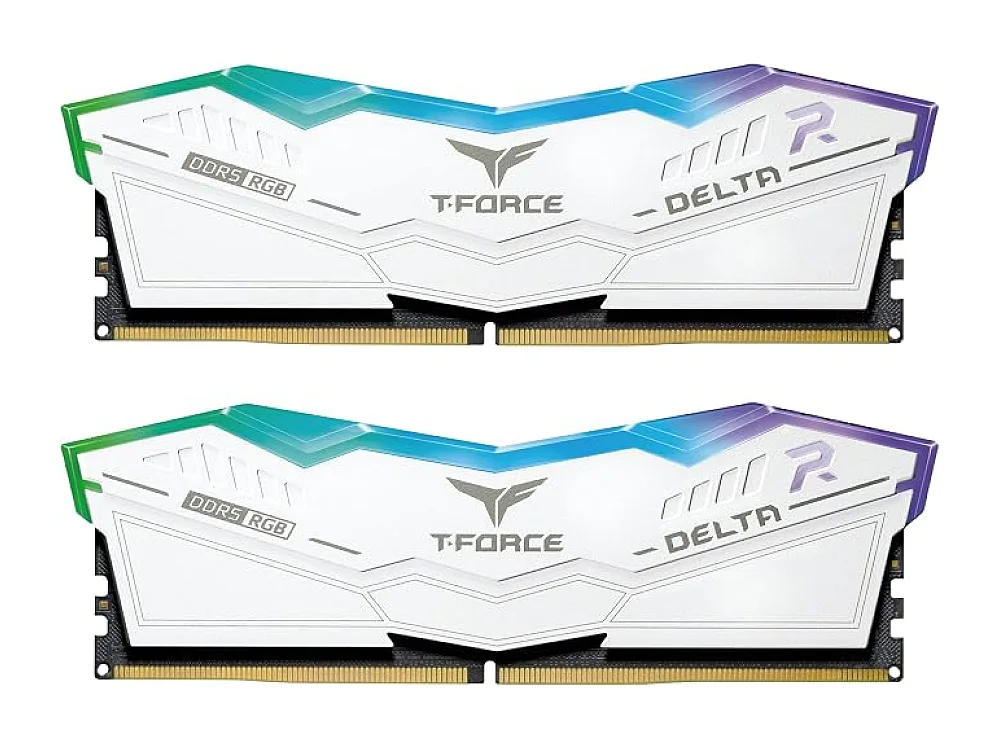 TeamGroup T-Force Delta RGB DDR5-6000
By the end of this guide you will know exactly how much RAM you need for gaming, whether 16 GB is enough or 32 GB will give you a noticeable edge, and how to pick the right memory kit for your PC.
We’ll walk through the factors that influence RAM requirements, compare the two most common capacities, and give you a step‑by‑step plan to make the right purchase.
Understanding Memory (RAM) is the first step. Modern games rely on RAM for textures, world data, and AI, but the amount you need depends on your resolution, frame‑rate target, and what else you run alongside the game.
What you need
- A motherboard that supports the RAM speed you plan to buy (DDR4 or DDR5).
- A CPU that can handle the bandwidth of the chosen kit.
- Enough free DIMM slots for the capacity you want.
- Access to a compatibility checker such as the Can I run it? game checker.
- The budget you are willing to allocate for memory.
Step 1: Assess Your Current Usage and Game Demands
Open Task Manager or a similar tool while gaming and note the RAM usage. Most titles at 1080p with medium settings sit between 6 GB and 10 GB. Open‑world games (e.g., Cyberpunk 2077, Baldur's Gate 3) and titles that use ray tracing can push 12 GB‑14 GB. If you stream, run background applications, or edit video while playing, add another 4‑6 GB to your estimate.
Use the PC requirements database to check the recommended RAM for the games you play most. If the majority list 16 GB as “recommended,” you’re already in a safe zone.
Step 2: Decide Between 16 GB and 32 GB
When 16 GB is sufficient
- Gaming at 1080p or 1440p with standard graphics settings.
- Playing titles that list 16 GB as the recommended amount.
- Using the PC mainly for gaming and light multitasking.
When 32 GB future‑proofs your build
- You game at 4K, use high‑resolution texture packs, or enable ray tracing.
- You stream, run virtual machines, or edit video while gaming.
- You want a build that stays relevant for the next 3‑4 years as games become more memory‑hungry.
Remember, RAM is cheap compared to a GPU, but buying more than you need now can be wasteful. Choose the capacity that matches your typical workload.
Step 3: Pick the Right Speed and Latency
DDR5 is now common on new platforms, offering higher bandwidth. However, the performance difference between 5600 MT/s and 6000 MT/s is modest for most games. Focus on low CAS latency (CL) values; a CL36 at 5600 MT/s often outperforms a CL40 at 6000 MT/s.
If your motherboard supports XMP 3.0, enable it to run the memory at its advertised speed. Otherwise, the kit will default to a lower, more stable frequency.
Step 4: Choose a Reputable Kit
All the kits below are well‑reviewed for reliability and performance. Pick the capacity and speed that matches the conclusions from Step 2.
- Corsair Vengeance DDR5‑5200 192 GB kit – ideal if you want 32 GB (2 × 96 GB) and extra headroom for future upgrades.
- Corsair Vengeance DDR5‑5200 64 GB kit – a solid 32 GB (2 × 32 GB) option with a good price‑to‑performance ratio.
- Corsair Vengeance DDR5‑6000 kit – high‑speed 16 GB (2 × 8 GB) or 32 GB (2 × 16 GB) configurations for enthusiasts.
- Crucial Pro Overclocking DDR5‑6000 kit – known for tight timings and strong XMP support.
- G.Skill Ripjaws S5 DDR5‑6000 kit – a stylish option with good thermal design.
Want to buy a RAM kit? Here are 3 similar picks:
- G.Skill Ripjaws V DDR4-3200: Budget gaming PCs
- G.Skill Trident Z5 Neo DDR5-6000 CL30: Performance-focused gamers
- G.Skill Trident Z5 RGB DDR5-6400 96GB: High-capacity enthusiast builds
Open a product to see its full details, then use the Amazon button there.
Step 5: Verify Compatibility Before Buying
Even the best‑rated memory can cause issues if the motherboard’s QVL (Qualified Vendor List) doesn’t include it. Use the Can I run it? game checker to confirm that your chosen kit is supported on your board and that the BIOS version you have can handle the speed.
Common mistake: assuming any DDR5 will work. Some older DDR5 boards only support up to 5600 MT/s, so a 6000 MT/s kit would down‑clock automatically or fail to boot.
Step 6: Install and Test
- Power down, unplug, and ground yourself.
- Insert the modules in the recommended slots (usually the two farthest apart).
- Boot into BIOS and enable XMP/DOCP to apply the advertised speed.
- Run a memory stress test (e.g., MemTest86) for at least one pass.
- Launch a demanding game and monitor RAM usage to ensure you’re not hitting the limit.
Tip: Keep a small amount of free RAM (about 1‑2 GB) as a buffer; this prevents stuttering when the OS needs to allocate temporary buffers.
Quick Comparison Table
| Capacity | Typical Use‑Case | Pros | Cons |
|---|---|---|---|
| 16 GB | 1080p/1440p gaming, light multitasking | Lower cost, less power draw | May limit future‑proofing, tight on heavy streaming |
| 32 GB | 4K gaming, ray tracing, streaming, content creation | Future‑proof, smooth multitasking | Higher price, slightly more power |
FAQ
Do I need 32 GB of RAM for 4K gaming?
While 16 GB can run most 4K titles, 32 GB provides a safety net for high‑resolution texture packs and background apps, ensuring consistent frame‑rates.
Can I mix different brands or speeds of RAM?
Mixing brands is possible but not recommended. Different speeds will cause the system to run at the lowest common denominator, and mismatched timings can lead to instability.
Will faster RAM (e.g., DDR5‑6000) noticeably improve FPS?
In most games the FPS gain from higher RAM speed is modest—often 1‑3 %. The biggest impact comes from having enough capacity to avoid swapping.
Conclusion
Choosing the right amount of RAM hinges on how you play and what else you run alongside games. If you stick to 1080p/1440p with standard settings, 16 GB is a solid, cost‑effective choice. If you aim for 4K, heavy multitasking, or want a build that stays current for several years, 32 GB is the safer investment. Use the steps above, verify compatibility, and select a reputable kit—such as the Corsair, Crucial, or G.Skill options linked—to enjoy smooth, future‑ready gaming.
Keep reading
Gaming gear on Run On Console
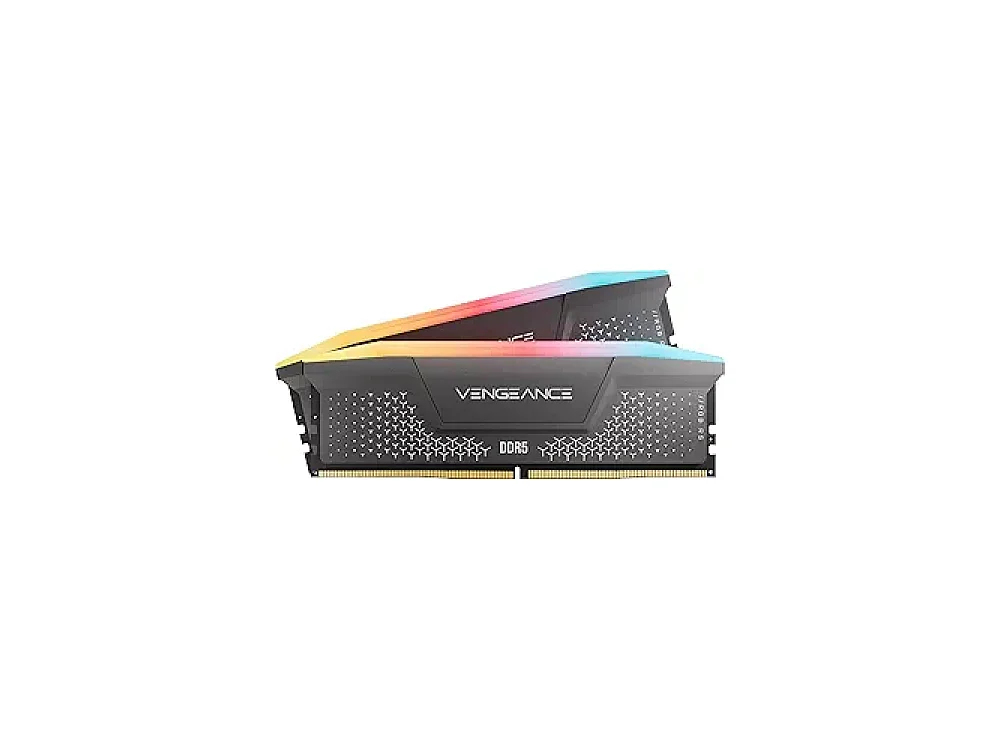 Corsair Vengeance DDR5-6000
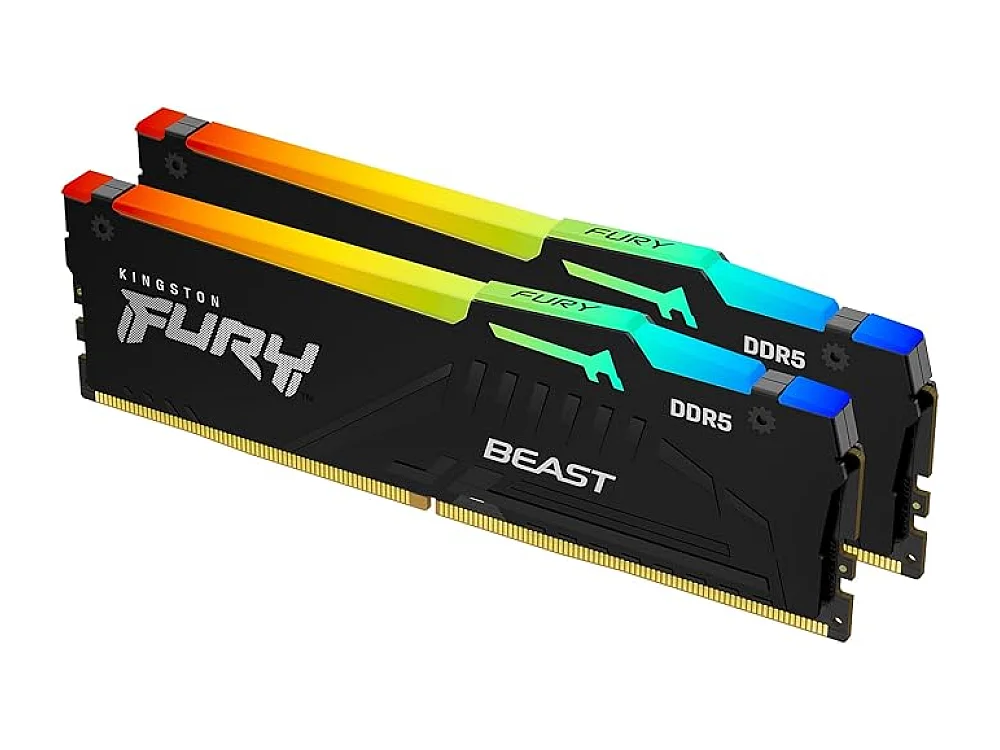 Kingston Fury Beast DDR5-6000
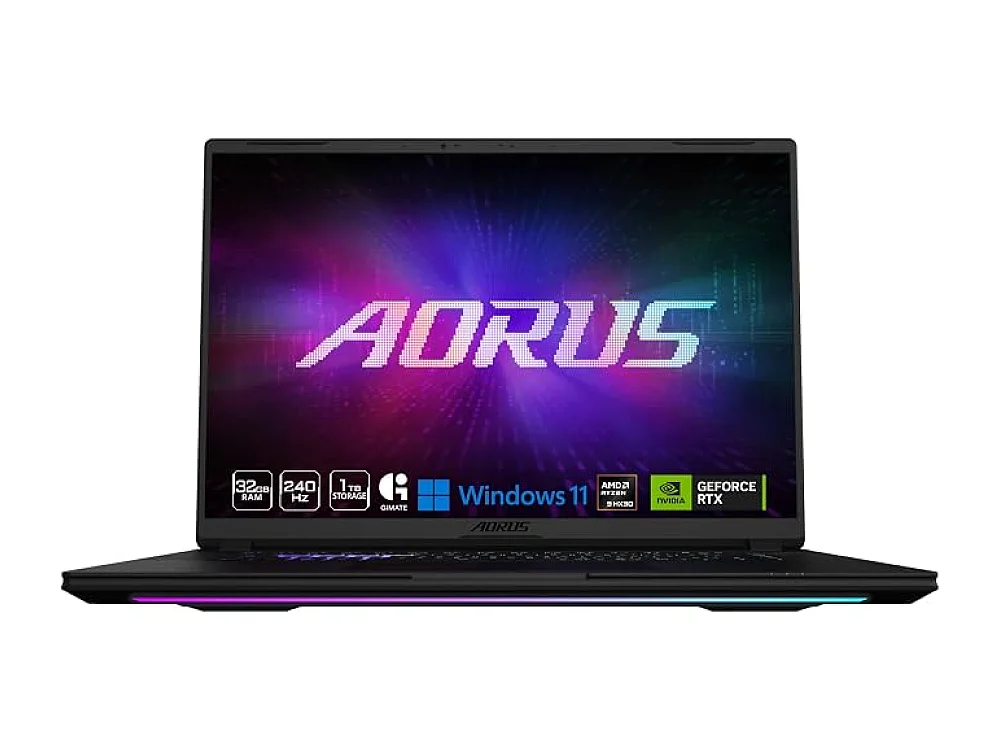 Gigabyte AORUS Master 16
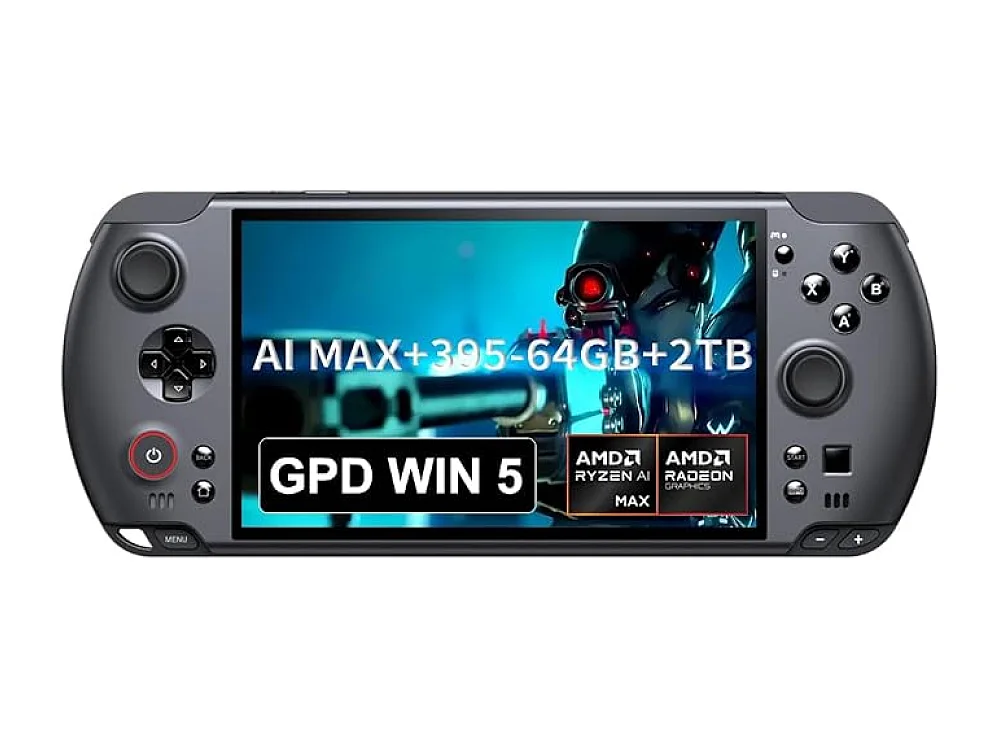 GPD WIN 5
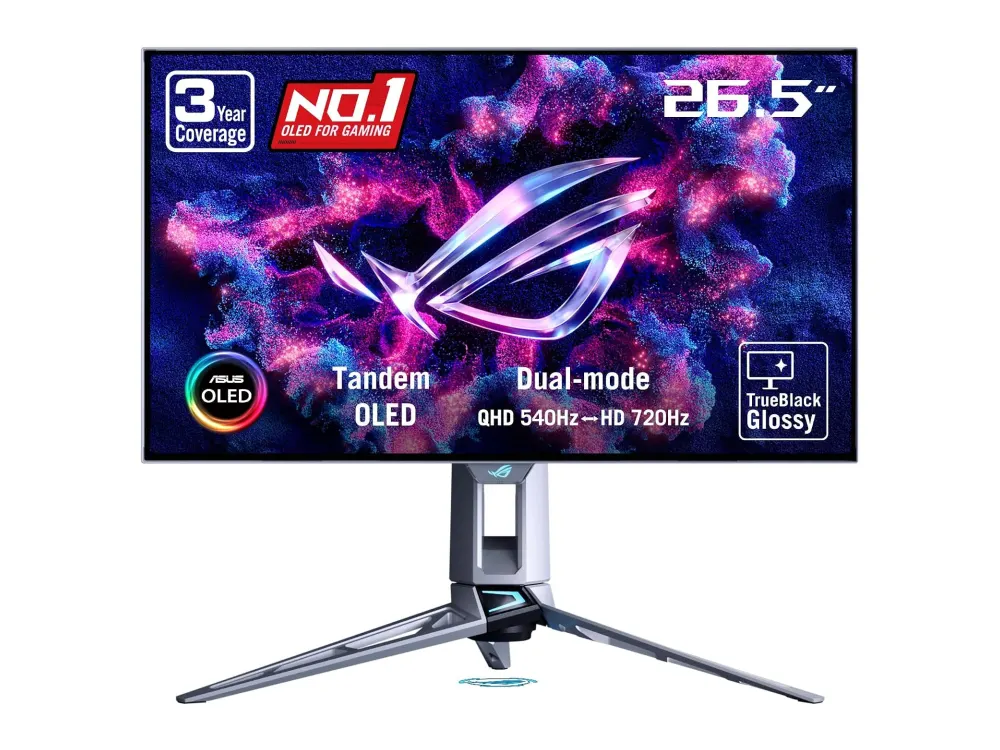 ASUS ROG Swift OLED PG27AQWP-W
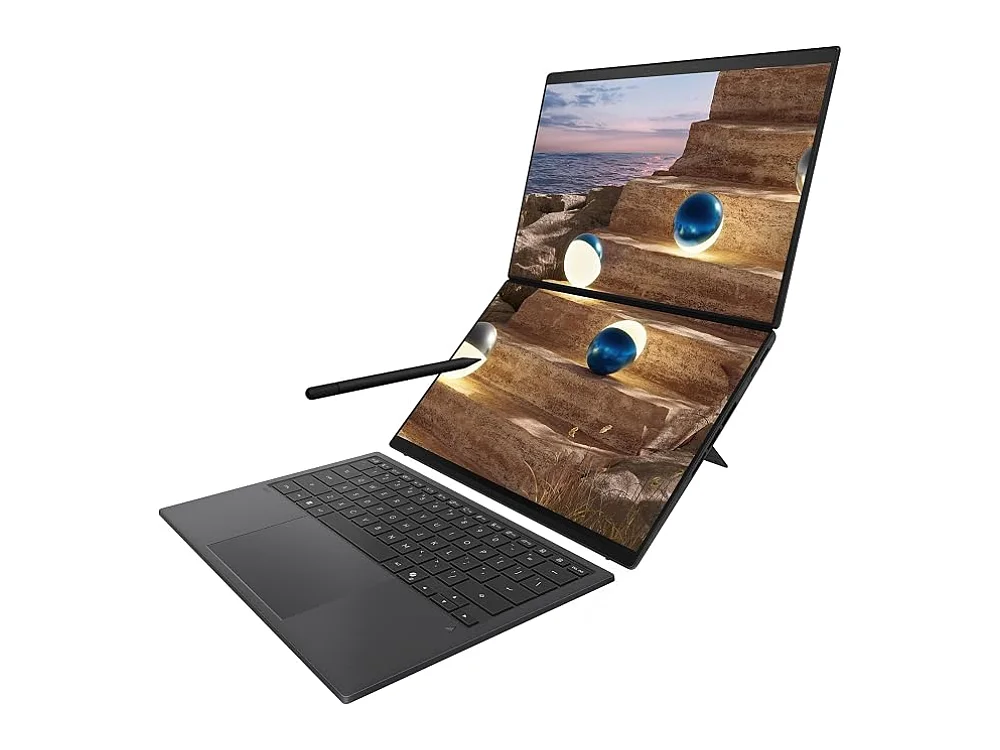 ASUS Zenbook Duo Laptop
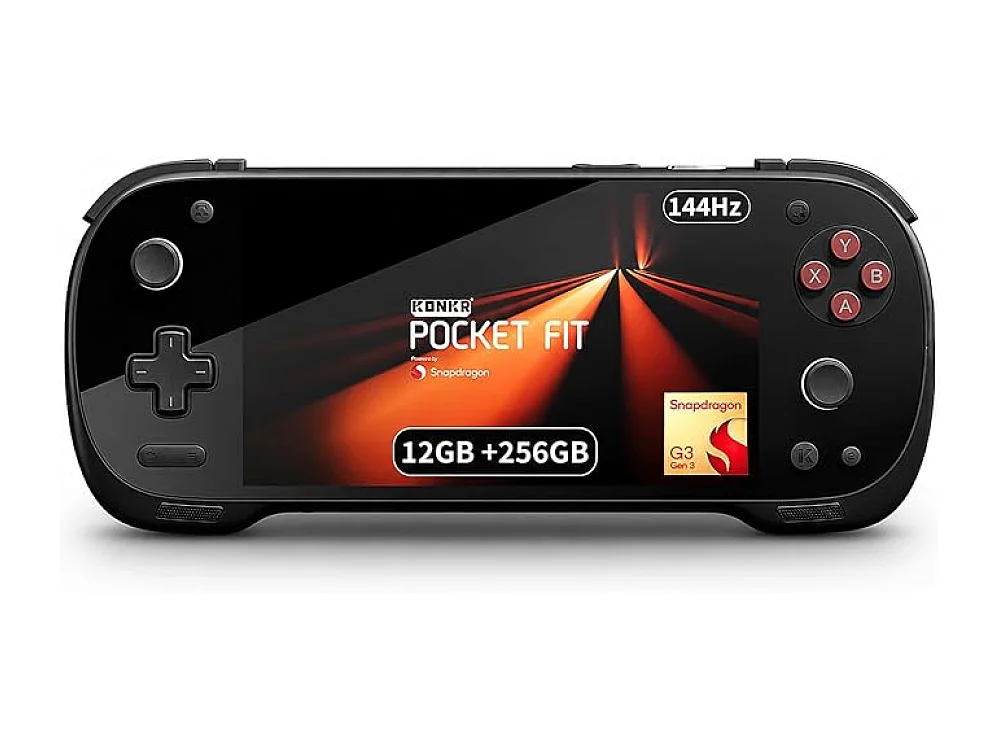 AYANEO 3
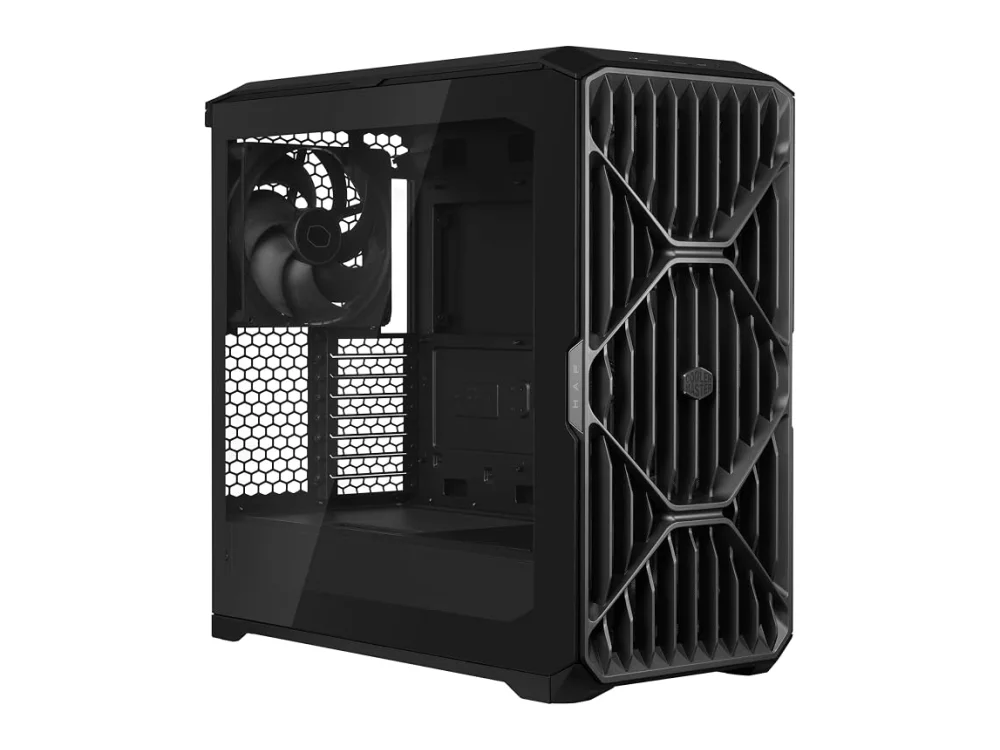 Cooler Master HAF 700
Leave a comment
Questions, corrections or your own experience: it goes to our team at comments@runonconsole.com and you get a copy.