How to Play GTA 5 Remotely: PS Portal, Remote Play & Cloud Guide

Article Overview & Key Takeaways
Learn how to play GTA 5 remotely on a handheld or phone using PlayStation Portal, PS5 Remote Play, or cloud services, with practical setup tips and device recommendations.
Gaming gear to check
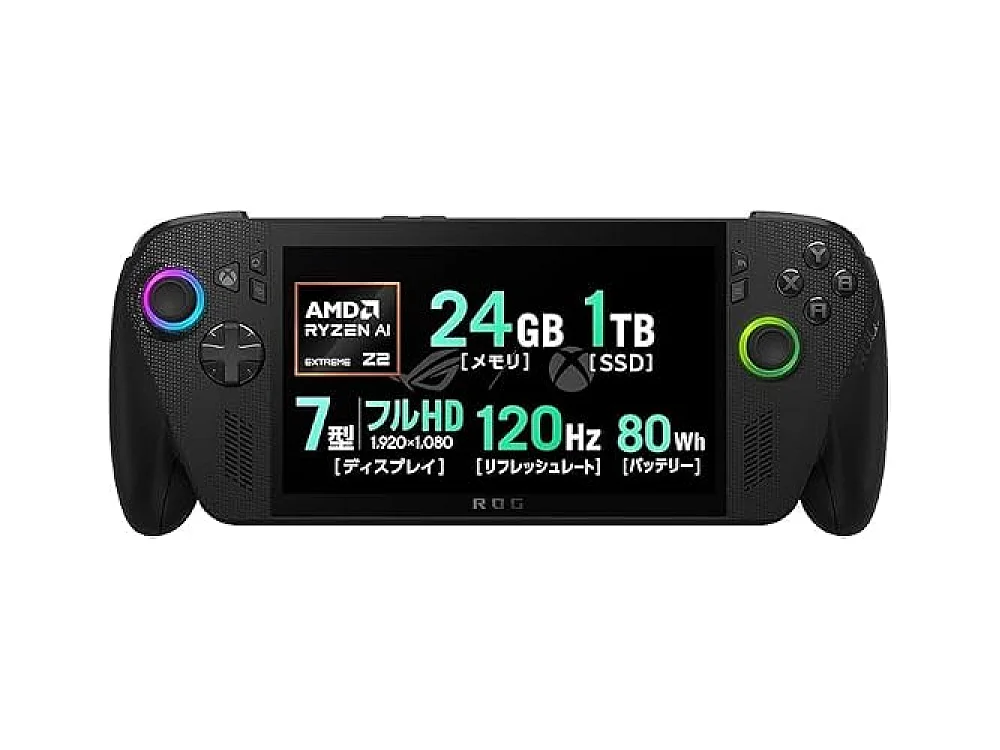 ROG Xbox Ally X
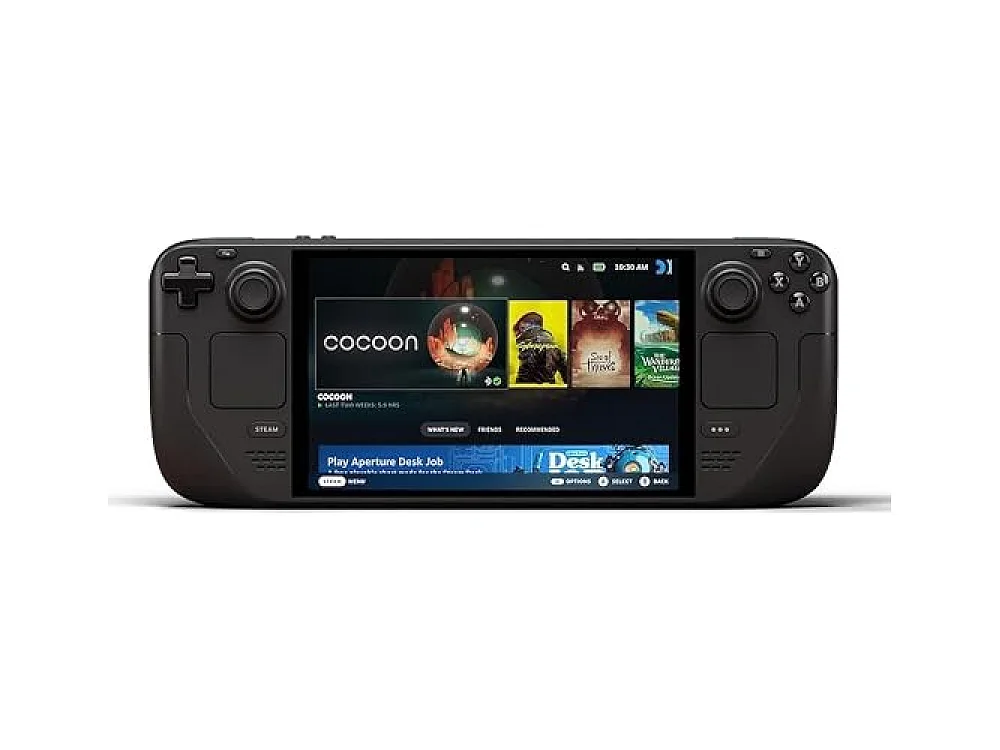 Steam Deck OLED 1TB
Want to play GTA 5 remotely without being glued to your TV? Whether you own a PlayStation Portal, a smartphone, or a cloud‑gaming subscription, you can take the open‑world chaos of Grand Theft Auto VI on the road. For the latest launch details, see our GTA 6 release date, price and PC status. And if you’re curious about the broader handheld ecosystem, check out the Gaming Handhelds hub.
Why Play GTA 5 Remotely?
Remote play lets you free up your living‑room TV for other activities while still enjoying the massive world of GTA 5 (and now GTA 6) from a portable screen. The benefits include:
- Flexibility – game from the couch, bedroom, or even a coffee shop.
- Battery‑friendly sessions – handhelds and phones can run for hours.
- Reduced wear on your console’s disc drive.
- Instant access to cloud services that stream the game directly.
Because GTA 6 launched on 19 November 2026 for PS5 and Xbox Series X|S, many players are already using Remote Play to explore Leonida on the go. The same methods work for GTA 5, which remains a favorite for its expansive map and online mode.
PlayStation Portal – The Dedicated Remote Device
The PlayStation Portal is Sony’s official handheld that streams games from a PS5 over Wi‑Fi. It’s designed for low latency and includes a built‑in controller layout identical to the DualSense.
Key Features
- 7‑inch LCD screen with 1080p support.
- DualSense‑style haptic feedback and adaptive triggers.
- Up to 8 hours of battery life (varies with streaming quality).
- Seamless integration with PS5 Remote Play.
To play GTA 5 remotely on the Portal, simply enable Remote Play on your PS5, pair the device, and launch the game from the portal’s UI. The experience feels almost native, provided you have a strong 5 GHz Wi‑Fi connection.
Using PS5 Remote Play on Your Phone or Tablet
If you don’t own a Portal, the free PS5 Remote Play app works on iOS and Android devices. Here’s how to set it up:
- Update your PS5 to the latest firmware.
- On the console, go to Settings → System → Remote Play and enable it.
- Download the PS Remote Play app from the App Store or Google Play.
- Sign in with the same PlayStation Network account used on your PS5.
- Connect a Bluetooth controller (DualSense, DualShock 4, or any compatible gamepad) for the best experience.
- Launch GTA 5 from the remote interface and enjoy.
For optimal performance, keep your phone on Wi‑Fi, close background apps, and set the streaming quality to “Performance Mode” (720p/60 fps) if your network is under 15 Mbps.
Cloud Gaming Options – Xbox Cloud Gaming & Others
Xbox Cloud Gaming (formerly xCloud) launched a day after GTA 6’s release, at 1:00 a.m. ET on 19 November 2026. The service streams the game from Microsoft’s data centers, meaning you don’t need a console at home. To use it:
- Subscribe to Xbox Game Pass Ultimate.
- Open the Xbox Cloud Gaming web app or install the Android app.
- Sign in, locate GTA 5 (or GTA 6 when it becomes available), and start playing.
While cloud latency can be higher than a local Remote Play connection, it offers the advantage of playing on any device, including low‑end laptops and tablets.
Handheld Comparisons – Portal vs. Android Handhelds
| Device | Screen | Battery Life | Latency (Typical) | Price |
|---|---|---|---|---|
| PlayStation Portal | 7" 1080p LCD | 6‑8 h | ~30 ms (Wi‑Fi) | Check current price on product page |
| ASUS ROG Ally X | 7" 1080p 120 Hz | 5‑7 h | ~40 ms (Wi‑Fi) | Check current price on product page |
| AYANEO 3 | 6.8" 1080p | 4‑6 h | ~45 ms (Wi‑Fi) | Check current price on product page |
| GPD WIN 5 | 7" 1080p | 5‑6 h | ~50 ms (Wi‑Fi) | Check current price on product page |
All of these handhelds can run PS5 Remote Play or cloud services, but the Portal offers the most integrated experience for PlayStation fans. For Android‑based devices, you’ll rely on the Remote Play app and a compatible controller.
Setting Up Your Remote Play for GTA 5
Follow these quick steps to ensure a smooth session:
- Network prep: Use a wired Ethernet connection for your PS5, then place your router within a few meters of the handheld.
- Controller pairing: Bluetooth controllers should be fully charged; avoid using the phone’s touch controls for precision driving.
- Game updates: Keep GTA 5 patched to the latest version to avoid compatibility issues.
- Audio setup: Connect headphones to the handheld or use Bluetooth audio for reduced lag.
Tips for Smooth Gameplay on the Go
- Enable “Performance Mode” in the Remote Play app to prioritize frame rate over resolution. li>Close all background apps on your phone or handheld to free up RAM.
- If you notice stutter, lower the streaming bitrate in the app’s settings.
- Use a high‑quality Wi‑Fi 5 GHz router; 2.4 GHz is prone to interference.
- Consider a portable power bank (10,000 mAh or higher) for extended sessions.
Product Spotlights – Handhelds That Work Well
ASUS ROG Ally X gaming handheld
The ASUS ROG Ally X runs Windows and can stream PS5 Remote Play via the official app. It’s a solid choice for gamers who also want PC titles on the same device. ASUS ROG Ally X gaming handheld
ASUS ROG Ally Z1 Extreme gaming handheld
The Z1 Extreme packs a more powerful GPU, making it ideal for higher‑resolution streaming and native PC gaming. It also supports Bluetooth controllers for PS Remote Play. ASUS ROG Ally Z1 Extreme gaming handheld
AYANEO 3 gaming handheld
AYANEO’s latest model offers a sleek design and good battery life, perfect for long road trips. It runs Windows, so you can install the Remote Play client directly. AYANEO 3 gaming handheld
GPD WIN 5 gaming handheld
The GPD WIN 5 is a compact option with a familiar keyboard layout for quick text entry in GTA Online. It handles Remote Play without a hitch. GPD WIN 5 gaming handheld
For deeper buying advice, read How Choose Gaming Handheld: A Simple Guide for Gamers and Gaming Handheld Specs Explained: What Really Matters.
Want to buy a gaming handheld? Here are 3 similar picks:
- GPD WIN Mini 2025: Portable PC gaming on the move
- Lenovo Legion Go: Portable PC gaming
- Lenovo Legion Go 2: PC gamers on the move
Open a product to see its full details, then use the Amazon button there.
FAQ
Can GTA 5 be played on mobile?
Yes. Using PS5 Remote Play, you can stream GTA 5 to any iOS or Android phone or tablet. A stable 5 GHz Wi‑Fi connection and a Bluetooth controller are recommended for the best experience.
Can I play GTA 5 remotely on a handheld?
Absolutely. Handhelds like the PlayStation Portal, ASUS ROG Ally series, AYANEO 3, and GPD WIN 5 can all run the Remote Play app, letting you stream GTA 5 from your PS5.
What is the typical latency for PS5 Remote Play?
Latency varies with network quality but most users see 30‑50 ms on a strong 5 GHz Wi‑Fi connection, which feels near‑instant for open‑world driving.
Is there a cloud option for GTA 5?
While Rockstar has not announced a dedicated GTA 5 cloud service, Xbox Cloud Gaming can stream the game if it’s included in the Game Pass library. Performance depends on your internet speed and the distance to Microsoft’s data center.
Conclusion
Playing GTA 5 remotely gives you the freedom to explore Leonida’s streets (or Los Santos, if you’re still on GTA 5) from anywhere. Whether you opt for the official PlayStation Portal, a powerful Android handheld, or a cloud subscription, the steps above will get you rolling in minutes. Keep your network solid, pair a good controller, and you’ll be stealing cars and pulling off heists without ever needing the TV again.
Keep reading: more on Gaming Handhelds
Keep reading
Gaming gear on Run On Console
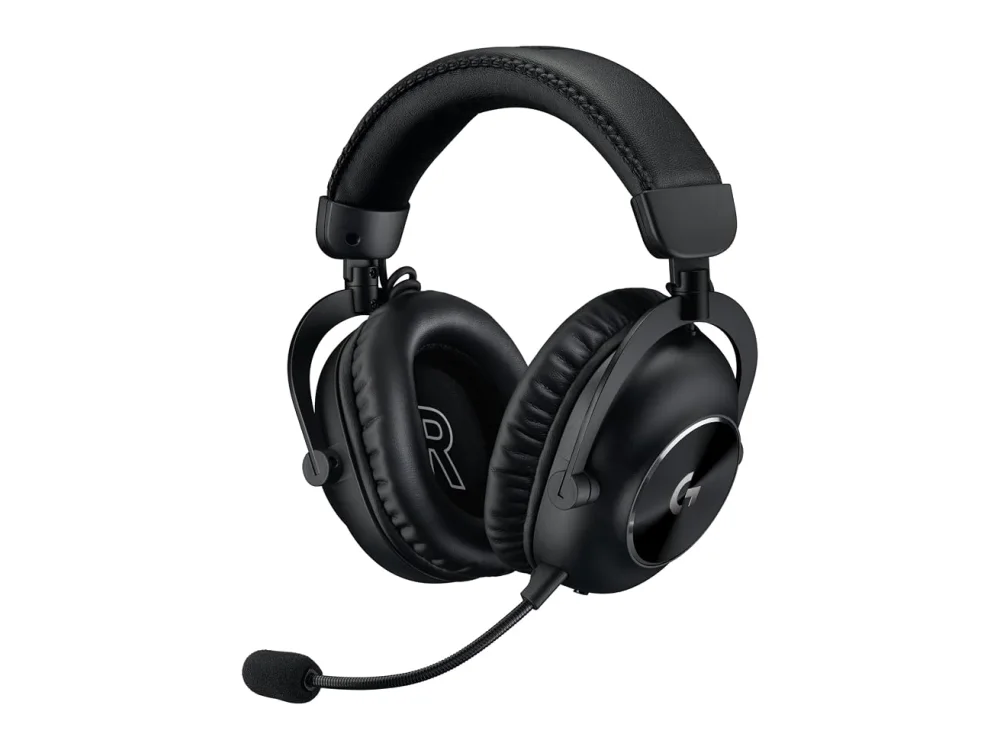 Logitech G Pro X 2 LIGHTSPEED
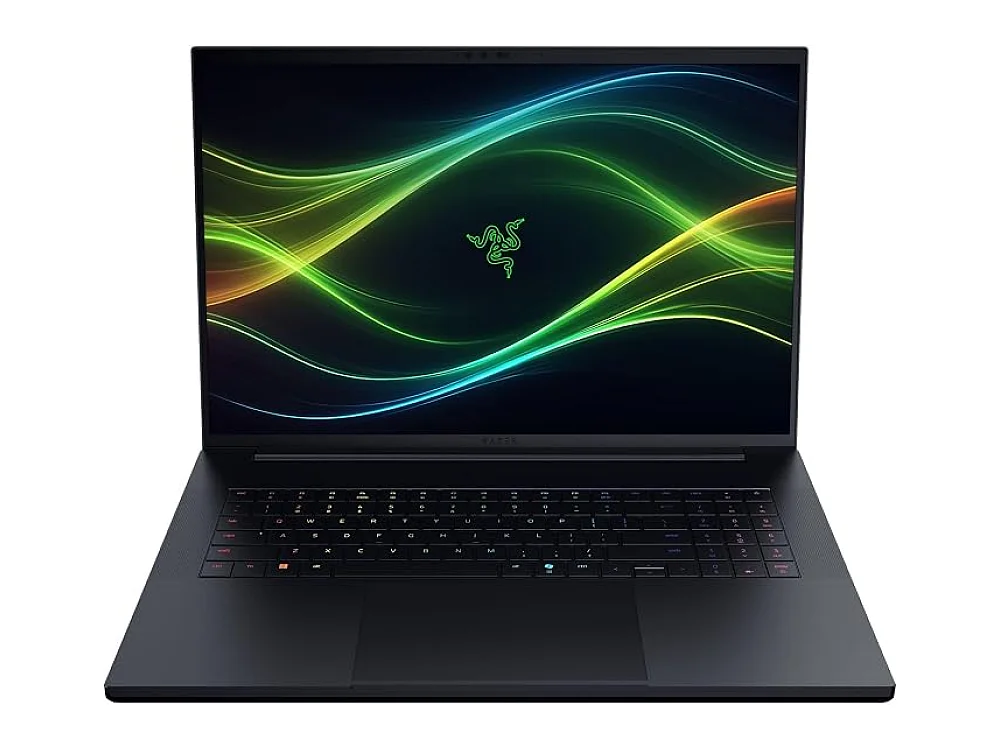 Razer Blade 18 (2026)
 Intel Core i5-14600K
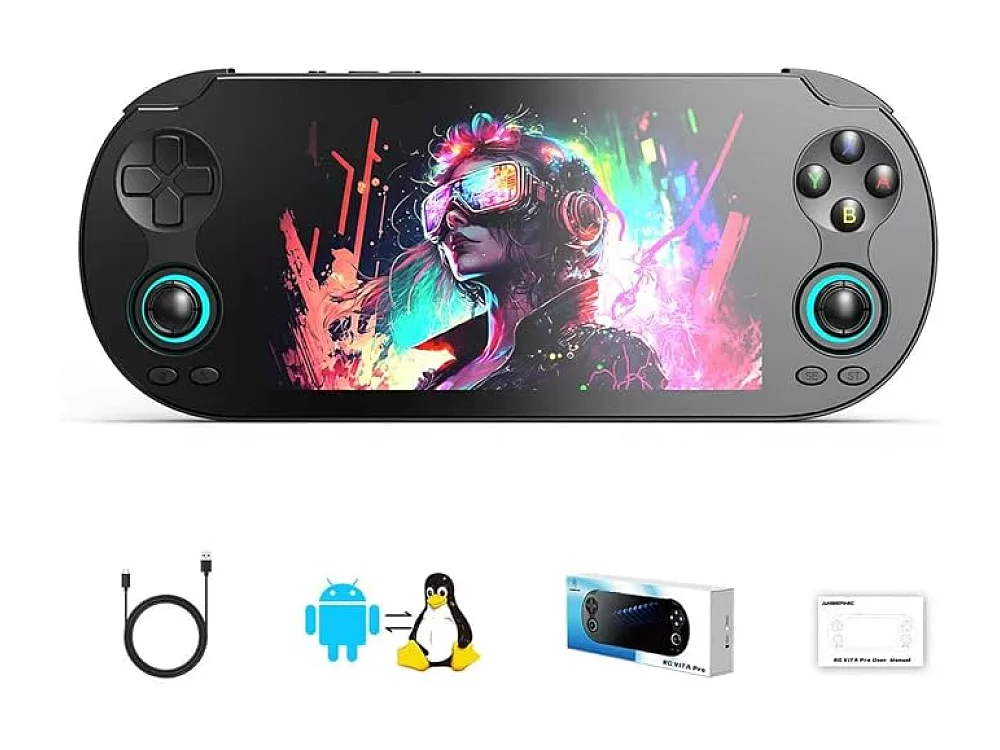 Vita Pro Handheld
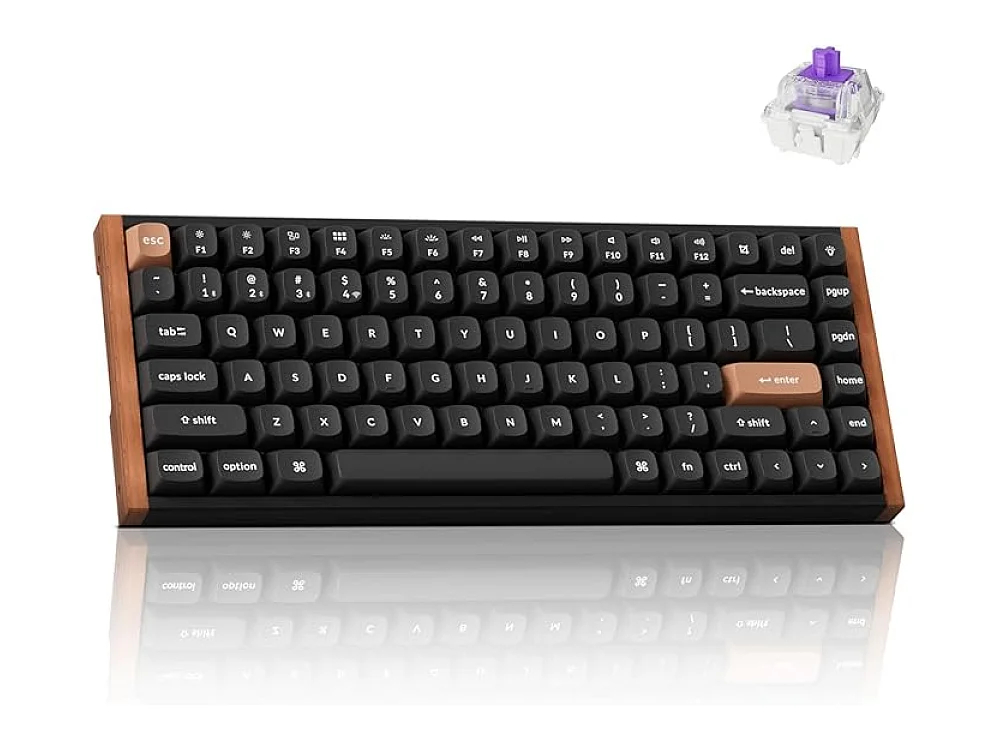 Keychron K2 HE
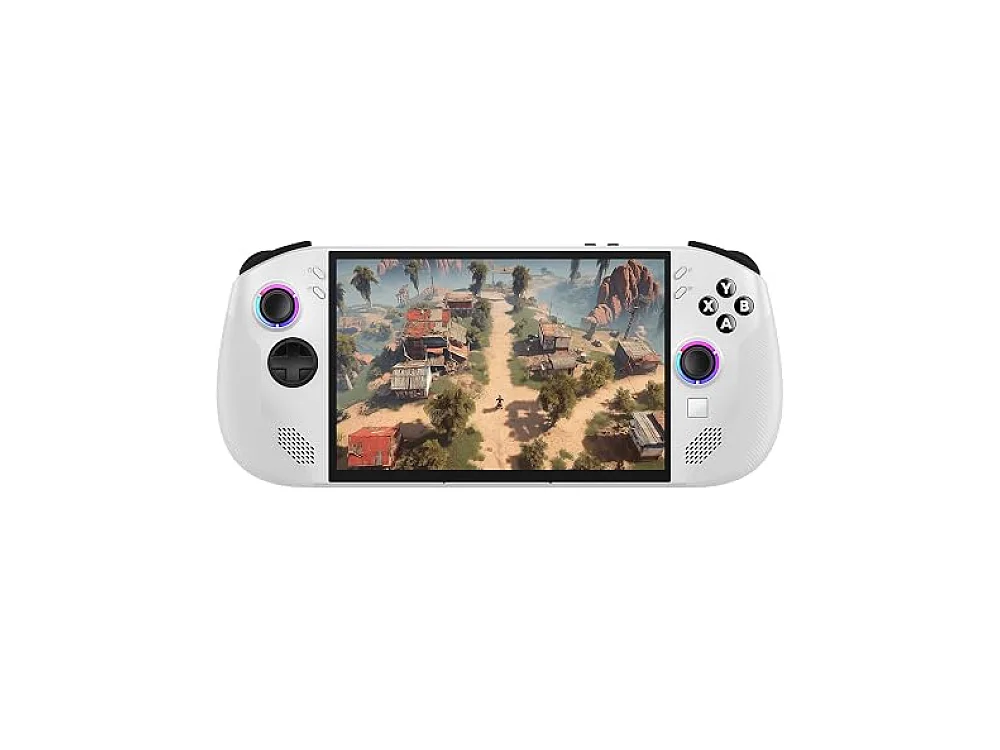 Lenovo Legion Go S
 Lian Li O11 Vision Compact
 Logitech G915 X LIGHTSPEED
Leave a comment
Questions, corrections or your own experience: it goes to our team at comments@runonconsole.com and you get a copy.