Xbox Series X Storage Expansion for GTA 6

Article Overview & Key Takeaways
Learn how to expand your Xbox Series X or S storage to fit the massive GTA 6 download. This guide covers compatible SSDs, installation steps, and how to manage your drive space.
Gaming gear to check
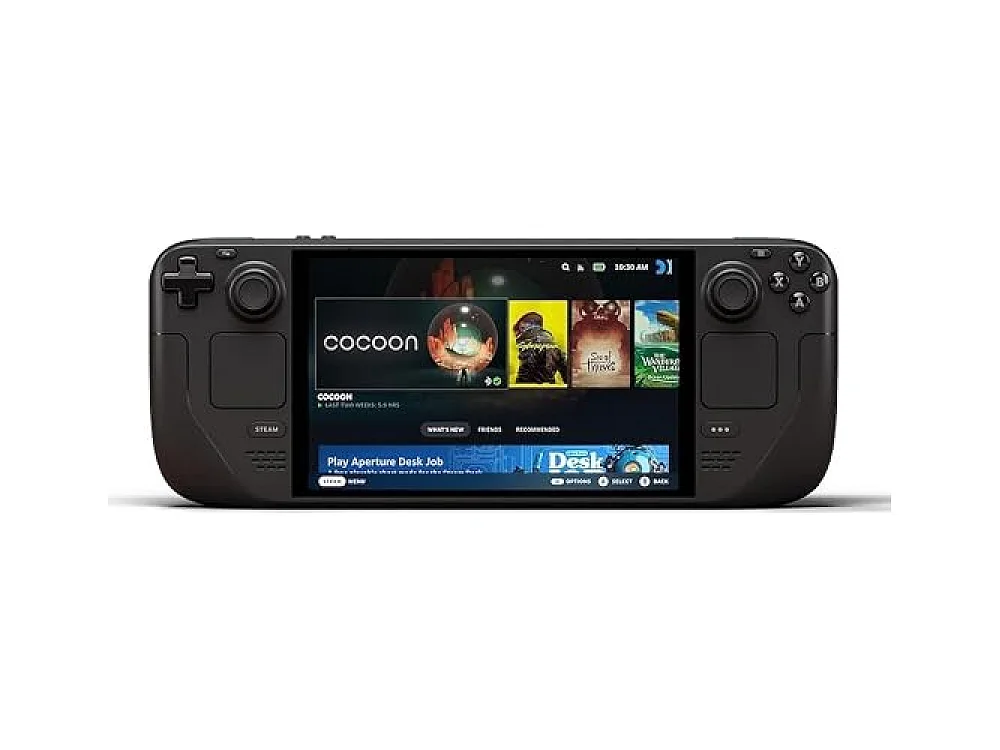 Steam Deck OLED 1TB
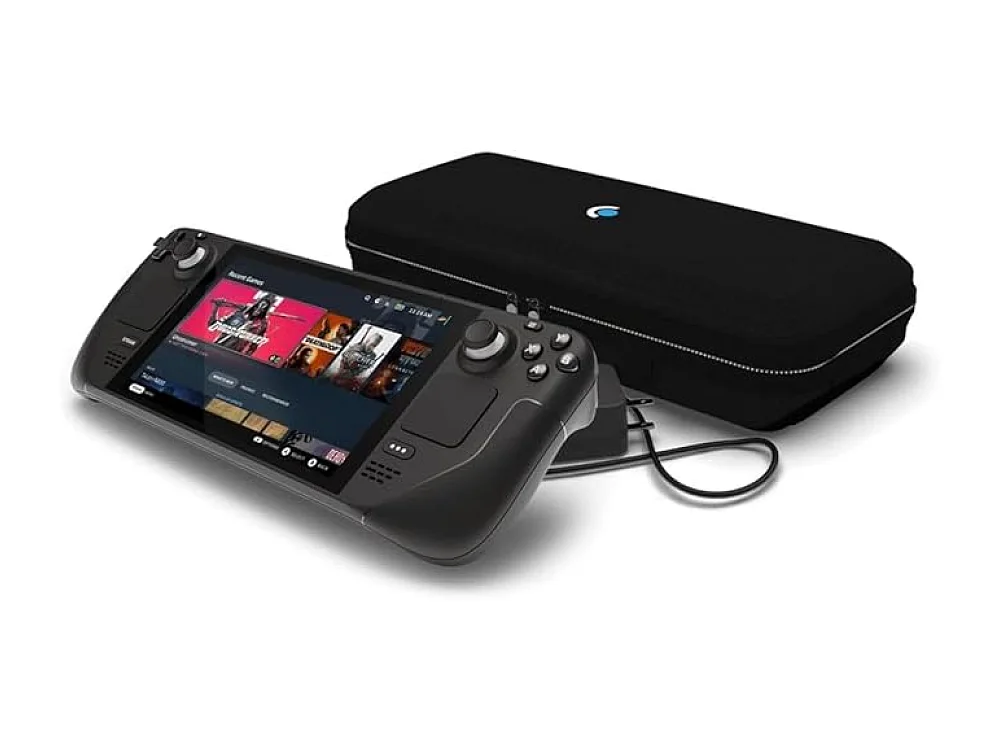 Steam Deck OLED 512GB
Grand Theft Auto VI launched on 19 November 2026, bringing a massive open world that demands serious hard drive space. To ensure you have enough room for the game and its updates, you need to understand how to expand your console's storage. This guide walks you through adding a compatible SSD to your Xbox Series X or S so you can keep GTA 6 installed without deleting other titles. By the end, you will have a secondary drive set up, formatted, and ready to hold your largest games. If you are also following the GTA 6 release date, price and PC status, you know that Rockstar has not announced a PC version yet, making console storage management critical for players who want to keep the game installed permanently.
While many gamers look to portable devices for flexibility, the Xbox ecosystem requires specific internal or external storage solutions for optimal performance. Unlike handhelds, which often use standard microSD cards, the Xbox Series X|S uses NVMe M.2 SSDs for internal expansion. You might be interested in other form factors like the Gaming Handhelds category for on-the-go play, but for a dedicated living room setup with a large library, internal expansion is the most seamless method. It is important to note that not all solid-state drives will work; Microsoft has strict requirements for speed and size that differ from standard PC builds.
What You Need
- An Xbox Series X or Xbox Series S console.
- A compatible NVMe M.2 SSD (1TB, 2TB, or 4TB).
- A small Phillips screwdriver (usually included with the console or available at home).
- A powered USB hub or direct USB port for external drives if using that route (optional).
- Access to a stable internet connection for firmware updates.
Step 1: Verify SSD Compatibility
Before buying any hardware, you must confirm the drive meets Microsoft's specifications. The Xbox Series X|S requires an NVMe M.2 SSD with a specific form factor and speed. The drive must be M.2 2280 size (22mm wide, 80mm long) and use the PCIe 3.0 x4 interface or faster. However, simply having the right shape is not enough; the drive must also meet a minimum sequential read/write speed threshold. Microsoft states that the drive must be able to sustain at least 5,500 MB/s read and 5,000 MB/s write speeds. If you buy a slower drive, the console will not recognize it for internal expansion, and you will be forced to use it as an external USB drive, which offers slower load times and no ability to store games directly on it for fast loading.
Common Mistake: Buying a high-capacity SSD that is optimized for capacity rather than speed. Some budget 4TB drives have lower sustained write speeds. Always check the manufacturer's datasheet for "sustained" speeds, not just peak speeds. If you are unsure whether a specific drive model will work, you can check community reports or the official Xbox support page for a list of tested drives. For PC users who might be comparing hardware, you can use PC requirements of 2,400+ games to see how storage speed affects other titles, but remember that console hardware is more restrictive than PC hardware.
Step 2: Purchase the Correct SSD
Once you have identified a compatible drive, purchase it from a reputable retailer. Popular brands that have released Xbox-compatible expansion cards or bare SSDs include Seagate, WD, and Kingston. You can buy a pre-installed expansion card (which includes the heatsink and bracket) or a bare SSD if you are comfortable installing the heatsink yourself. The expansion card is easier for most users as it comes pre-assembled. When selecting a capacity, remember that GTA 6 requires up to 212 GB for the initial pre-load. If you plan to keep other large games installed, a 2TB drive is the minimum recommended capacity. A 4TB drive provides more future-proofing but costs more. Check your local store for availability, as stock may vary by region.
Tip: If you are also using a PC, ensure the SSD you buy for your Xbox is not intended for a specific motherboard slot that conflicts with your PC build. Some drives are optimized for specific laptop slots. For the Xbox, the M.2 2280 NVMe drive is the standard. If you are considering a handheld device for portable gaming, models like the ASUS ROG Ally X or AYANEO KUN use different storage standards, so do not mix up parts. The Xbox internal drive is specific to the console's internal bay.
Want to buy a gaming handheld? Here are 3 similar picks:
- GPD WIN Mini 2025: Portable PC gaming on the move
- Lenovo Legion Go: Portable PC gaming
- Lenovo Legion Go 2: PC gamers on the move
Open a product to see its full details, then use the Amazon button there.
Step 3: Prepare Your Console
Before opening the console, turn it off completely. Do not put it in energy-saving mode; you must power it off. Unplug the power cable and all other cables (HDMI, USB, Ethernet) from the back and front of the console. This prevents any accidental damage and ensures the console is in a safe state for hardware modification. Place the console on a stable, flat surface with the ventilation slots facing up. If you are using a Series X, the storage bay is located on the bottom of the console. If you are using a Series S, the bay is also on the bottom but the console is smaller. Have your screwdriver ready. The screws are small, so keep them in a safe place to avoid losing them. If you are new to opening consoles, watch a video tutorial specific to your model to see the exact location of the screws and the bay cover.
Tip: If you are a PC gamer who frequently opens cases, you will recognize the process. However, the Xbox screws are often captive or have a different head type. Do not use too much force. If a screw feels stuck, do not force it; add a bit of pressure with your thumb before turning. For those who prefer a more powerful handheld for development or multi-tasking while gaming, the GPD WIN 5 is a powerful option, but it is not relevant to Xbox storage expansion. Focus on the console itself for this step.
Want to buy a gaming handheld? Here are 3 similar picks:
- Lenovo Legion Go S: PC gamers who need portability
- MSI Claw 8 AI+: PC-game fans on the go
- MSI Claw 8 EX AI+: On-the-go PC gamers
Open a product to see its full details, then use the Amazon button there.
Step 4: Install the SSD
Remove the cover plate for the storage bay. On the Series X, this is a rectangular cover on the bottom. On the Series S, it is a similar cover but smaller. Once the cover is off, you will see a slot for the SSD. If you bought a pre-installed expansion card, align it with the slot and push it in gently until it clicks. If you bought a bare SSD, you must attach the heatsink and bracket first. This is a more advanced step. Once the SSD is in place, secure it with the screw provided. Do not over-tighten the screw, as this can strip the thread or crack the plastic housing. Reattach the cover plate and screw it back into place. Ensure the cover is flush with the console's body. If the cover does not sit flat, the SSD may not be seated correctly. Remove it and check the alignment.
Common Mistake: Forgetting to install the heatsink if using a bare SSD. The Xbox Series X|S generates heat, and the SSD can overheat without proper cooling. The heatsink is essential for long-term reliability. If you are using an external USB drive instead, ensure it is connected to a powered USB hub. The Xbox's front USB ports may not provide enough power for some large external drives, causing them to disconnect during large copies. For users who want to test game compatibility on other platforms before committing to a console, you can use the Can I run it? game checker to see if a title runs on your PC, but for GTA 6, the console is currently the only platform.
Step 5: Format the Drive
Turn on your Xbox. The console should detect the new storage device automatically. Go to Settings > General > Storage devices. You will see the new SSD listed. Select it and choose Format. This process erases all data on the drive and prepares it for use with the Xbox. The format may take a few minutes. Do not turn off the console during this process. Once formatted, the drive will be ready to store games. You can now move games from the internal drive to the external SSD to free up space. Go to Settings > General > Storage and select the internal drive. Choose the games you want to move and select Move. This will copy the games to the new SSD and delete them from the internal drive. The move process can take a long time for large games like GTA 6, so be patient.
Tip: Format the drive as "Xbox" if you want to store games and apps. If you format it as "USB," it can only store media files and cannot be used to install games. For gaming, always choose the Xbox format. If you are using a handheld device for your main gaming, such as the ASUS ROG Ally Z1 Extreme or AYANEO 3, you do not need to worry about this console-specific format, but keep in mind that the Xbox requires this specific step to recognize the drive for game storage.
Want to buy a gaming handheld? Here are 3 similar picks:
- MSI Claw A8: PC game enthusiasts on the move
- ROG Xbox Ally: Portable PC gaming on the go
- ROG Xbox Ally X: Portable PC gamers
Open a product to see its full details, then use the Amazon button there.
Step 6: Download and Install GTA 6
Now that your storage is expanded, you can download GTA 6. Go to the Microsoft Store on your Xbox and search for "Grand Theft Auto VI." Reserve the game if it is not yet available for purchase, or buy it if it is on sale. Once purchased, start the download. The download size is up to 212 GB, so ensure you have a stable internet connection. A wired Ethernet connection is recommended for large downloads to avoid Wi-Fi interruptions. You can monitor the download progress in the Library section. Once the download is complete, the game will install. The installation process may take additional time, as the console decompresses and organizes the game files. Do not turn off the console during the installation. Once installed, you can launch the game. If you run out of space on the internal drive, you can move other games to the external SSD to free up space.
Common Mistake: Trying to install GTA 6 on the internal drive when you do not have enough space. The console will not allow you to start the installation if the required space is not available. Always check your free space before starting a large download. If you are a PC gamer, you might be used to managing disk space manually, but the Xbox handles this more automatically. However, you still need to be proactive about moving games to the external drive. For those who want to check if their PC can run similar open-world games, use PC requirements of 2,400+ games to compare performance expectations, but remember that GTA 6 is currently exclusive to consoles.
Step 7: Manage Your Storage
After installing GTA 6, you should regularly check your storage usage. Go to Settings > General > Storage to see how much space is used on each drive. You can delete unused games or move them to the external SSD to free up internal space. The internal drive is faster, so keep your most frequently played games there. Use the external SSD for games you play less often. You can also set up automatic moves, where the console automatically moves games to the external drive when the internal drive is full. To do this, go to Settings > General > Storage > Storage settings and enable Auto-move. This ensures you always have enough space for new updates and downloads. Regular maintenance will keep your console running smoothly and prevent storage issues in the future.
Tip: If you are using a handheld device for your main gaming, you might not need to worry about this level of storage management, as handhelds often have smaller libraries. However, if you are a dedicated Xbox player, managing your storage is essential. For those who want to expand their gaming setup with a powerful handheld, consider the AYANEO KUN for its compact size and portability, but remember that it is a separate ecosystem from the Xbox. The Xbox storage expansion is specific to the console and cannot be transferred to a handheld.
FAQ
Can I use any M.2 SSD in my Xbox Series X?
No, you cannot use any M.2 SSD. The drive must meet specific speed requirements (5,500 MB/s read, 5,000 MB/s write) and form factor (M.2 2280 NVMe). If the drive is too slow, the console will not recognize it for internal expansion. You must check the manufacturer's specifications to ensure compatibility. Using an incompatible drive may result in the console not detecting the drive at all, or only recognizing it as an external USB drive if connected via a USB adapter.
How much space does GTA 6 need?
Rockstar has stated that the pre-load for GTA 6 requires up to 212 GB of free space. This is the minimum amount of space needed to download and install the game. However, updates and additional content may increase the required space over time. It is recommended to have at least 250-300 GB of free space to accommodate future updates and ensure smooth performance. If you have other large games installed, you may need to move them to an external drive to free up space on the internal drive.
Can I move GTA 6 to an external USB drive?
Yes, you can move GTA 6 to an external USB drive, but it must be a compatible USB drive. The drive must be USB 3.0 or faster and have a minimum capacity of 256 GB. However, games stored on an external USB drive will have slower load times compared to the internal SSD. This is because USB drives are generally slower than internal NVMe SSDs. If you want the fastest possible load times, keep GTA 6 on the internal SSD or a compatible internal expansion card. Moving the game to an external drive is a good option if you are short on internal space and do not mind slightly longer load times.
Conclusion
Expanding your Xbox Series X or S storage is a straightforward process that ensures you can keep GTA 6 and other large games installed without running out of space. By following these steps, you can add a compatible SSD, format it, and manage your library effectively. Always check compatibility before purchasing a drive, and maintain your storage regularly to avoid issues. With a properly expanded storage setup, you can enjoy GTA 6 and your other favorite games without worrying about disk space. For more information on the game, visit our GTA 6 release date, price and PC status page for the latest updates and news.
More on GTA 6
- GTA 6 release date, price and PC status
- GTA 6 PS5 vs Xbox Series X: HDR Cost and Performance Gap (News)
- Xbox Controllers Hit Lowest 2026 Price for GTA 6 Launch (News)
- Black Friday 2026: XR Glasses, RTX 5090 PC and GTA 6 Ready Hardware (News)
- GTA 6 PC Price: GPU Guide for the Future Port (Blog)
- Best Monitor for GTA 6 PS5 Pro: TV or Monitor, What to Look For (Blog)
- Best headset for GTA 6 PS5 – Top picks for PS5 & Xbox (Blog)
- Xbox HDR Calibration Guide for GTA 6 on Series X|S (Guide)
Keep reading
Gaming gear on Run On Console
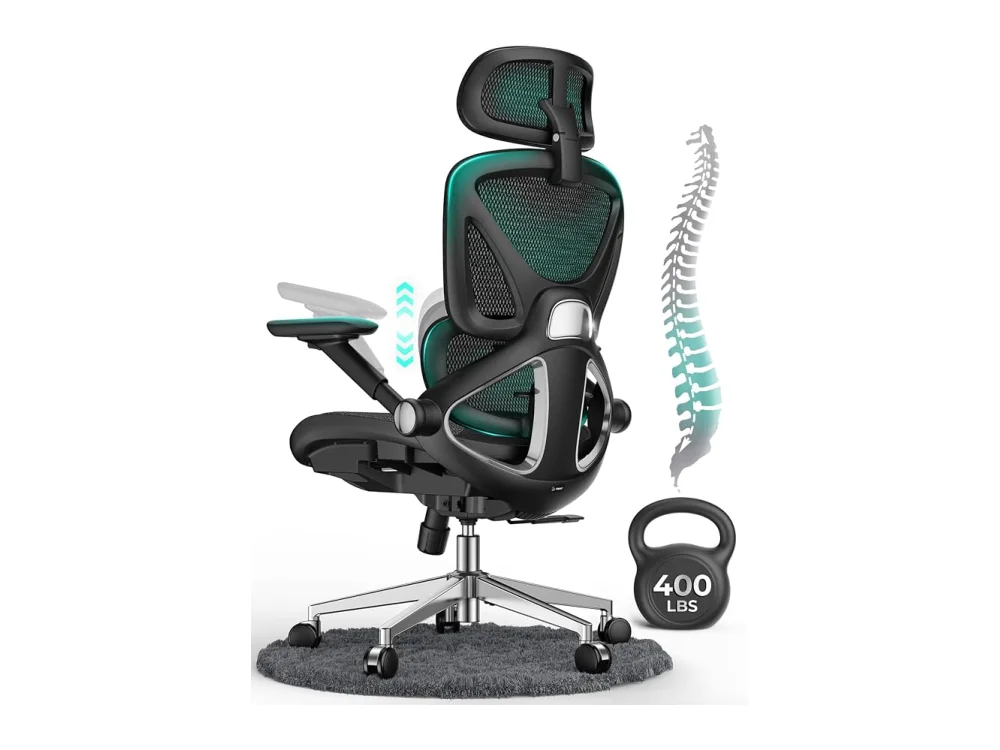 CAPOT Gaming Chair
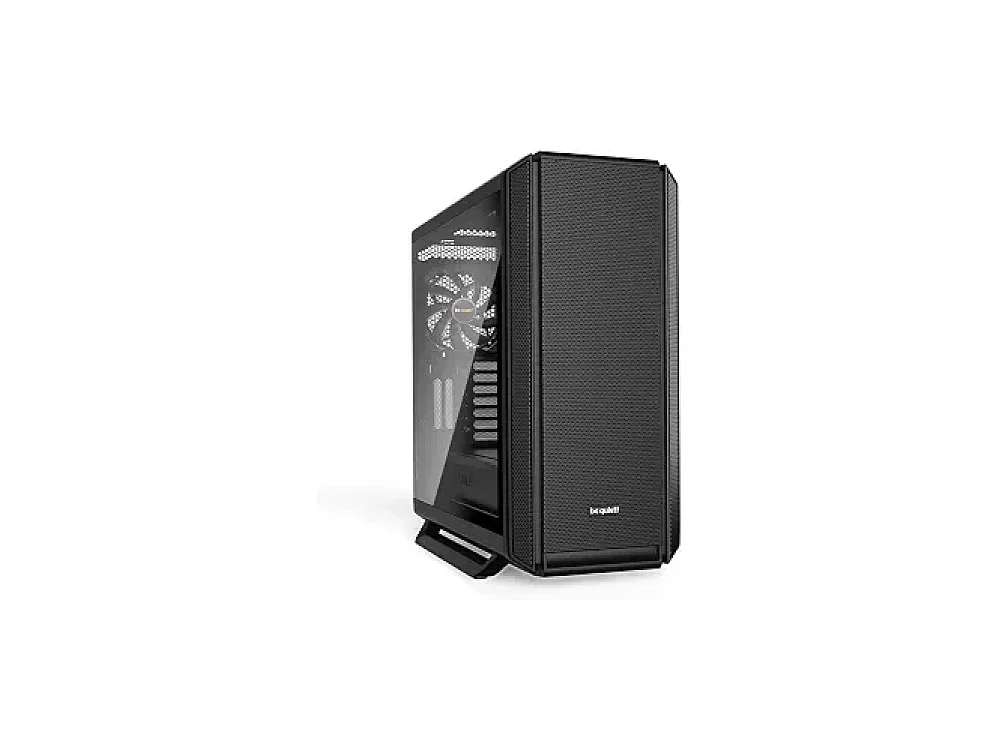 be quiet! Shadow Base 800
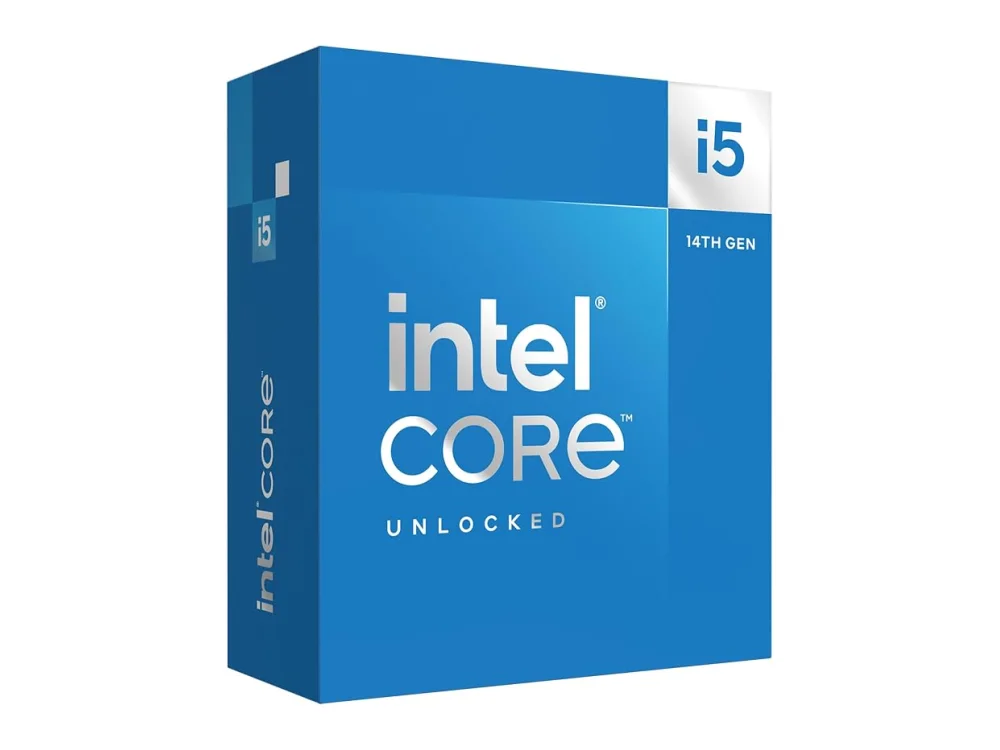 Intel Core i5-14600K
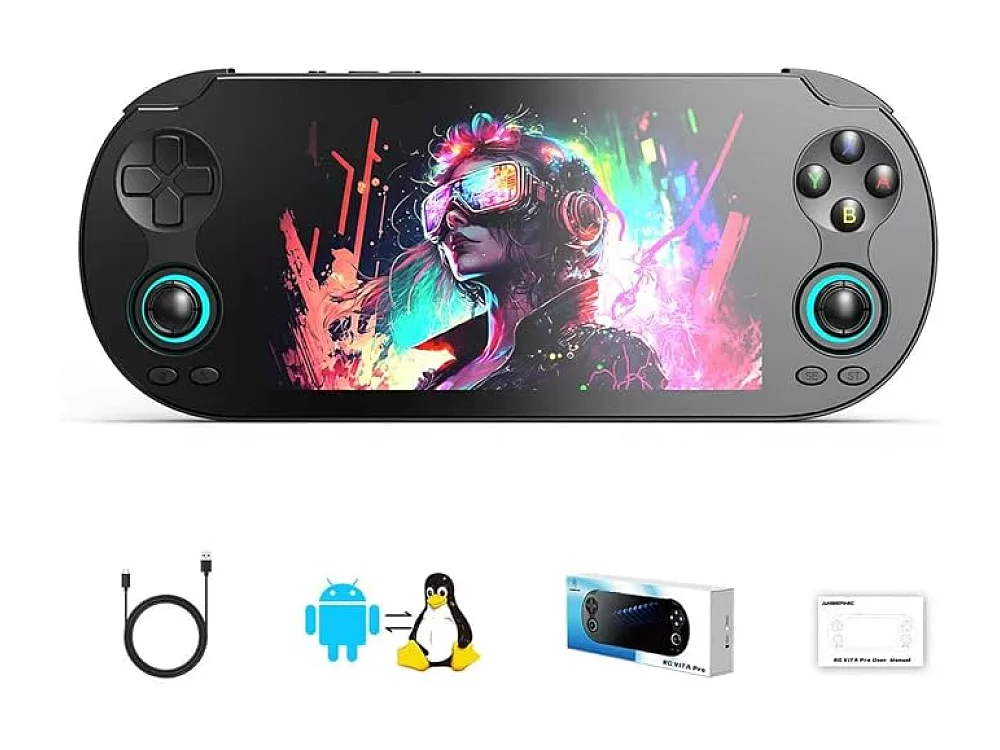 Vita Pro Handheld
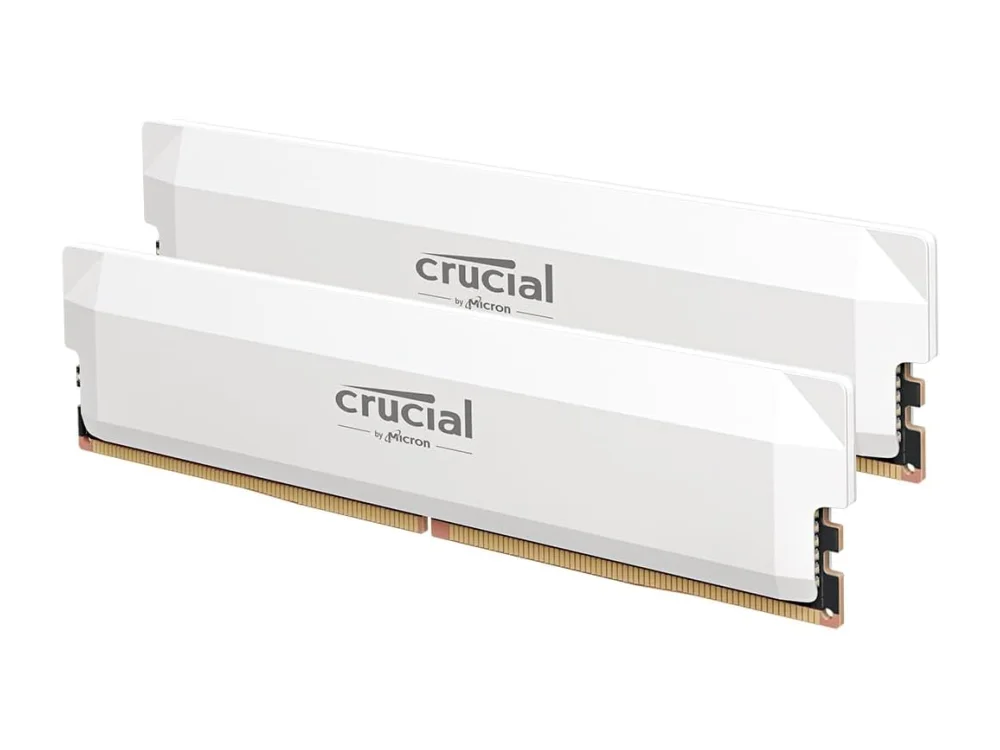 Crucial Pro Overclocking DDR5-6000
 Endgame Gear OP1 8K V2
 G.Skill Ripjaws V DDR4-3200
 GTPLAYER Gaming Chair
Leave a comment
Questions, corrections or your own experience: it goes to our team at comments@runonconsole.com and you get a copy.