How to Download GTA 6 Faster on PS5 and Xbox

Article Overview & Key Takeaways
Learn quick, practical steps to shave hours off your GTA 6 download on PS5 and Xbox, from wiring your console to optimizing DNS and storage.
Gaming gear to check
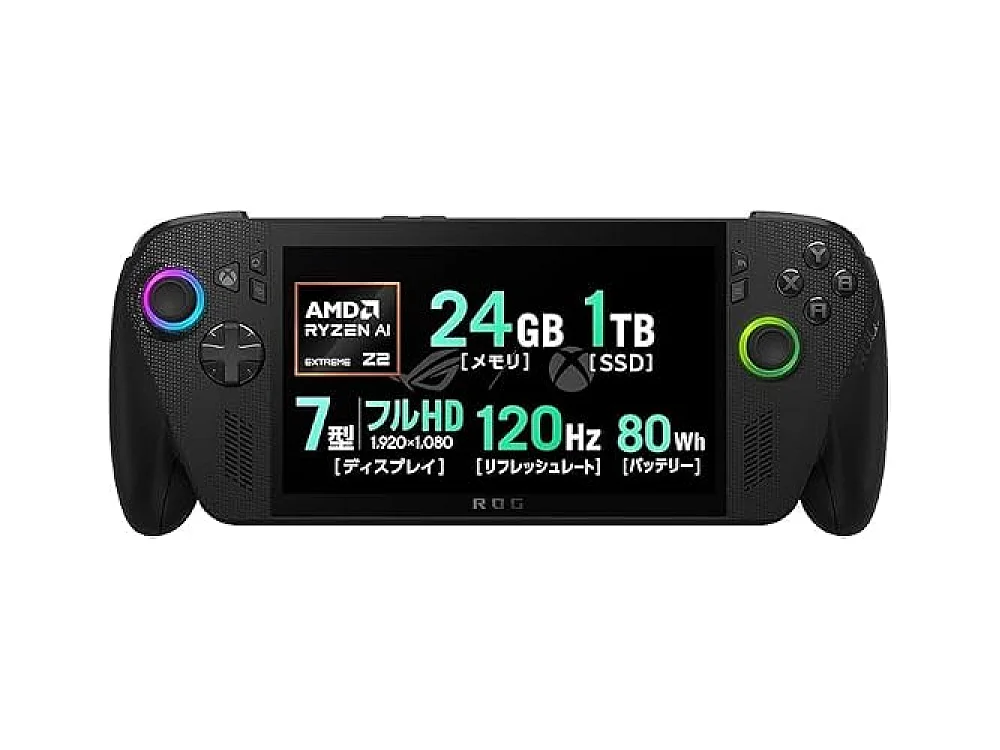 ROG Xbox Ally X
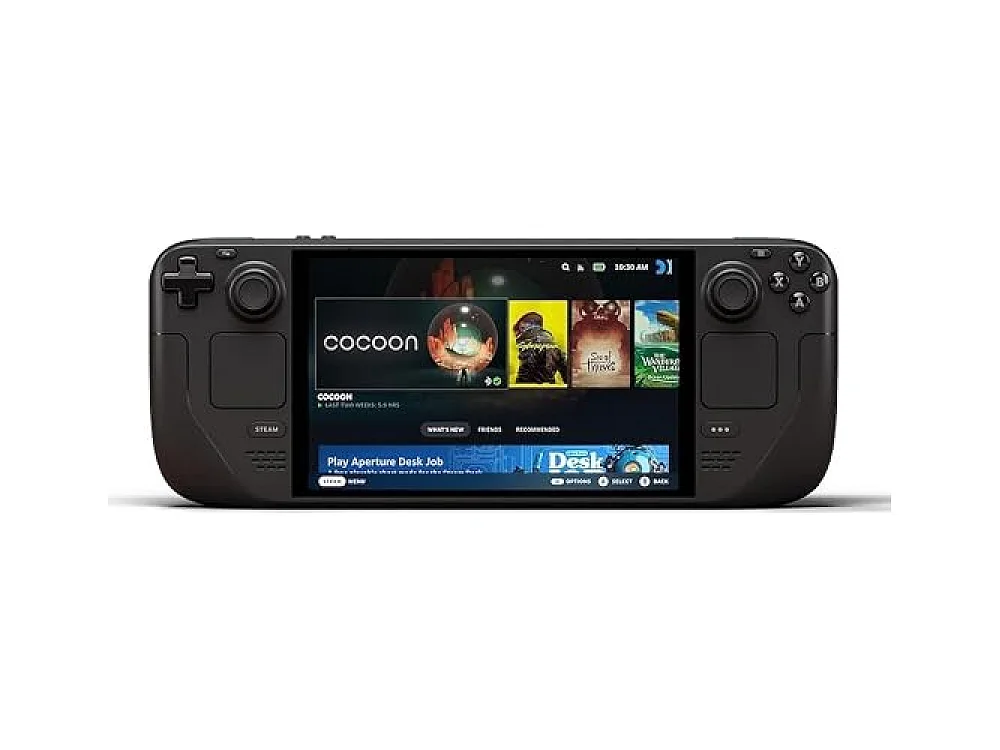 Steam Deck OLED 1TB
In this guide you’ll learn how to cut down the time it takes to download Grand Theft Auto VI on your PlayStation 5 or Xbox Series X|S, so you can start exploring Leonida sooner. By following the steps you’ll have a faster, more reliable download without buying extra hardware.
What you need: a stable internet connection, an Ethernet cable (optional but recommended), a few minutes to adjust console settings, and access to your router’s admin page. For more background on the launch, see the GTA 6 release date, price and PC status page. If you’re interested in portable alternatives, check out the Gaming Handhelds section for devices that can test network speed on the go.
What you need
- PlayStation 5 or Xbox Series X|S with at least 212 GB free storage (Rockstar’s pre‑load can require up to 212 GB).
- Stable broadband – at least 25 Mbps download speed for reasonable performance.
- Ethernet cable (Cat6 or better) for a wired connection.
- Access to your router’s admin interface (username/password).
- A PC or smartphone for testing DNS and speed.
Step 1: Use a Wired Connection
The simplest way to boost download speed is to connect your console directly to the router with an Ethernet cable. Wi‑Fi is subject to interference, especially on the 2.4 GHz band, and can easily halve your effective speed.
- Plug one end of the cable into a free LAN port on the router.
- Connect the other end to the console’s Ethernet port.
- On PS5 go to Settings → Network → Settings → Set Up Internet Connection → Use a LAN Cable. On Xbox go to Settings → General → Network Settings → Wired network.
Tip: Use a Cat6 cable to ensure gigabit capability, even if your ISP caps at lower speeds.
Common mistake: Leaving the cable loosely plugged in; a loose connection can cause frequent drops and slower speeds.
Step 2: Prioritize Console Traffic on Your Router
Most modern routers have a Quality of Service (QoS) feature that lets you give priority to specific devices or traffic types.
- Log into your router (usually 192.168.1.1 or 192.168.0.1).
- Find the QoS or Traffic Management section.
- Add a new rule: select your console’s MAC address and set the priority to High or Gaming.
- Save and reboot the router if required.
Tip: If your router supports “Game Boost” or “Gaming Mode”, enable it – it automatically applies QoS for consoles.
Common mistake: Setting the priority too low or applying it to the wrong device, which leaves the console competing with phones, TVs, and smart speakers.
Step 3: Switch to a Fast, Reliable DNS
Domain Name System (DNS) resolution can add a few seconds to each request your console makes. Switching to a public DNS such as Cloudflare (1.1.1.1) or Google (8.8.8.8) often reduces latency.
- On PS5: Settings → Network → Settings → Set Up Internet Connection → Custom → DNS Settings → Manual.
- Enter Primary DNS = 1.1.1.1 and Secondary DNS = 1.0.0.1 (or Google’s 8.8.8.8 / 8.8.4.4).
- On Xbox: Settings → General → Network Settings → Advanced Settings → DNS Settings → Manual.
- Enter the same values and confirm.
Tip: Test both Cloudflare and Google; whichever gives the lower ping in the console’s network test is the better choice for you.
Common mistake: Forgetting to save the settings before exiting, which leaves the console on the default ISP DNS.
Step 4: Clear Unnecessary Background Downloads
Both consoles can run updates, app downloads, or cloud sync in the background, which steals bandwidth.
- On PS5, go to Settings → System → Power Saving → Features Available in Rest Mode and disable Stay Connected to the Internet if you’re not using it for pre‑load.
- On Xbox, open My games & apps → Manage → Downloads and cancel any non‑essential items.
Tip: Schedule console updates for off‑peak hours (late night or early morning).
Common mistake: Assuming the console will pause downloads automatically – it does not.
Step 5: Free Up Storage and Use the “Install in Rest Mode” Feature
Rockstar recommends at least 212 GB free. A near‑full drive can slow write speeds, extending the total download time.
- Navigate to Settings → Storage on both consoles and delete unused games or media.
- Enable “Install in Rest Mode”: PS5 – Settings → System → Power Saving → Features Available in Rest Mode → Enable “Install Update” and “Stay Connected”. Xbox – Settings → General → Power mode & startup → Enable “Instant-on”.
- Start the GTA 6 download, then put the console in Rest Mode. The console will continue downloading at full speed while using less power.
Tip: Use an external USB‑C SSD if you need extra space; the console treats it as internal storage for downloads.
Common mistake: Forgetting to enable the Rest Mode feature, causing the console to pause the download when you step away.
Step 6: Optimize Router Settings (Port Forwarding)
PlayStation Network and Xbox Live use specific ports. Opening them can reduce packet loss.
- PS5 ports: TCP 80, 443, 5223, 3478‑3480; UDP 3478‑3479, 3658.
- Xbox ports: TCP 80, 443, 3074; UDP 88, 3074, 53, 500, 3544, 4500.
- In the router’s port forwarding section, add these ports pointing to your console’s IP address.
Tip: Assign a static IP to your console first to avoid the forwarding rules breaking after a reboot.
Common mistake: Opening too many ports or the wrong range, which can expose your network to security risks.
Step 7: Use a Mobile Hotspot as a Backup (When Wi‑Fi Is Congested)
If your home network is heavily used, a 5G hotspot can be faster for short periods.
- Enable hotspot on a 5G‑capable phone.
- Connect the console via Wi‑Fi to the hotspot.
- Start the download and monitor speed; once the bulk is done, switch back to wired for the final install.
Tip: Keep an eye on data caps – a full GTA 6 download can exceed 100 GB.
Common mistake: Forgetting to disable automatic updates on the phone, which can drain battery mid‑download.
Step 8: Test Your Speed Before Starting
Before launching the download, confirm you’re getting the expected speed.
- On a PC or smartphone, visit Speedtest.net while the console is idle.
- Record the download speed; if it’s significantly lower than your plan, troubleshoot ISP throttling or router placement.
Tip: Place the router in an open area, away from walls and metal objects, to improve Wi‑Fi signal if you must stay wireless.
Step 9: Leverage Handheld Devices for Network Diagnostics (Optional)
Handheld PCs can run network‑monitoring apps that give deeper insight than console UI.
- Use an ASUS ROG Ally X or ASUS ROG Ally Z1 Extreme to run a ping test to
psn.tn.apple.com(PS5) orxboxlive.com(Xbox). - Similarly, the AYANEO 3, AYANEO KUN, or GPD WIN 5 can run
tracertto locate bottlenecks.
These diagnostics help you decide whether the issue is local (router) or ISP‑side.
Want to buy a gaming handheld? Here are 3 similar picks:
- GPD WIN Mini 2025: Portable PC gaming on the move
- Lenovo Legion Go: Portable PC gaming
- Lenovo Legion Go 2: PC gamers on the move
Open a product to see its full details, then use the Amazon button there.
Step 10: Verify the Download After Completion
Once the download finishes, run a quick integrity check.
- On PS5, go to Settings → Storage → Game and Apps → GTA 6 → Verify (if available).
- On Xbox, select the game tile, press the Menu button, and choose Manage game & add-ons → Verify.
Verification ensures no corrupted files, which could otherwise force a re‑download.
FAQ
Will using a VPN slow down my GTA 6 download?
Generally yes. VPNs add extra routing hops and encryption overhead, which can reduce speed. Stick to your ISP’s DNS or a fast public DNS instead.
Can I pause and resume the GTA 6 download?
Both PS5 and Xbox allow pausing. On PS5 select the game in the download queue and choose “Pause”. On Xbox press the Menu button on the game tile and select “Pause”. The download will resume when you un‑pause.
My console still shows “Downloading” after the file is fully transferred. What should I do?
That usually means the install phase is still running. Ensure you have enough free space and let the console finish the installation. If it stalls for more than 30 minutes, restart the console.
Conclusion
By wiring your console, prioritizing its traffic, switching DNS, clearing background tasks, and using Rest Mode, you can shave hours off the GTA 6 download on PS5 or Xbox. Follow the steps above, test your speed, and you’ll be cruising through Leonida faster than most players.
More on GTA 6
- GTA 6 release date, price and PC status
- GTA 6 PS5 vs Xbox Series X: HDR Cost and Performance Gap (News)
- Xbox Controllers Hit Lowest 2026 Price for GTA 6 Launch (News)
- Black Friday 2026: XR Glasses, RTX 5090 PC and GTA 6 Ready Hardware (News)
- GTA 6 PC Price: GPU Guide for the Future Port (Blog)
- Best Monitor for GTA 6 PS5 Pro: TV or Monitor, What to Look For (Blog)
- Best headset for GTA 6 PS5 – Top picks for PS5 & Xbox (Blog)
- Xbox HDR Calibration Guide for GTA 6 on Series X|S (Guide)
Keep reading
Gaming gear on Run On Console
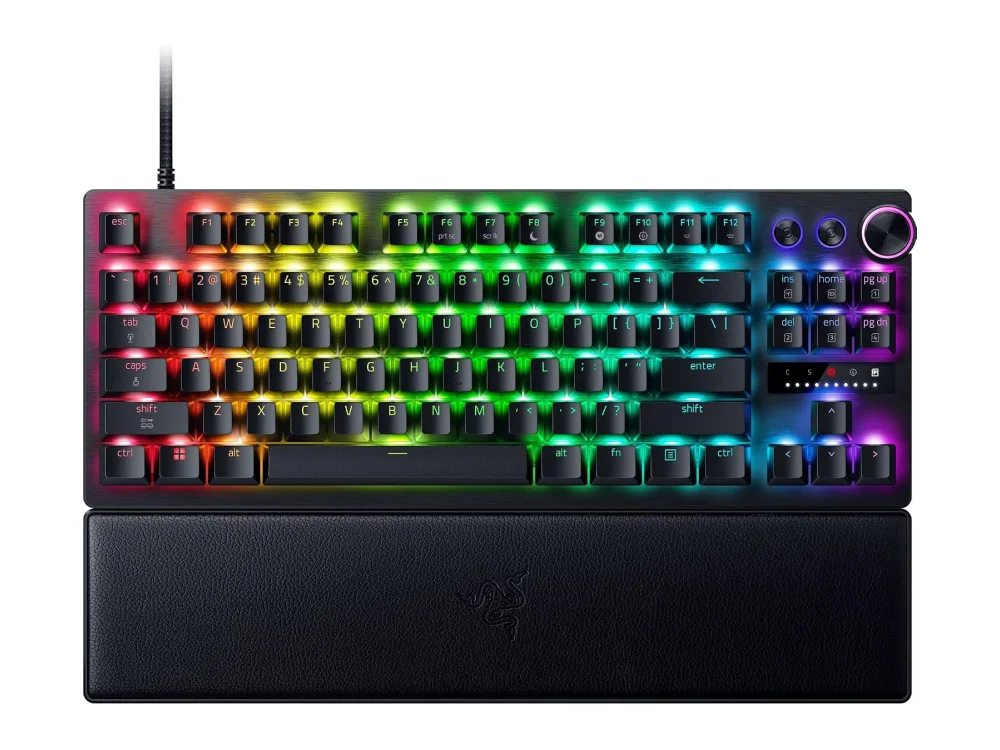 Razer Huntsman V3 Pro TKL
 Vita Pro Handheld
 TeamGroup T-Force Xtreem ARGB DDR4-3600
 Intel Core i5-14600K
 PreSonus Eris E4.5
 Razer Blade 16 (2026)
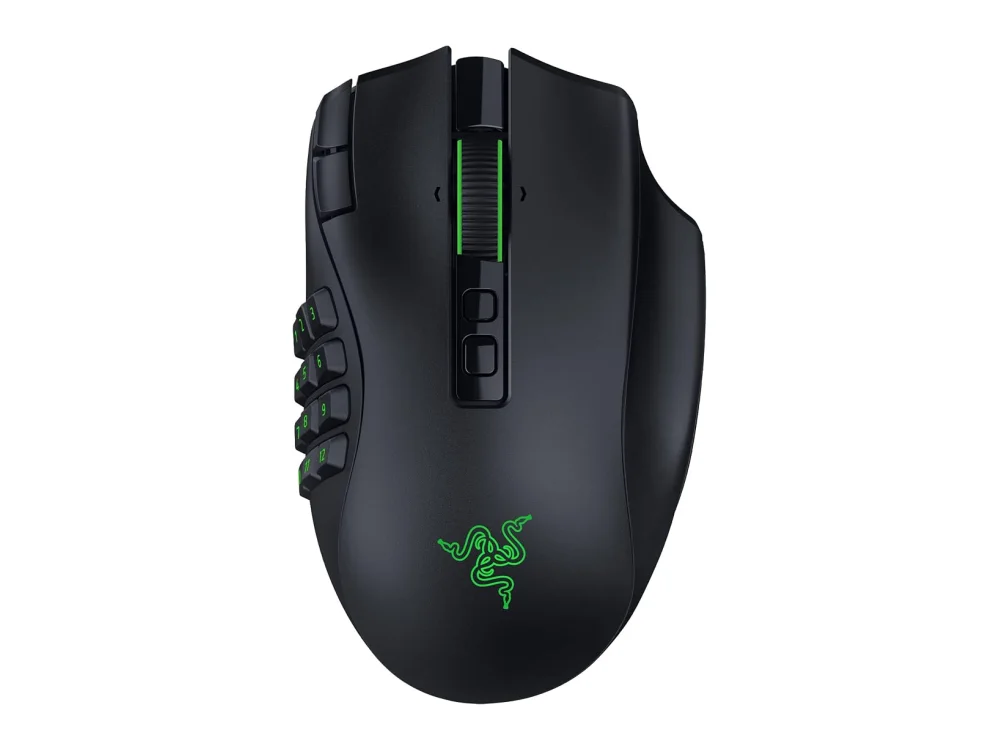 Razer Naga V3 Pro
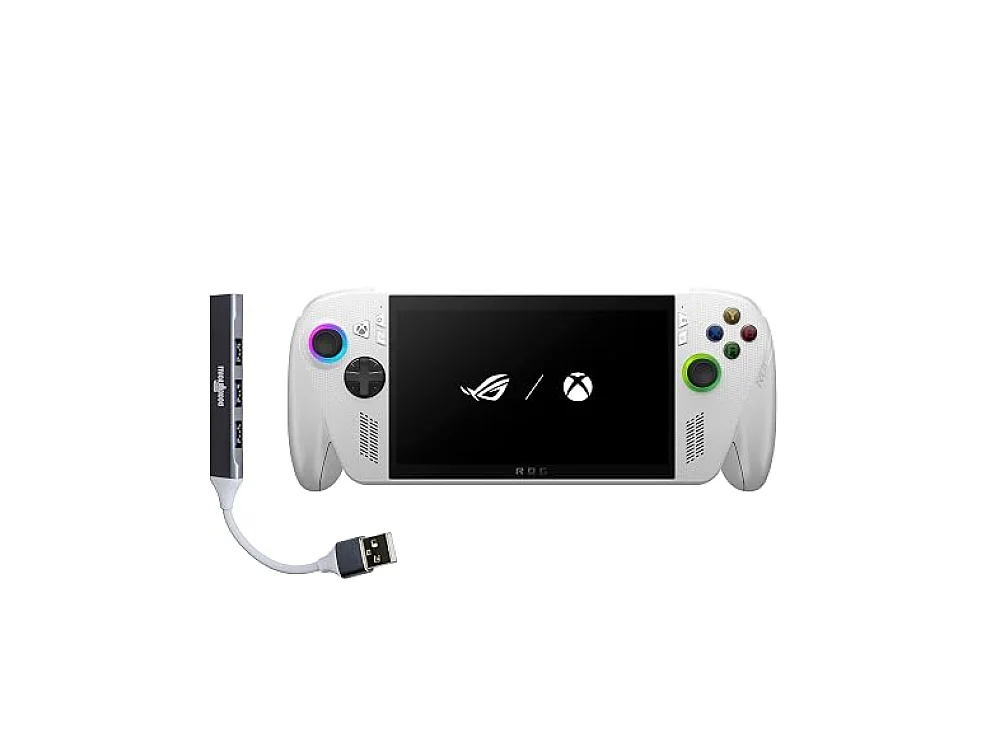 ROG Xbox Ally
Leave a comment
Questions, corrections or your own experience: it goes to our team at comments@runonconsole.com and you get a copy.