How to Find the Best Mouse DPI for Gaming and Set In‑Game Sensitivity

Article Overview & Key Takeaways
A step‑by‑step guide that shows you how to pick the ideal mouse DPI, calibrate it, and lock in the perfect in‑game sensitivity for any shooter or MOBA.
Gaming gear to check
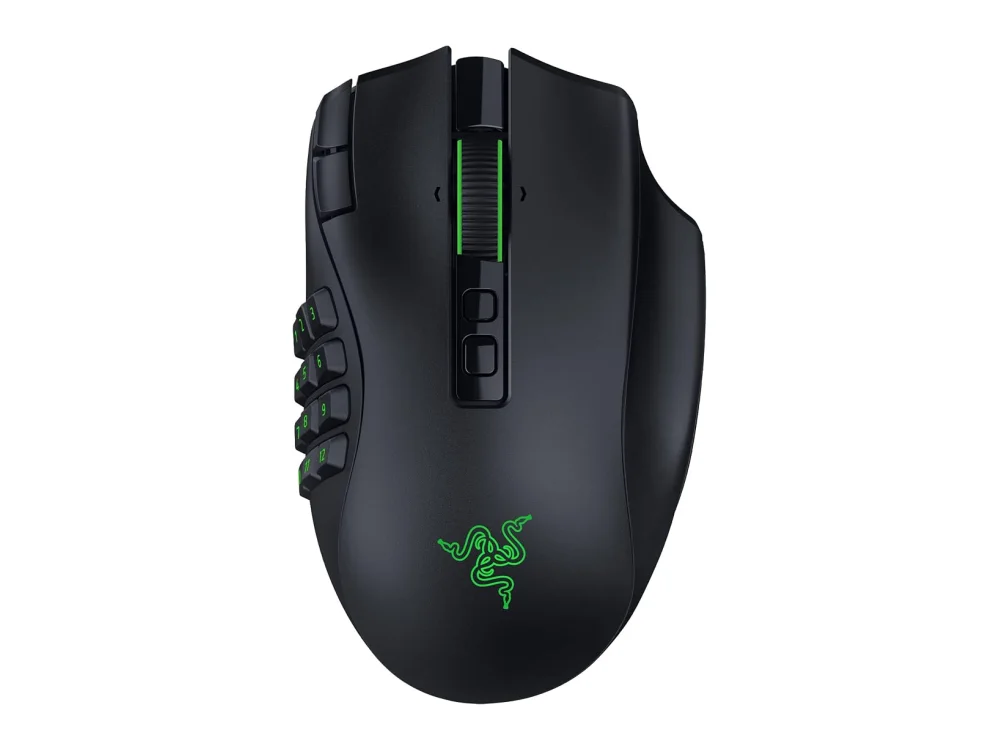 Razer Naga V3 Pro
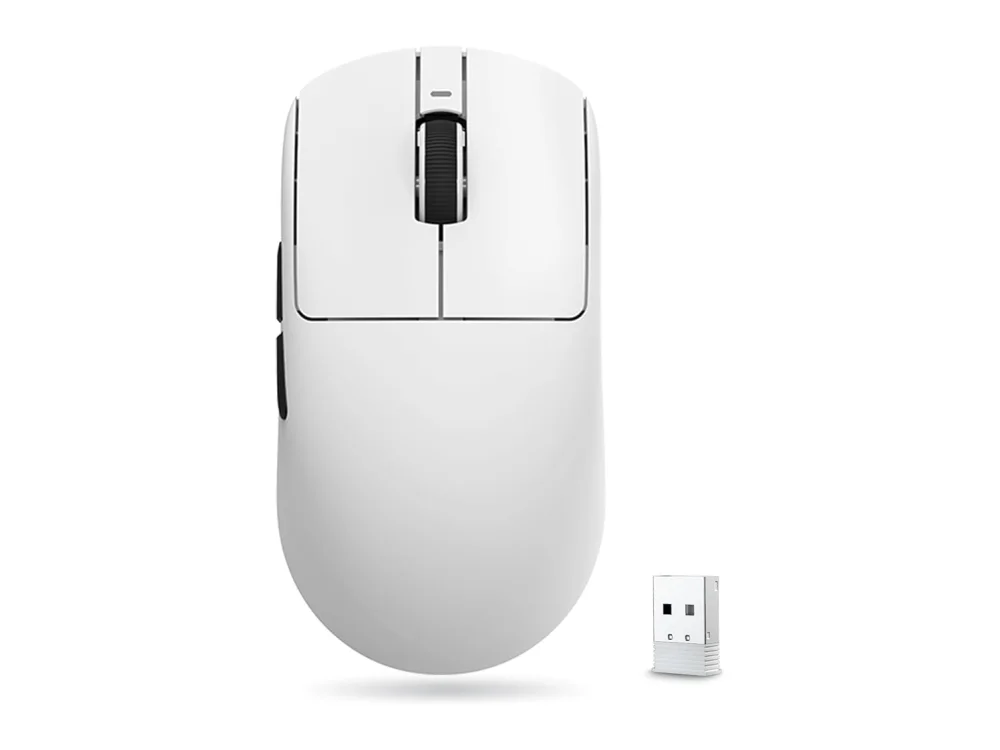 VXE R1 Pro
By the end of this guide you will know exactly how to choose the right mouse DPI for your gaming style, measure it accurately, and translate that number into a consistent in‑game sensitivity. Whether you play fast‑paced shooters or precise tactical games, the process below will give you repeatable results.
First, explore our gaming mice collection to see the range of sensors and ergonomics available – the right hardware makes DPI adjustments much smoother.
What you need
- A gaming mouse with adjustable DPI (hardware or software).
- The mouse’s configuration software (often from the manufacturer).
- A ruler or a piece of paper for measuring 360° turns.
- A favorite game or an aim‑training map.
- A notebook or a digital note app to record numbers.
Step 1: Understand DPI vs. Sensitivity
DPI (dots per inch) tells you how far the cursor moves on your screen for every inch you move the mouse. In‑game sensitivity is a multiplier applied on top of that hardware value. High DPI means the cursor moves farther per physical inch, while low DPI gives finer control. The two work together – you can use a high DPI with a low in‑game sensitivity or the opposite, as long as the final cm/360° feels right for you.
Tip: Most modern esports titles recommend a cm/360° range of 20‑30 cm for optimal aim. Use this as a starting point.
Step 2: Pick a Baseline DPI
Start with a DPI that matches your monitor resolution and typical hand movement. A good rule of thumb:
- 1080p monitors – 800‑1200 DPI.
- 1440p monitors – 1200‑1600 DPI.
- 4K monitors – 1600‑2400 DPI.
If you own a high‑refresh‑rate display (240 Hz or more) and prefer swift flick shots, you might lean toward the upper end of the range.
For a concrete example, the Endgame Gear OP1 8K V2 offers DPI settings up to 8,000, which is overkill for most players but useful for testing extremes.
Want to buy a gaming mouse? Here are 3 similar picks:
- Logitech G PRO X2 SUPERSTRIKE: Best Competitive FPS / Premium
- Logitech G502 X PLUS: Best Work & Play / Feature-Rich
- MCHOSE A7: Best Value Lightweight
Open a product to see its full details, then use the Amazon button there.
Step 3: Measure Your 360° Turn
Now you need to know how many centimeters of mouse movement produce a full 360° turn in your favorite game. Follow these steps:
- Set the mouse DPI to the baseline you chose.
- Open a level or aim‑trainer where you can rotate freely.
- Place a ruler or a printed sheet of paper on your mouse pad.
- Turn your character 360° while keeping the mouse on the ruler, then note the distance traveled (in centimeters).
If the distance is outside the 20‑30 cm window, adjust either the DPI or the in‑game sensitivity and repeat until you land within the target range.
Tip: Many mouse software suites let you create profiles. Save one profile per game to avoid re‑calibrating each session.
Step 4: Fine‑Tune In‑Game Sensitivity
With your baseline DPI locked, adjust the in‑game sensitivity multiplier until the 360° distance sits comfortably in the 20‑30 cm sweet spot. Most games label this setting as “Sensitivity,” “Mouse Sensitivity,” or “Aim Sensitivity.”
Common mistake: Changing DPI and sensitivity simultaneously can lead to “drift” where you lose track of your baseline. Adjust one variable at a time.
Step 5: Test on Real Gameplay
After you have a numbers‑based setting, jump into a real match or a dedicated aim‑training map (e.g., Kovaak’s or Aim Lab). Play for at least 10‑15 minutes and note how natural the aiming feels. If you find yourself overshooting frequently, reduce the DPI by 100‑200 increments or lower the in‑game sensitivity by a similar percentage.
For wireless enthusiasts, the Corsair M75 Wireless provides a lag‑free experience that lets you test without worrying about cable drag.
Want to buy a gaming mouse? Here are 3 similar picks:
- MCHOSE L7 Ultra: Best Mid-Range
- Pulsar X2 CrazyLight Mini: Best Small Ultra-Light
- Pulsar X2F CrazyLight: Best Ultra-Light / Fingertip
Open a product to see its full details, then use the Amazon button there.
Step 6: Save and Back Up Profiles
Once you’ve nailed the numbers, create a named profile in your mouse’s software (e.g., “FPS‑Standard” or “MOBA‑Precision”). Export the profile file to a cloud folder or a USB stick. This way, if you reinstall Windows or switch PCs, your settings travel with you.
Budget‑friendly users may appreciate the Cooler Master MM311, which includes simple on‑board memory for a single profile without extra software.
Want to buy a gaming mouse? Here are 3 similar picks:
- Pulsar Xlite CrazyLight: Best Lightweight Ergonomic
- Razer Basilisk V3 Pro: Best Ergonomic Feature-Rich
- Razer DeathAdder V4 Pro: Best Ergonomic Gaming Mouse
Open a product to see its full details, then use the Amazon button there.
Step 7: Verify Across Multiple Games
Different games handle mouse input slightly differently. Use the game compatibility checker to see if a title applies any additional scaling. If a game feels off, repeat Steps 3‑5 for that specific title while keeping your baseline DPI constant.
Pro tip: The ASUS ROG Harpe Ace Mini is ultra‑light and works well for quick DPI swaps, making cross‑game testing painless.
Common Mistakes & How to Avoid Them
- Setting DPI too high. This can cause jitter and make micro‑adjustments impossible. Keep DPI within the ranges suggested for your monitor.
- Relying solely on in‑game sensitivity. Without a consistent DPI, you’ll lose muscle memory when you change hardware.
- Ignoring mouse pad surface. A cloth pad can reduce effective DPI. Use a hard‑surface pad for the most accurate measurement.
- Forgetting to disable Windows mouse acceleration. Turn it off in
Control Panel → Mouse → Pointer Options → Uncheck "Enhance pointer precision".
FAQ
What DPI is best for a 1440p monitor?
Most players find 1200‑1600 DPI works well on 1440p, but the final choice should be based on the 20‑30 cm per 360° rule rather than resolution alone.
Can I use a wireless mouse for competitive FPS?
Yes. Modern wireless mice like the Corsair M75 Wireless have latency comparable to wired models, so they are safe for competitive play.
Do I need to change DPI for each game?
Not necessarily. Keep a single DPI that feels comfortable and only adjust the in‑game sensitivity per title. This preserves muscle memory across games.
Conclusion
Finding the best mouse DPI for gaming is a systematic process: understand the relationship between DPI and sensitivity, measure your 360° turn, adjust until you hit the 20‑30 cm sweet spot, test in real matches, and back up your profiles. With the right hardware – from the lightweight Logitech G PRO X Superlight 2 to the feature‑rich Endgame Gear OP1 8K V2 – you’ll achieve consistent, repeatable aim across any game you play.
Keep reading
Gaming gear on Run On Console
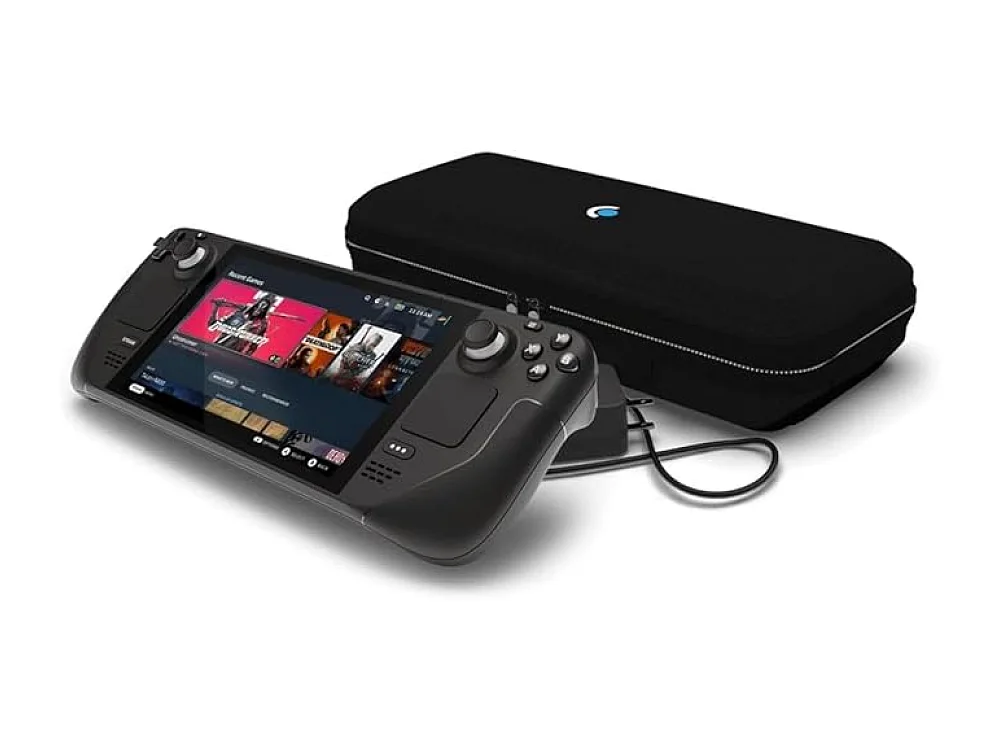 Steam Deck OLED 512GB
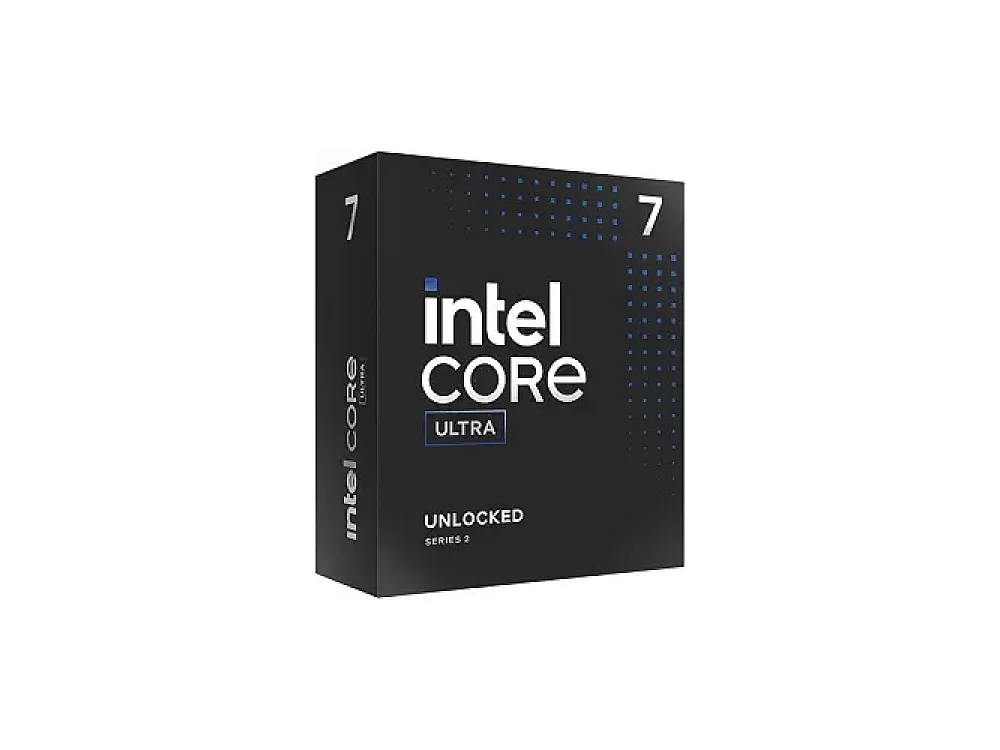 Intel Core Ultra 7 265K
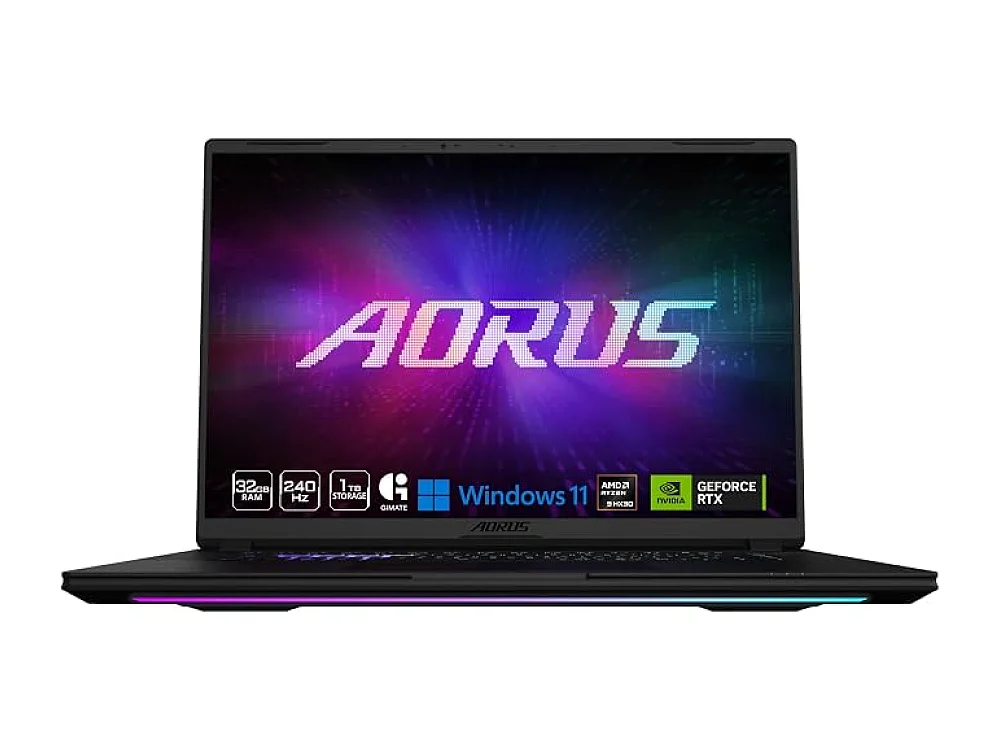 Gigabyte AORUS Master 16
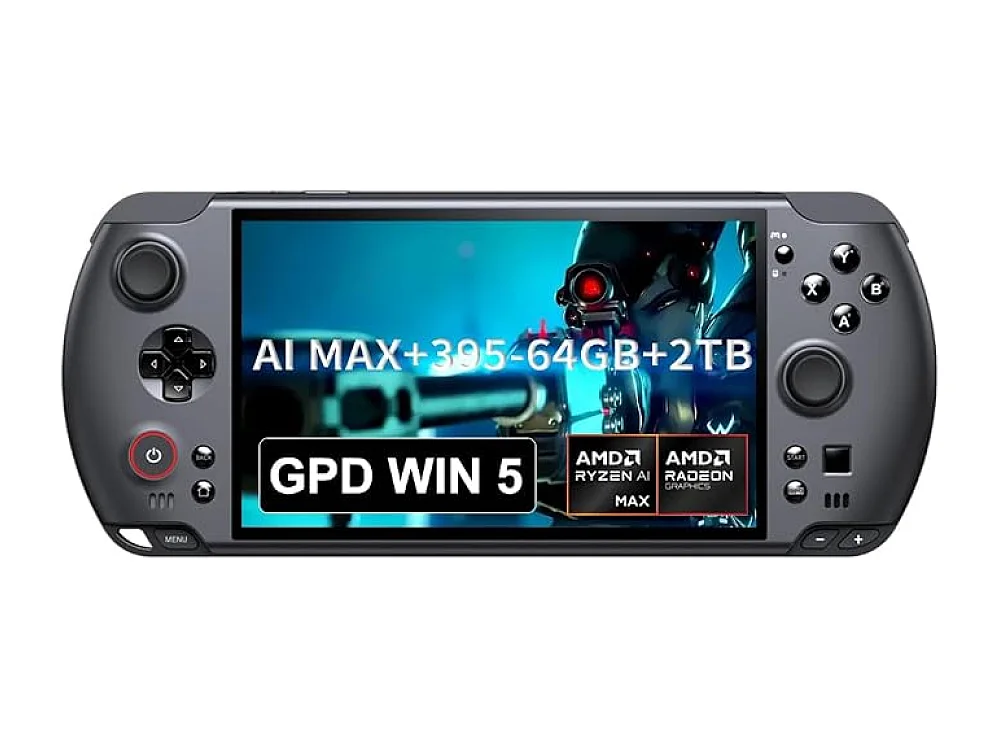 GPD WIN 5
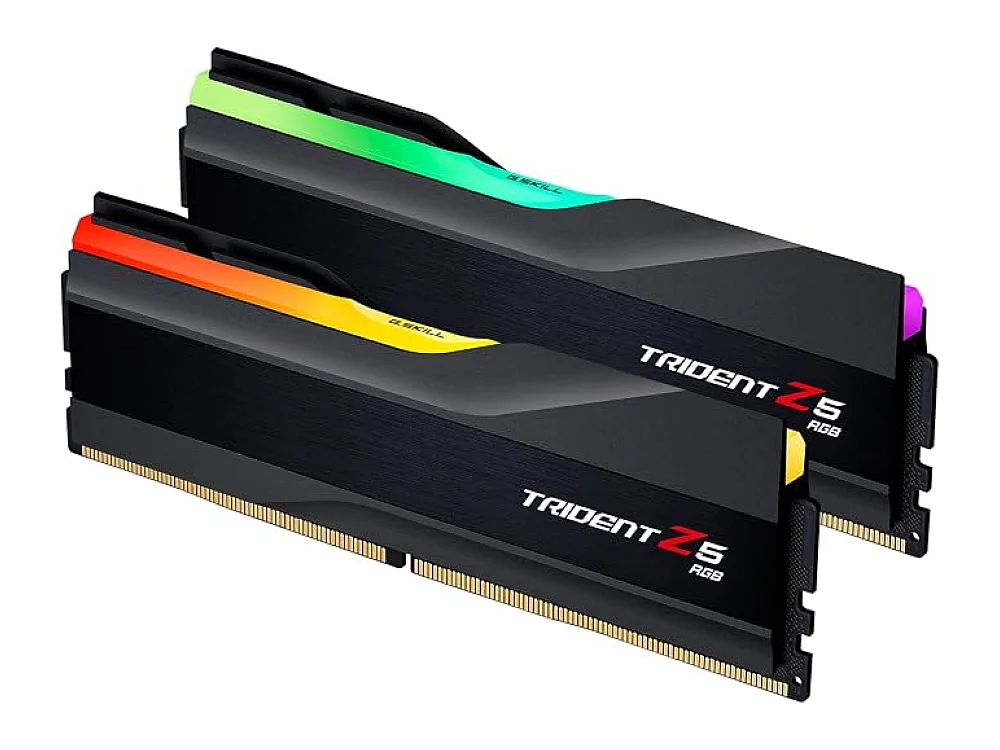 G.Skill Trident Z5 RGB DDR5-6400 96GB
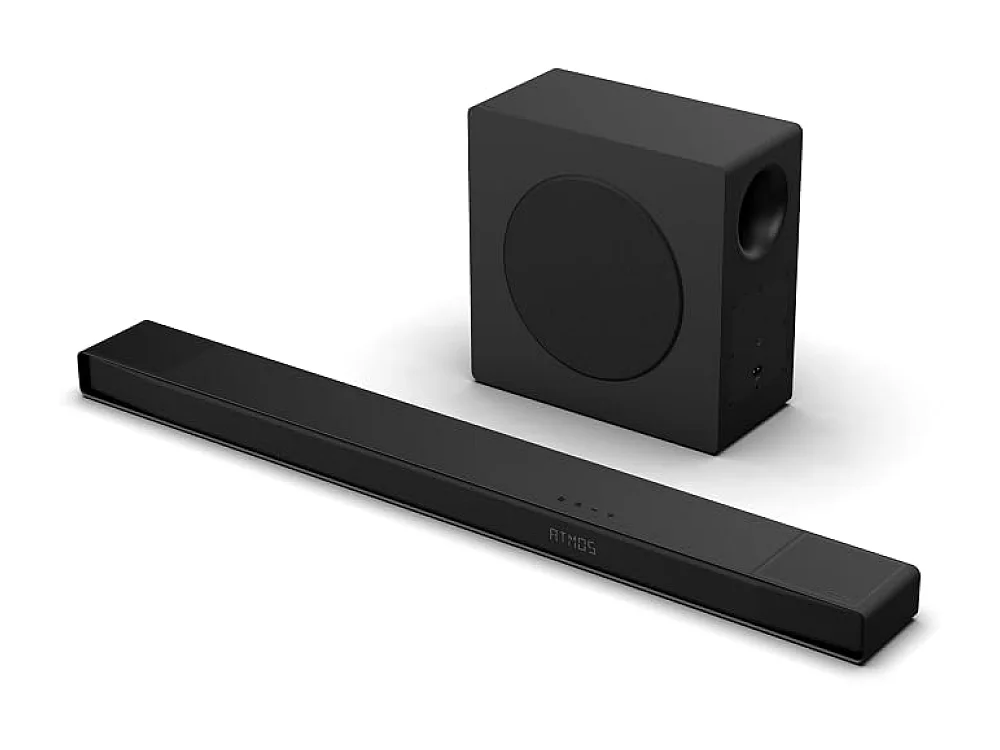 Hisense AX5125H
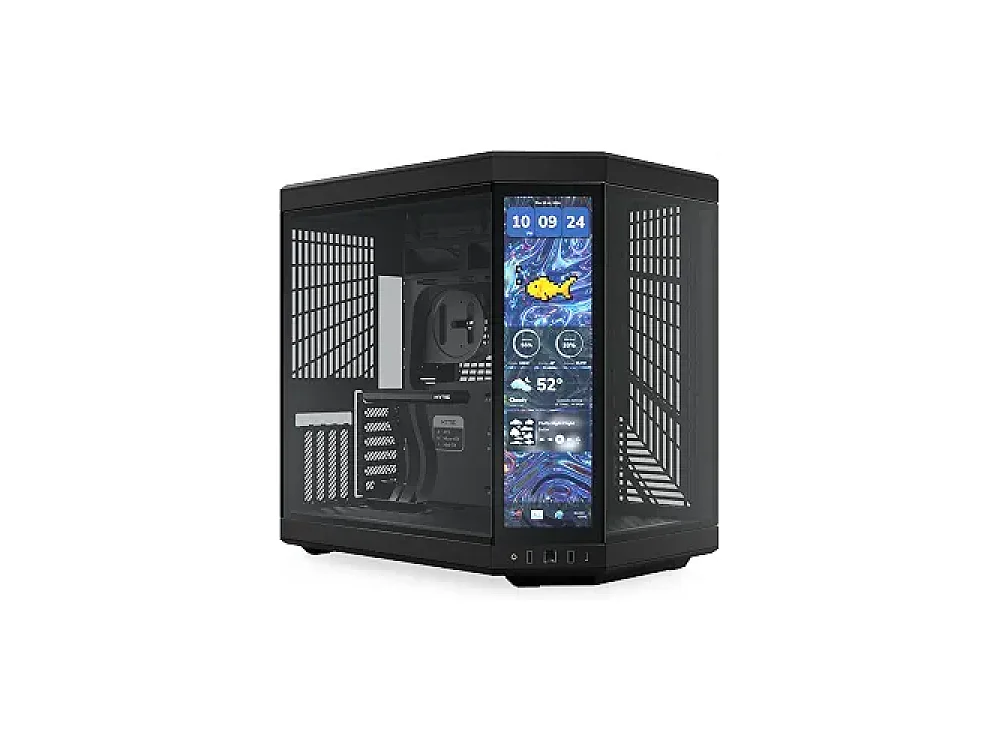 HYTE Y70 Touch
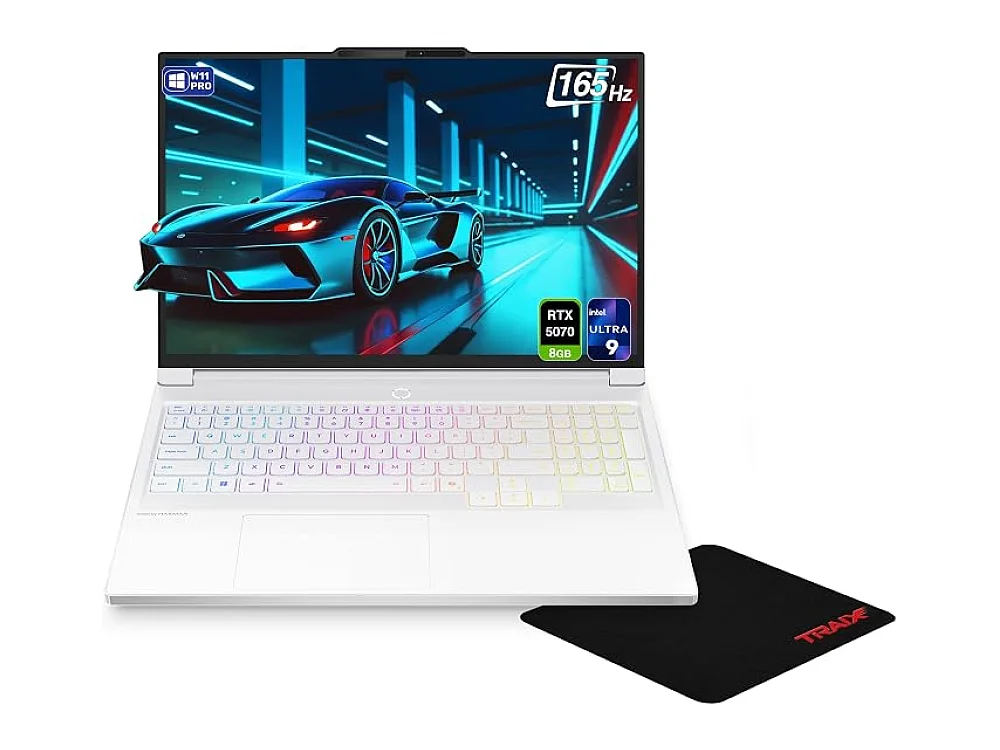 Lenovo Legion 7i Gen 10
Leave a comment
Questions, corrections or your own experience: it goes to our team at comments@runonconsole.com and you get a copy.