How to Choose a Graphics Card for My Motherboard – Simple Guide

Article Overview & Key Takeaways
Choosing the right GPU starts with understanding your motherboard’s limits and your gaming goals. This guide walks you through the key factors and shows practical examples.
Gaming gear to check
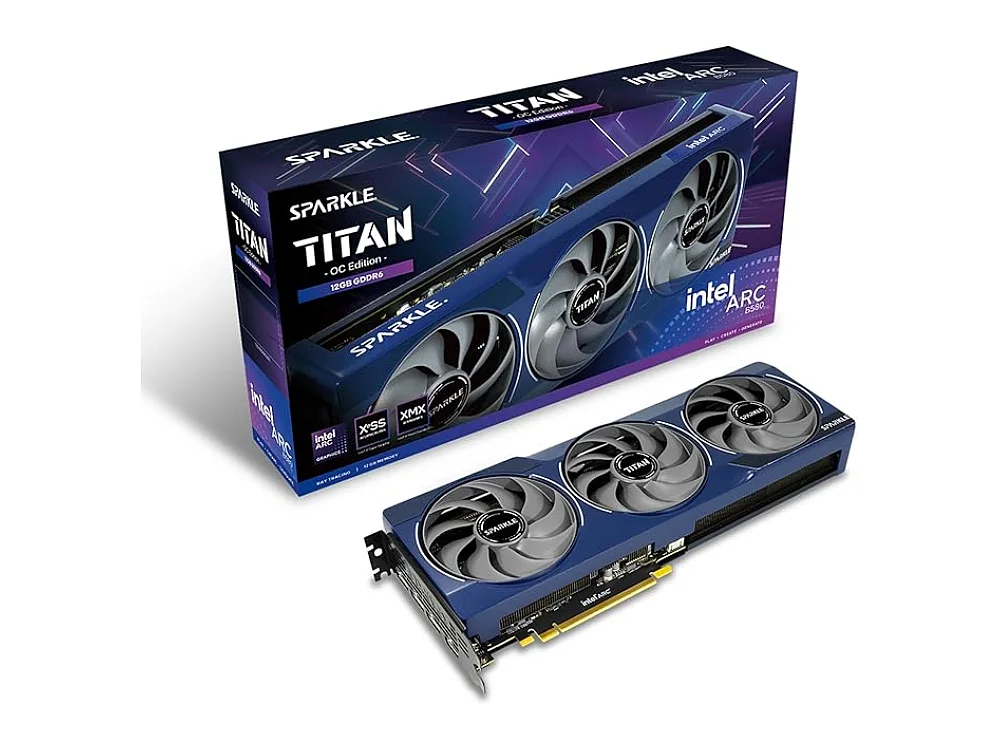 Intel Arc B580
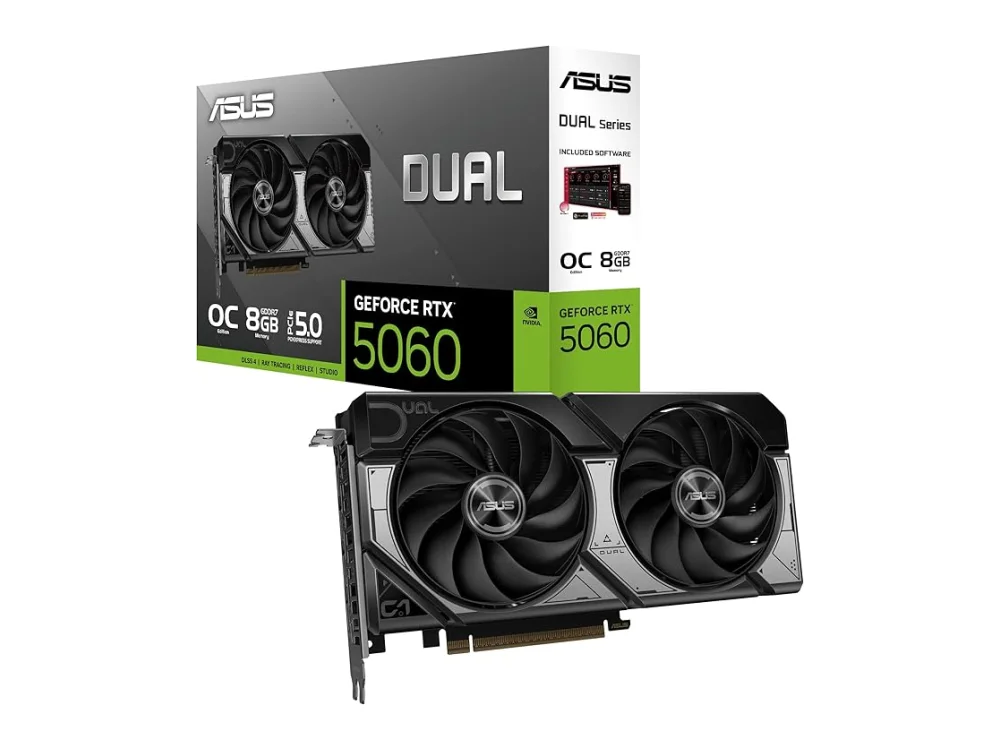 NVIDIA GeForce RTX 5060
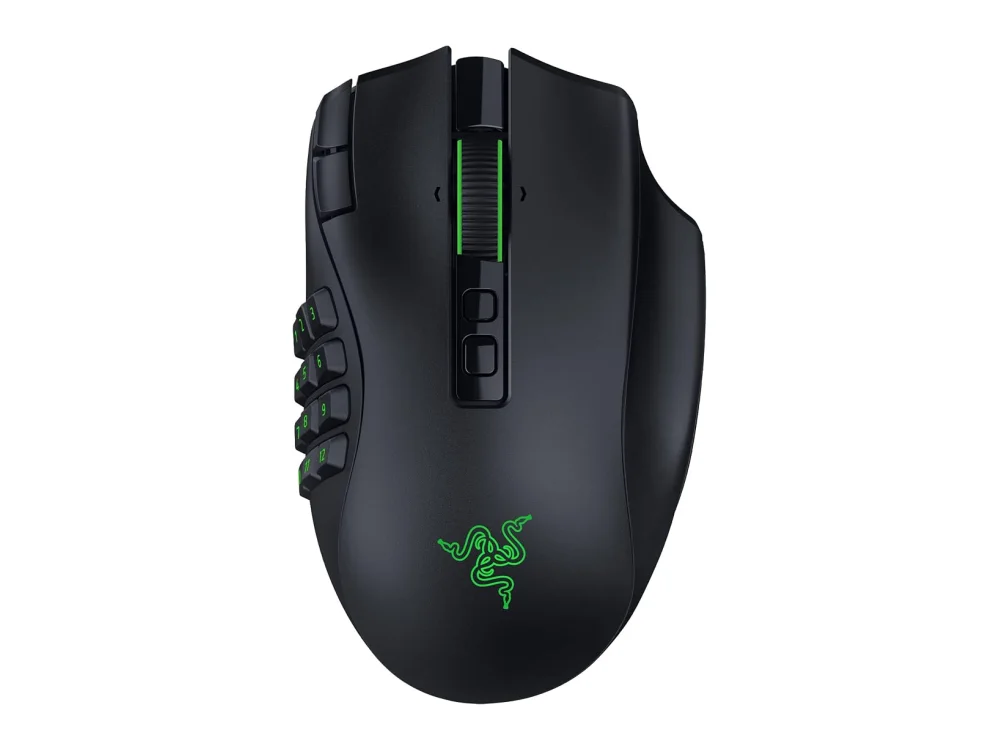 Razer Naga V3 Pro
Finding the perfect graphics card can feel overwhelming, especially when you need to make sure it fits your motherboard. This guide answers how to choose a graphics card for my motherboard by breaking down compatibility, performance goals, and budget considerations into easy steps.
First, visit our best graphics cards hub to see the latest picks and read in‑depth reviews. Throughout this article we’ll reference that hub and show real‑world examples.
How to Choose a Graphics Card for My Motherboard
Every motherboard has a set of constraints that dictate which GPUs will work. The most important are the PCIe slot type, physical dimensions, power delivery, and BIOS/UEFI support. Ignoring any of these can lead to a card that simply won’t boot.
1. Know Your PCIe Slot and Version
Modern GPUs use a PCIe x16 slot. Most motherboards from the last decade support PCIe 3.0, 4.0, or 5.0. While a PCIe 5.0 card will work in a 3.0 slot, it will run at the lower bandwidth of the older slot. The performance loss is usually modest for current games, but it’s good to be aware of.
2. Check Physical Size and Clearance
Graphics cards come in various lengths, heights, and slot widths (single‑fan, dual‑fan, triple‑fan, or blower designs). Measure the space inside your case from the rear expansion slot to any drive cages or front panels. If you’re unsure, the best gaming monitors page often includes case guides that mention GPU clearance.
3. Power Requirements and Connectors
Every GPU has a TDP (thermal design power) that tells you how much power it draws under load. Your PSU must have enough wattage and the correct 6‑pin, 8‑pin, or 12‑pin connectors. A good rule of thumb is to keep at least 20 % headroom above the card’s rated TDP.
4. Match Your Gaming Goals
What resolution and refresh rate do you target? A 1080p/144 Hz setup can run comfortably on a mid‑range card, while 4K/60 Hz or 1440p/144 Hz benefits from higher‑end GPUs. Knowing your target frame rate helps narrow the VRAM and shader count you need.
5. Budget and Future‑Proofing
Graphics cards are released in generations. A 2025‑2026 model will generally offer better performance per dollar than an older one. However, buying a slightly older card can still be a smart move if it meets your performance target and leaves room in your budget for other upgrades (CPU, RAM, SSD).
6. Use a Compatibility Checker
Before you buy, run our Can I run it? game requirements checker. It lets you input your motherboard model and see a list of GPUs that fit, plus any BIOS updates you might need.
Example GPUs for Different Needs
AMD Radeon RX 9060 XT 16GB graphics card
This card targets high‑refresh 1080p and solid 1440p performance. It offers a large 16 GB GDDR6 buffer, which is useful for future games that use more VRAM.
- Who it’s for: Gamers who want 144 Hz at 1080p or 60 Hz at 1440p without breaking the bank.
- Key features: PCIe 4.0 x16, 16 GB GDDR6, 300 W TDP, dual‑fan cooler.
- Pros: Strong VRAM capacity, good power efficiency, fits most mid‑tower cases.
- Cons: Not the absolute fastest at 4K, dual‑fan may be louder under load.
AMD Radeon RX 9060 XT 8GB graphics card
The 8 GB version is a trimmed‑down sibling, ideal for tighter budgets or smaller cases.
- Who it’s for: Players focused on 1080p high‑frame‑rate gaming.
- Key features: PCIe 4.0, 8 GB GDDR6, 250 W TDP, compact dual‑fan design.
- Pros: Lower power draw, fits smaller cases, cheaper than the 16 GB model.
- Cons: Less VRAM for future titles, slightly lower average FPS at 1440p.
AMD Radeon RX 9070 XT graphics card
This is a flagship‑class option for 1440p ultra settings and entry‑level 4K gaming.
- Who it’s for: Enthusiasts aiming for 1440p/144 Hz or 4K/30‑60 Hz.
- Key features: PCIe 5.0, 12 GB GDDR6, 350 W TDP, triple‑fan cooler.
- Pros: Excellent performance, future‑proof PCIe 5.0, robust cooling.
- Cons: Higher power requirements, larger physical size, premium price.
Want to buy a graphics card? Here are 3 similar picks:
- NVIDIA GeForce RTX 5080: High-end / 4K
- AMD Radeon RX 9070: Upper mid-range / 1440p
- AMD Radeon RX 9070 GRE: Value / 1440p
Open a product to see its full details, then use the Amazon button there.
Quick Comparison Table
| Model | VRAM | PCIe | Power Draw | Typical Use Case |
|---|---|---|---|---|
| AMD Radeon RX 9060 XT 16GB | 16 GB GDDR6 | 4.0 x16 | 300 W | 1080p‑144 Hz / 1440p‑60 Hz |
| AMD Radeon RX 9060 XT 8GB | 8 GB GDDR6 | 4.0 x16 | 250 W | 1080p‑high FPS |
| AMD Radeon RX 9070 XT | 12 GB GDDR6 | 5.0 x16 | 350 W | 1440p‑ultra / entry‑level 4K |
How to Verify Compatibility Before Buying
1. Locate your motherboard model (usually printed on the board or in the BIOS).
2. Check the PCIe slot version and number of lanes. Most modern boards list this in the specifications sheet.
3. Measure the maximum GPU length and height your case can accommodate.
4. Confirm your PSU’s wattage and available connectors.
5. Run the Can I run it? game requirements checker with the GPU model you’re eyeing. It will flag any mismatches and suggest firmware updates if needed.
FAQ
What PCIe version does my motherboard need for a new GPU?
Any PCIe x16 slot will accept a newer card, but the card will operate at the lower version’s bandwidth. For most games the difference between PCIe 3.0 and 4.0 is minimal, while PCIe 5.0 offers extra headroom for future titles.
Can I install a high‑end GPU in a small Mini‑ITX case?
Only if the card’s length and slot width fit the case’s clearance. Look for “low‑profile” or “compact” variants, or choose a dual‑fan model that stays under 200 mm in length.
Do I need to upgrade my BIOS to use a newer graphics card?
Some older motherboards require a BIOS update to recognize newer GPUs, especially those using PCIe 5.0. Check the manufacturer’s support page for a “GPU compatibility” note.
Is more VRAM always better?
More VRAM helps at higher resolutions and with texture‑heavy games, but the GPU’s core performance (shader count, clock speed) often matters more for frame rates at 1080p.
Conclusion
Choosing the right graphics card starts with understanding your motherboard’s slot type, power budget, and physical space. Pair that knowledge with your gaming goals—whether you chase 1080p high refresh rates or aim for 4K immersion—and you’ll land a GPU that delivers smooth performance without unnecessary expense. Use our Can I run it? game requirements checker to double‑check fit, then explore the options on our best graphics cards hub to find the perfect match for your build.
Keep reading: more on Graphics Cards (GPU)
Keep reading
Gaming gear on Run On Console
 Mackie CR3.5BT + CR8SBT vs Creative Pebble Pro
 TeamGroup T-Force Xtreem ARGB DDR4-3600
 Gigabyte AORUS Master 16
 GPD WIN 5
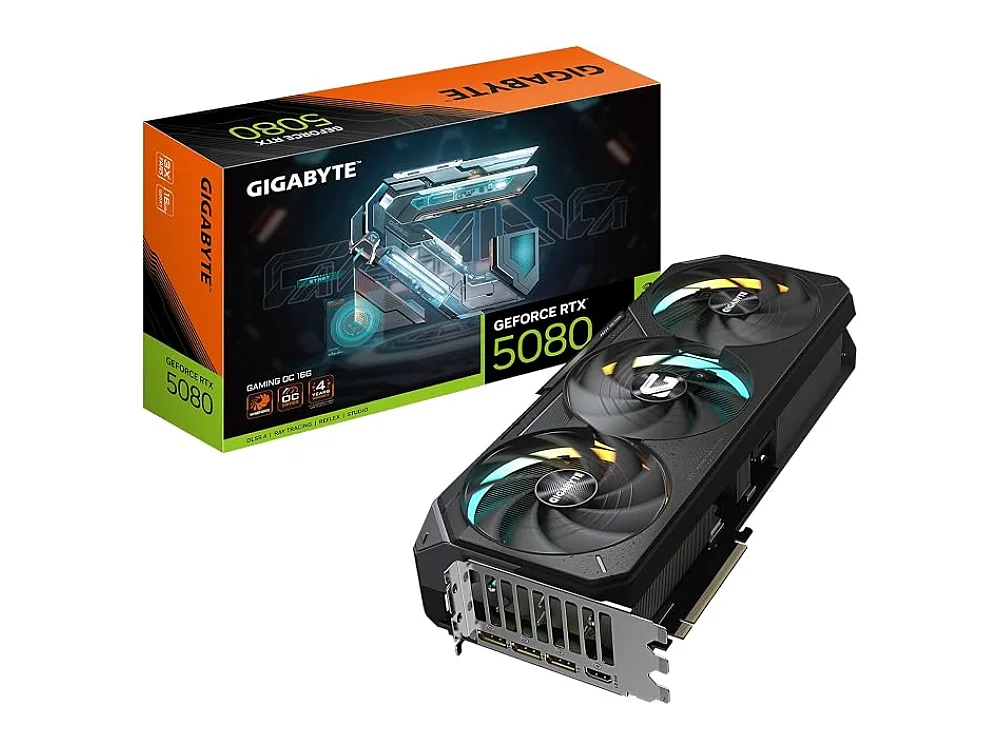 NVIDIA GeForce RTX 5080
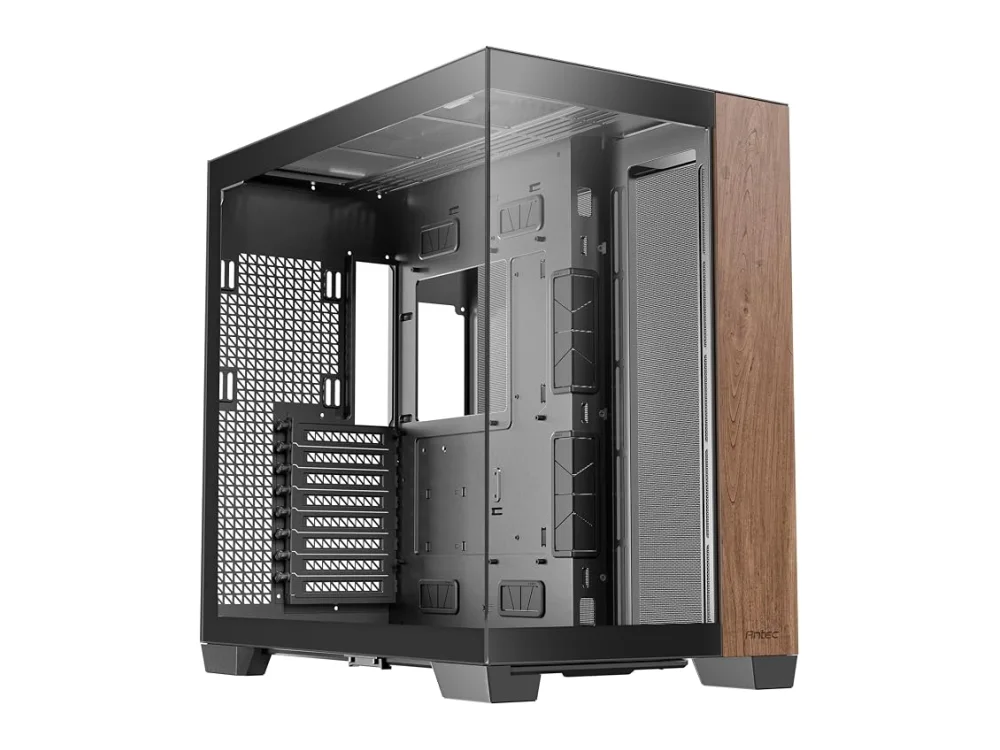 Phanteks G500A
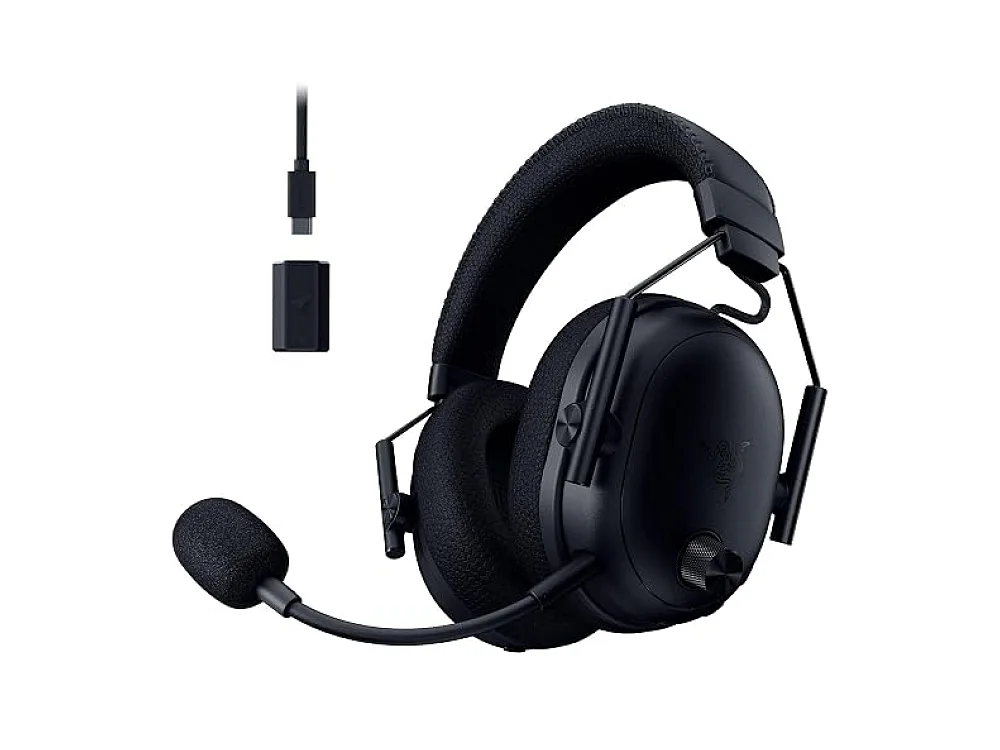 Razer BlackShark V3 Pro
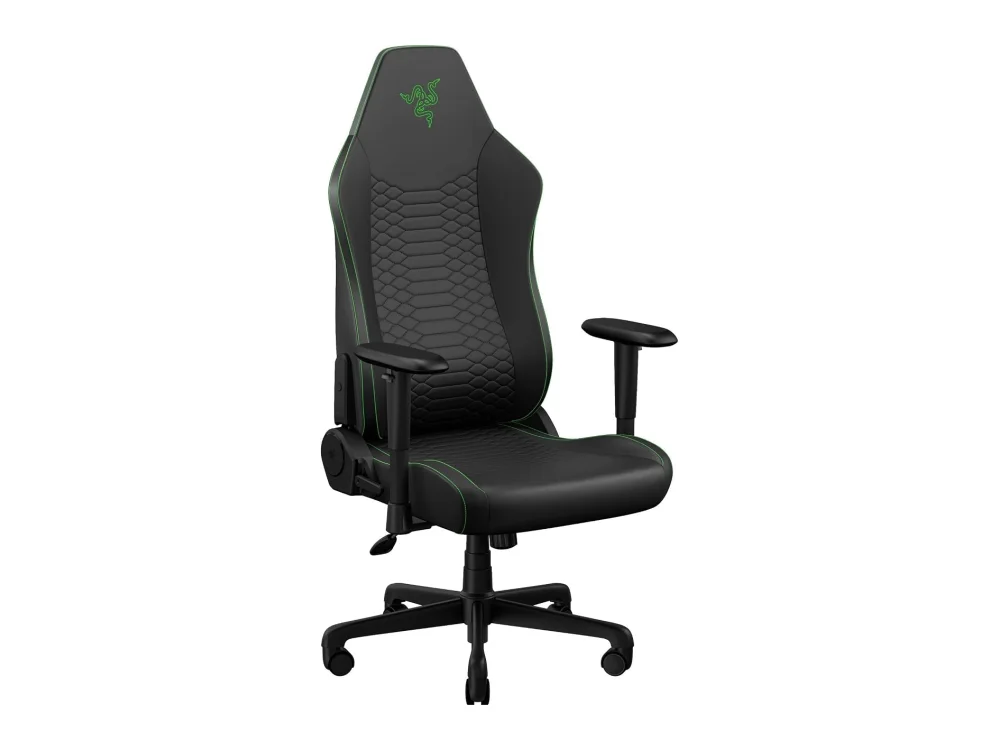 Razer Iskur V2 X
Leave a comment
Questions, corrections or your own experience: it goes to our team at comments@runonconsole.com and you get a copy.