Adding Storage to Your PS5 for GTA 6: M.2 SSD Basics

Article Overview & Key Takeaways
If you’re gearing up for GTA 6 on the PS5, you’ll need to know how to add an M.2 SSD. This guide covers the storage requirements, benefits, and a clear step‑by‑step install.
Gaming gear to check
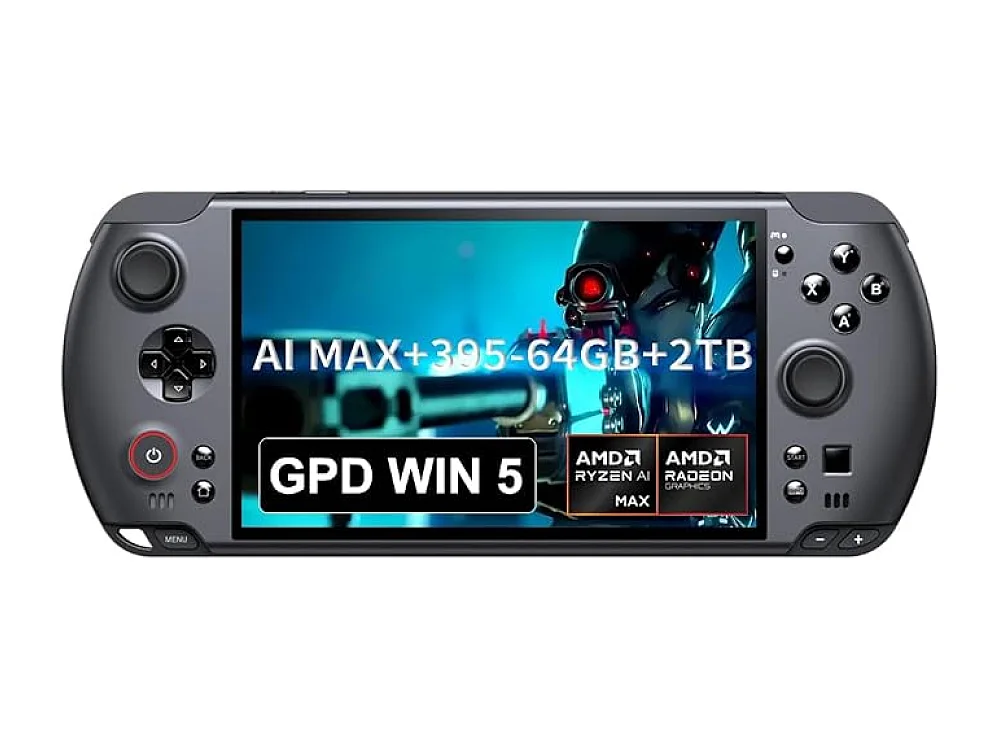 GPD WIN 5
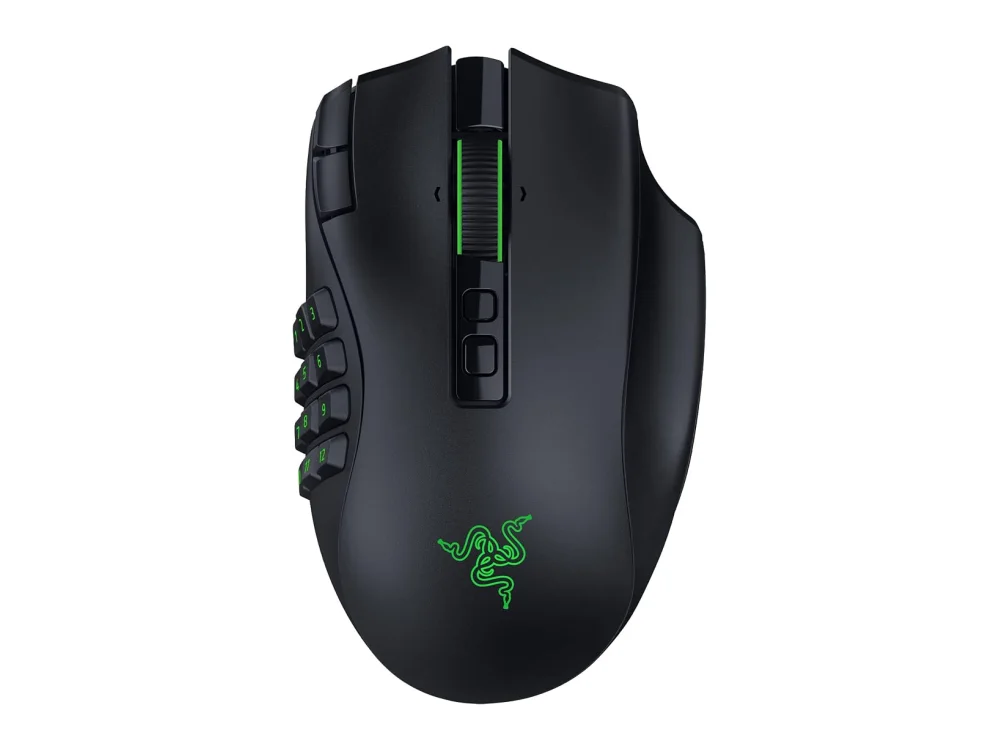 Razer Naga V3 Pro
GTA 6 launched worldwide on 19 November 2026 for PlayStation 5 and Xbox Series X|S, and the game’s pre‑load can take up to 212 GB. That means your PS5 needs a healthy amount of free space before you can start the adventure. The good news is you can expand your console’s storage with an M.2 SSD – a fast, compact solution that plugs directly into the PS5’s internal slot. In this article we’ll walk through the storage requirements, the benefits of an M.2 SSD, and a clear, step‑by‑step guide to install it so you can dive into the world of Leonida without a hitch.
Before we dive into the hardware, check out our GTA 6 release date, price and PC status hub for the latest launch details, and if you’re unsure whether your current setup meets GTA 6’s requirements, visit the Can I run it? Game requirements hub for quick compatibility checks.
Why M.2 SSDs Are the Smart Choice for GTA 6 on PS5
GTA 6’s expansive map and high‑resolution textures demand fast read/write speeds to keep loading times low and gameplay smooth. The PS5’s internal M.2 slot is built around NVMe PCIe 4.0, which offers up to 5,500 MB/s read speeds. An M.2 SSD that matches or exceeds this performance will let you load large assets quickly, reduce stutter, and keep the game’s world feeling fluid.
Typical benefits of installing an M.2 SSD for GTA 6 include:
- Significantly faster load times for missions and open‑world exploration.
- Reduced texture pop‑in and smoother streaming of assets.
- More available space for the game and its future updates.
- No additional cables or external drives – the SSD sits inside the console.
PS5 SSD Requirements for GTA 6
To run GTA 6 you’ll need an M.2 SSD that meets the following criteria:
- PCIe 4.0, NVMe, M.2 2280 form factor.
- Minimum 1,000 MB/s sequential read speed.
- Maximum 1,000 MB/s sequential write speed.
- Minimum 512 GB capacity (but 1 TB is recommended for future proofing).
- Compatible with the PS5’s internal slot (check the PS5 M.2 SSD Install Guide for GTA 6 for detailed steps).
While the PS5 will accept many NVMe drives, Sony recommends using a drive that is on the official Can I run it? Game requirements list to avoid compatibility issues. If your chosen SSD is not listed, you may still use it, but you may need to run the PS5’s System Software Update or install a custom firmware patch – proceed with caution.
Choosing the Right M.2 SSD: Key Features to Consider
When selecting an SSD for your PS5, keep the following in mind:
| Feature | Why It Matters |
|---|---|
| PCIe 4.0 NVMe | Matches the PS5’s native interface for maximum speed. |
| Read/Write Speeds | Higher speeds reduce load times and improve asset streaming. |
| Capacity | GTA 6 requires up to 212 GB pre‑load; future updates add more. |
| Thermal Throttling | PS5’s internal design relies on passive cooling; a drive that stays cool will maintain performance. |
| Form Factor 2280 | Fits the PS5’s 22mm wide slot. |
Preparing Your PS5 for an M.2 SSD Upgrade
Before opening the console, follow these safety steps:
- Turn off the PS5 and unplug all cables.
- Place the console on a flat, static‑free surface.
- Remove the side panel by sliding the latch to the left and lifting the panel.
- Locate the M.2 slot – it’s a small, rectangular slot with a single screw.
- If you have an existing SSD, unscrew it and set it aside.
Installing the M.2 SSD
Follow these steps to install your new SSD:
- Insert the SSD at a 30‑degree angle into the M.2 slot.
- Gently press the SSD until it sits flush with the slot.
- Secure the SSD with the provided screw.
- Replace the side panel and snap it into place.
- Reconnect all cables and power on the PS5.
- When prompted, format the new drive via the PS5’s storage settings. The system will detect the SSD and offer to format it for use.
Once formatted, your PS5 will recognize the drive as additional internal storage. You can now move GTA 6 to the new SSD via the Storage Manager to free up space on the original SSD if needed.
Managing Storage After the Upgrade
With the SSD installed, you’ll have two internal storage options: the original 825 GB SSD and your new M.2 drive. Use the PS5’s Storage Manager to:
- Move games and apps between drives.
- Delete unused content.
- Check available space on each drive.
- Format or reformat drives if necessary.
For GTA 6, we recommend keeping the game on the M.2 SSD to take advantage of the faster read speeds. This will also free up space on the original SSD for other titles or system updates.
Common Questions About PS5 M.2 SSDs
What if my PS5 is already full?
Installing an M.2 SSD is the most efficient way to expand your storage without buying an external drive. The PS5’s internal slot is designed for this purpose, and the SSD will appear as a second internal drive.
Will installing an M.2 SSD affect my PS5 warranty?
Opening the side panel is covered by Sony’s warranty policy, but installing a non‑official SSD may void the warranty on that component. Check Sony’s terms or consider using an SSD from the official compatibility list.
Can I use an older NVMe drive that isn’t PCIe 4.0?
While older PCIe 3.0 NVMe drives may work, they won’t reach the same speeds as PCIe 4.0. The PS5 will still function, but you may experience slower load times and less efficient asset streaming.
How do I know if my SSD is overheating?
The PS5’s internal design relies on passive cooling. If you notice the console heating up noticeably during long play sessions, consider an SSD with better thermal performance or a larger heatsink. The PS5’s System Software will also alert you if a drive is overheating.
Conclusion
Adding an M.2 SSD to your PS5 is a straightforward way to meet GTA 6’s storage demands and enhance your gaming experience. By choosing a compatible NVMe drive, following the simple installation steps, and managing your storage wisely, you’ll keep the world of Leonida running smoothly and be ready for any future updates or expansions.
Further Reading
- GTA 6 vs RDR2 Story: How Rockstar's Two Biggest Worlds Compare
- GTA Games in Order of Release: From 1997 to GTA 6
- PS5 or Xbox Series X for GTA 6: Which Console Wins?
- GTA 6 Xbox Series S Performance: What to Know
- GTA 6 Standard vs Ultimate Edition: Which One Should You Buy?
Keep reading: more on Can I run it? Game requirements
- Can I run it? Game requirements
- Can I Run Red Dead Redemption 2 on My PC?
- GTA 6 Release Time USA: Midnight Launch Explained
- GTA 6 Release Time UK Xbox: Europe Schedule
- GTA 6 Preload Date: Download Early on PS5 & Xbox
- Games Like GTA for Windows 7: Best Alternatives
More on GTA 6
- GTA 6 release date, price and PC status
- GTA 6 PS5 vs Xbox Series X: HDR Cost and Performance Gap (News)
- Xbox Controllers Hit Lowest 2026 Price for GTA 6 Launch (News)
- Black Friday 2026: XR Glasses, RTX 5090 PC and GTA 6 Ready Hardware (News)
- GTA 6 PC Price: GPU Guide for the Future Port (Blog)
- Best Monitor for GTA 6 PS5 Pro: TV or Monitor, What to Look For (Blog)
- Best headset for GTA 6 PS5 – Top picks for PS5 & Xbox (Blog)
- Xbox HDR Calibration Guide for GTA 6 on Series X|S (Guide)
Keep reading
Gaming gear on Run On Console
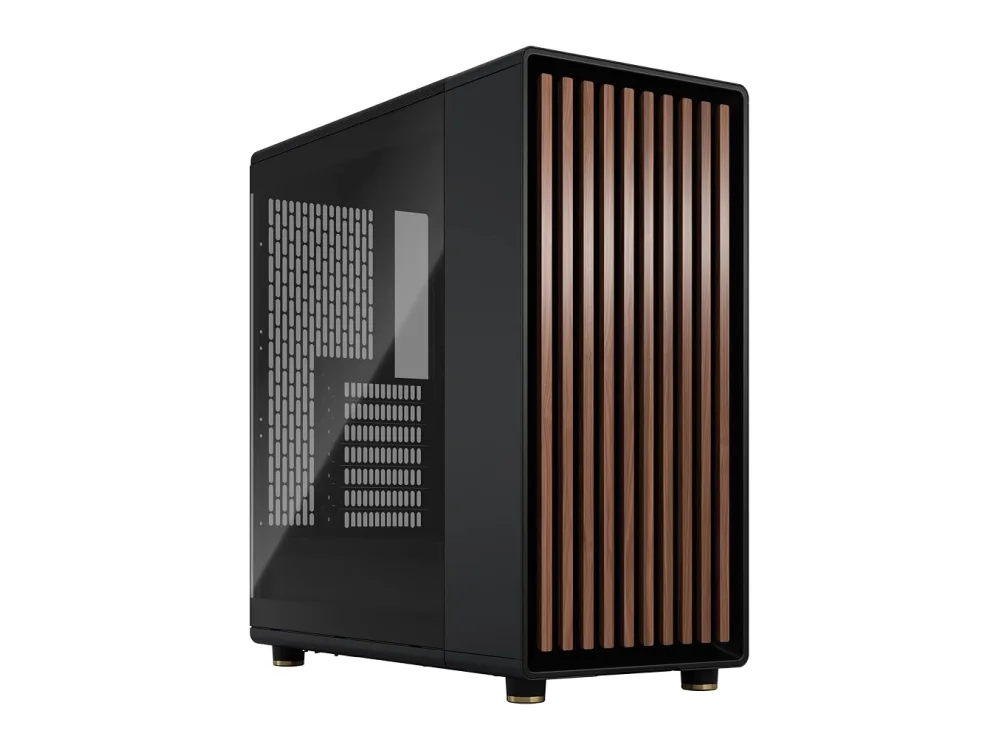 Fractal Design North
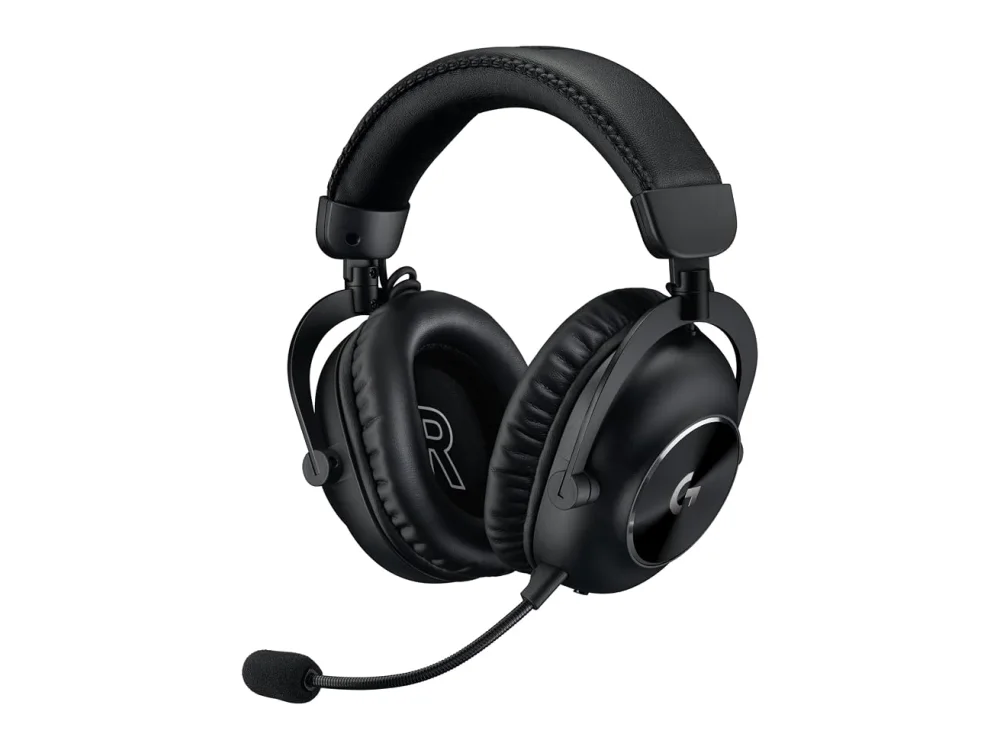 Logitech G Pro X 2 LIGHTSPEED
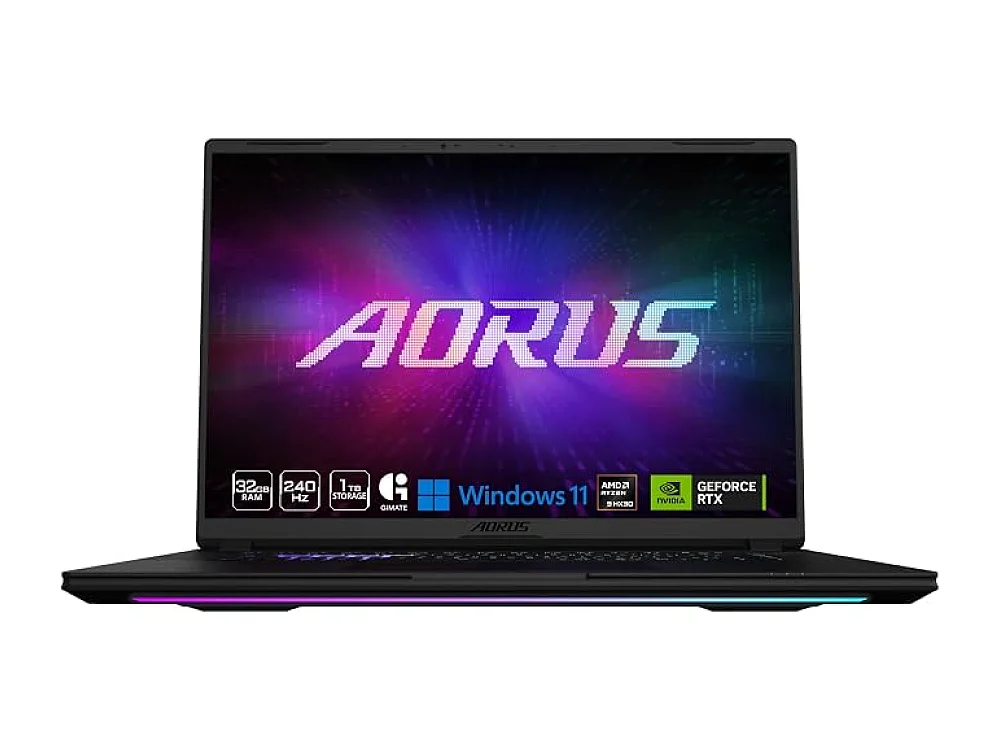 Gigabyte AORUS Master 16
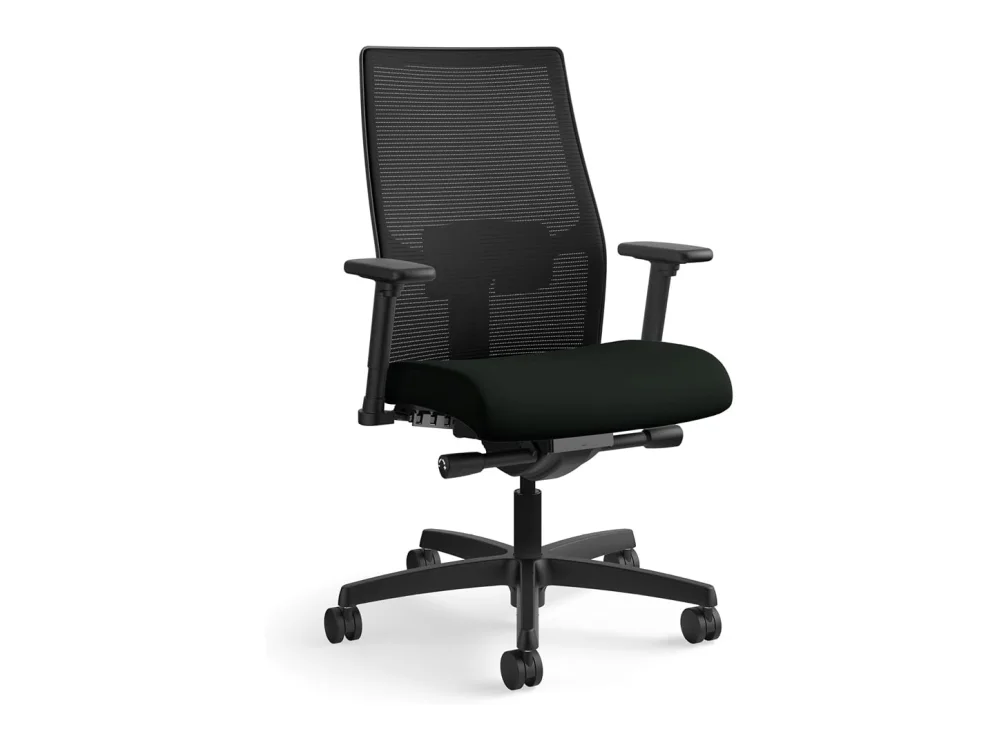 HON Ignition 2.0
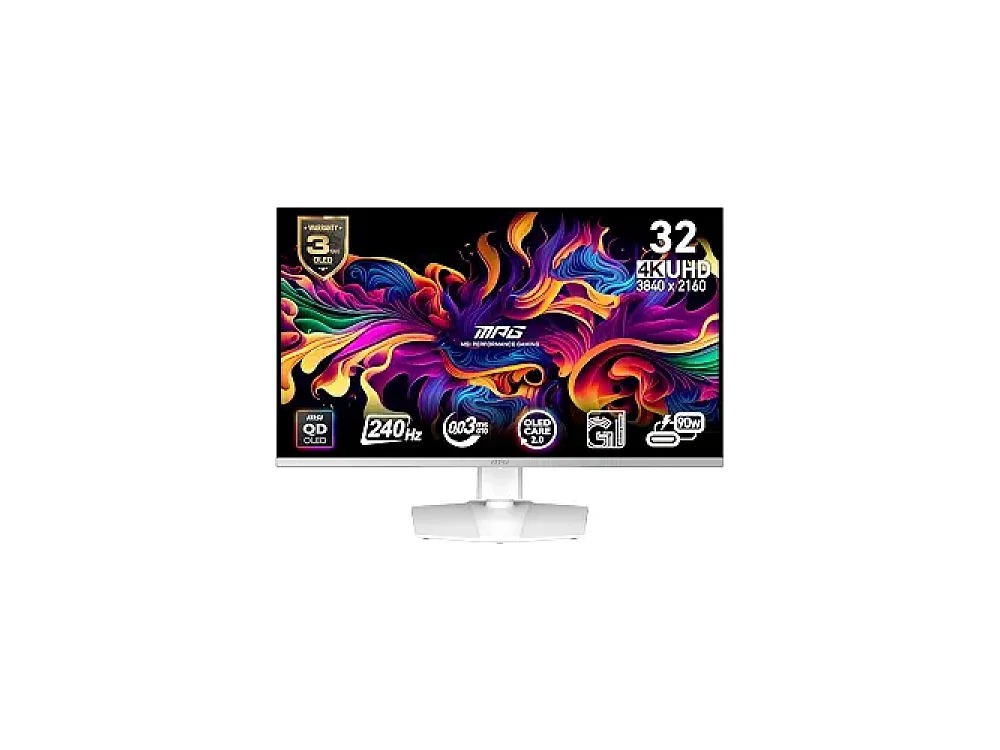 MSI MPG 321URXW QD-OLED
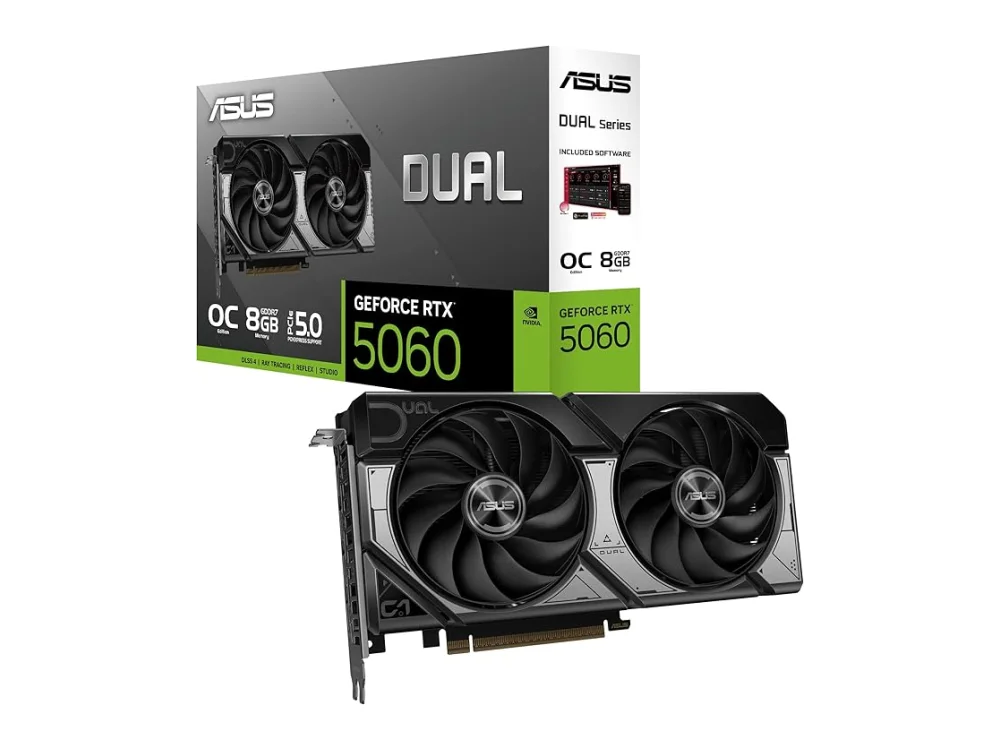 NVIDIA GeForce RTX 5060
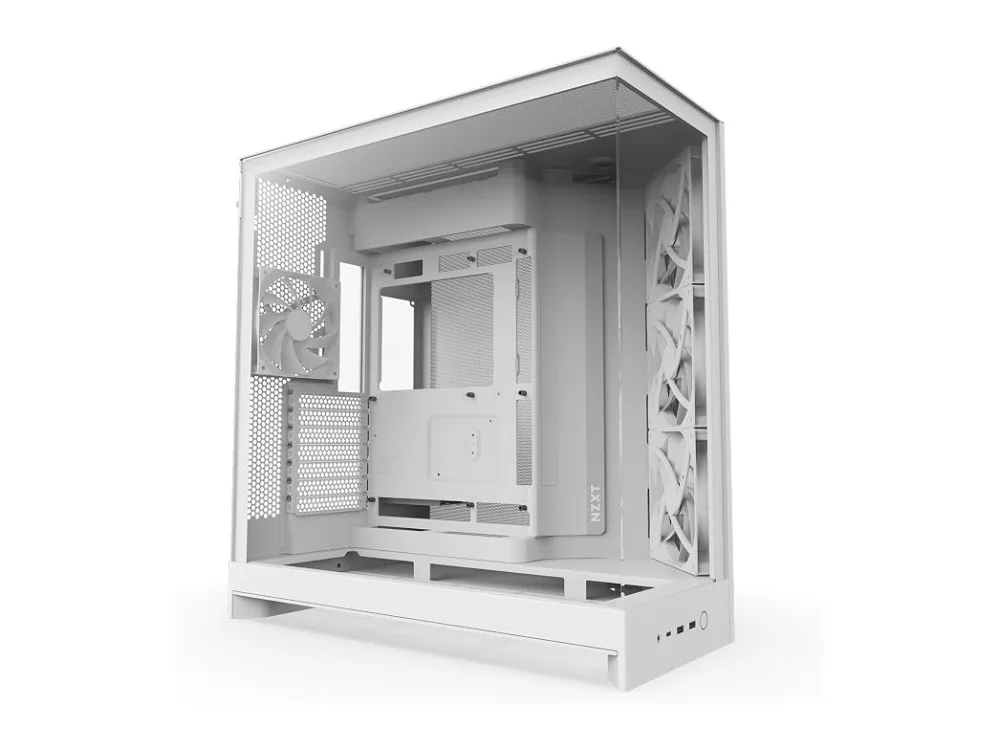 NZXT H9 Flow (2025)
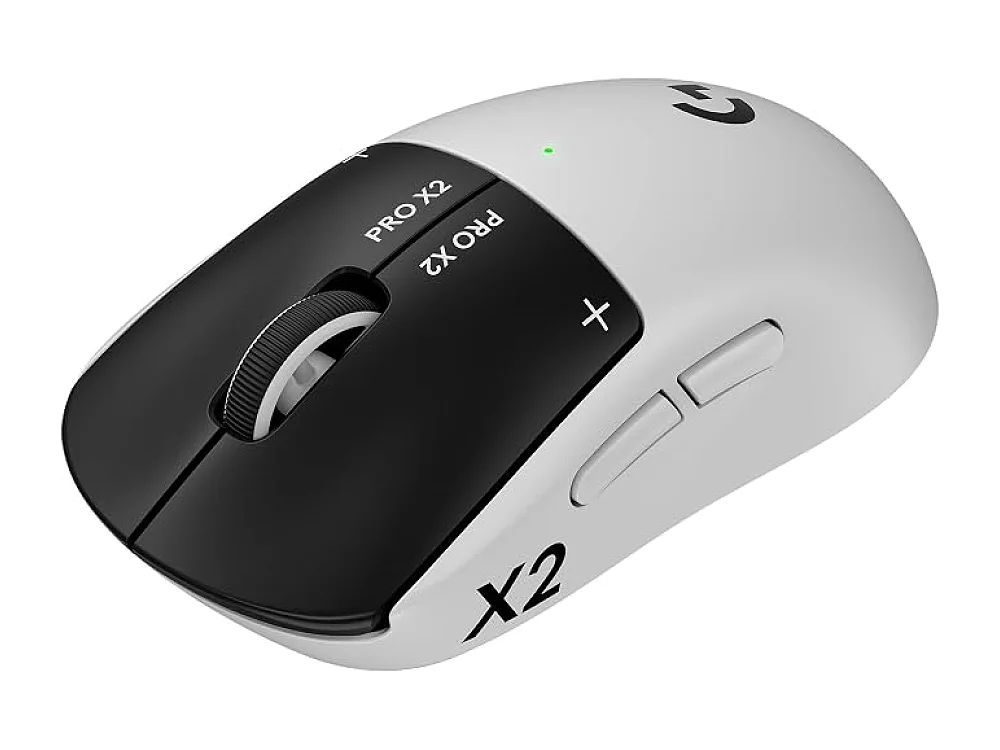 Pulsar X2F CrazyLight
Leave a comment
Questions, corrections or your own experience: it goes to our team at comments@runonconsole.com and you get a copy.