How to Update Graphics Drivers Safely for NVIDIA, AMD, and Intel

Article Overview & Key Takeaways
A clear, practical guide that walks you through updating NVIDIA, AMD, and Intel graphics drivers without risking system instability.
Gaming gear to check
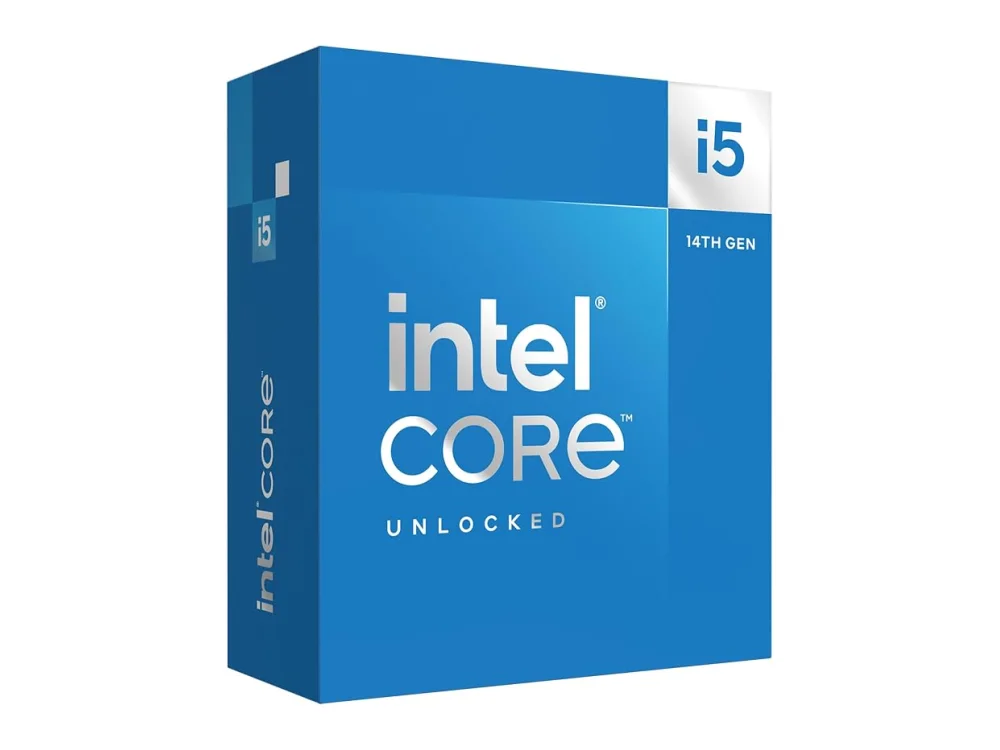 Intel Core i5-14600K
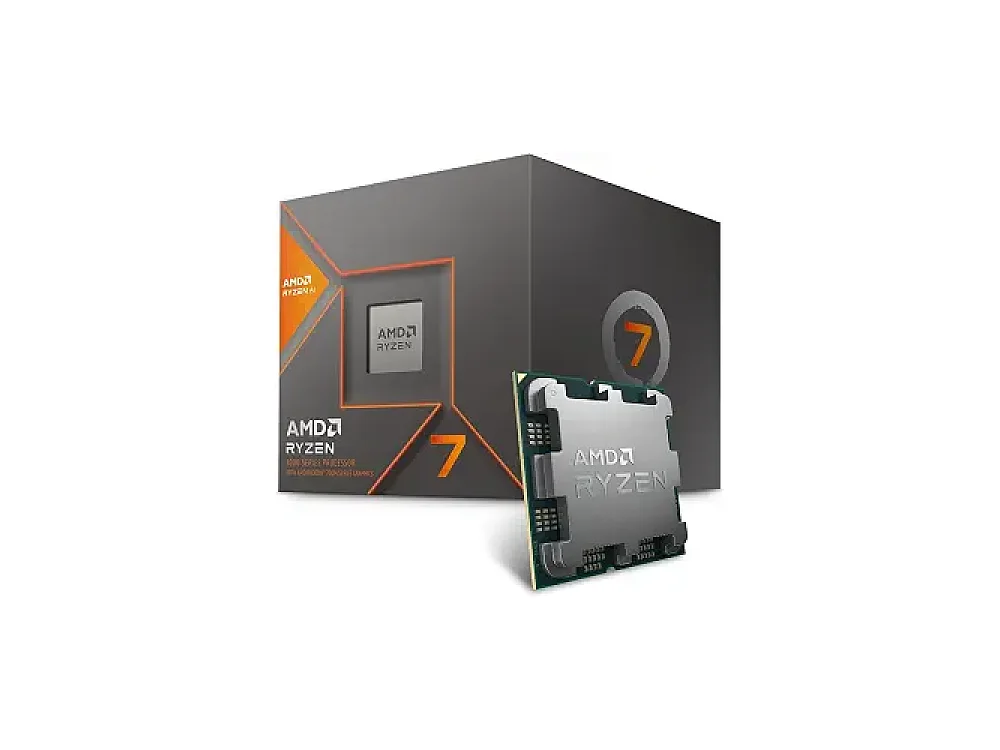 AMD Ryzen 7 8700G
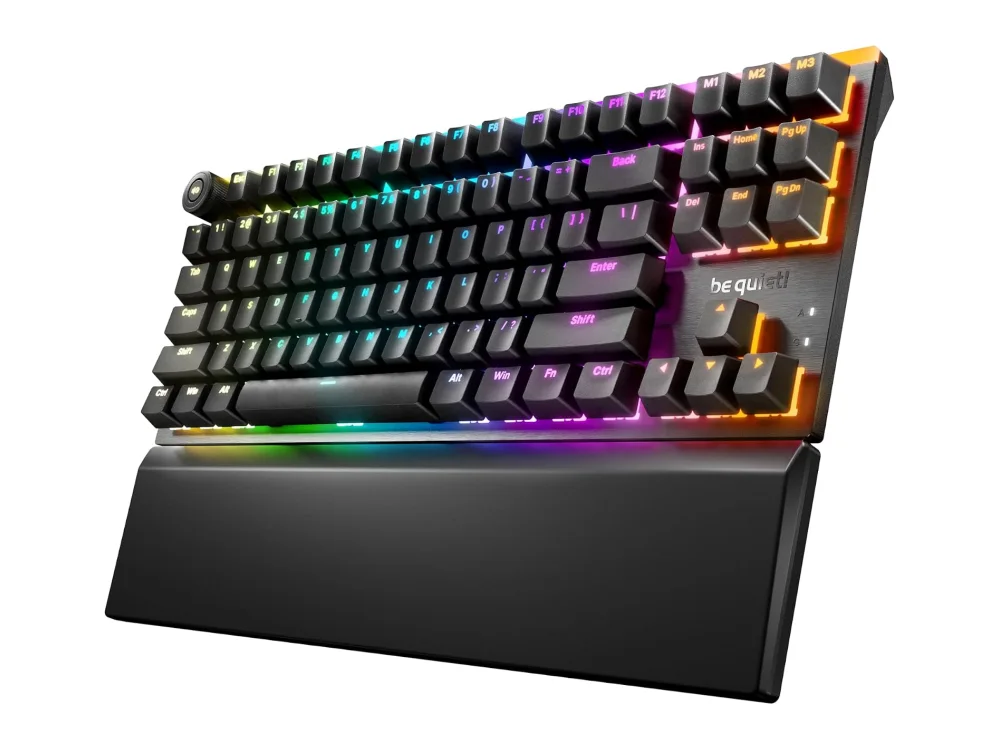 be quiet! Light Mount TKL
In this guide you’ll learn how to update your graphics card drivers the safe way, ensuring you get the latest performance boosts, bug fixes, and game compatibility without risking crashes or system instability. By the end, you’ll be able to confidently refresh drivers for NVIDIA, AMD, and Intel GPUs on any Windows PC.
Whether you’re a casual gamer checking the Graphics Cards (GPU) lineup for a new build or a seasoned enthusiast fine‑tuning an existing rig, keeping drivers current is essential. The process is straightforward, but a few common pitfalls can turn a simple update into a headache, so follow these steps carefully.
What you need
- A stable internet connection.
- Administrator access to Windows.
- Backup solution (system restore point or third‑party imaging tool).
- Current driver version information (optional but helpful).
- Optional: a second PC or USB drive for downloading drivers if you prefer offline installation.
Step 1: Identify Your GPU Model
Open the Device Manager (right‑click the Start button > Device Manager) and expand the Display adapters section. The listed name tells you whether you have an NVIDIA, AMD, or Intel graphics processor. If you own an AMD card, you might be looking at models such as the AMD Radeon RX 9060 XT 16GB or the AMD Radeon RX 9070. Knowing the exact SKU helps you download the correct driver package.
Tip: Write down the exact model name before you start downloading – it saves time later.
Want to buy a graphics card? Here are 3 similar picks:
- NVIDIA GeForce RTX 5080: High-end / 4K
- AMD Radeon RX 9070 XT: High-end / 1440p-4K
- Intel Arc B580: Budget / 1080p-1440p
Open a product to see its full details, then use the Amazon button there.
Step 2: Create a System Restore Point
Before any driver change, create a restore point so you can roll back if something goes wrong. Search for "Create a restore point" in the Start menu, select your system drive, click Create, and give it a descriptive name like "Pre‑Driver‑Update 2026". This step is quick and can prevent a full reinstall if the new driver causes issues.
Step 3: Download the Official Driver
Always download drivers directly from the GPU manufacturer’s website. For NVIDIA cards, visit the NVIDIA driver download page, select your product series, and choose the "Game Ready Driver" or "Studio Driver" as appropriate. For AMD GPUs, go to AMD’s support page and locate the driver for your specific model – for instance, the AMD Radeon RX 9060 XT 8GB or the AMD Radeon RX 9070 GRE. Intel graphics drivers are available on Intel’s download center; just enter your processor or GPU name.
When you land on the download page, look for the "Windows 10/11 64‑bit" version that matches your OS. Avoid "Beta" or "Optional" builds unless you have a specific reason – the main release is the most stable.
Common mistake: Using third‑party driver download sites. These often bundle unwanted software or outdated versions.
Want to buy a graphics card? Here are 3 similar picks:
- NVIDIA GeForce RTX 5060: Mainstream / 1080p
- NVIDIA GeForce RTX 5060 Ti 16GB: Mid-range / 1440p
- NVIDIA GeForce RTX 5070 Ti: High-end / 1440p-4K
Open a product to see its full details, then use the Amazon button there.
Step 4: Uninstall the Existing Driver (Optional but Recommended)
While many users install the new driver over the old one without issue, a clean uninstall can eliminate lingering files that cause conflicts. Open Control Panel > Programs and Features and look for entries like "NVIDIA Graphics Driver", "AMD Software", or "Intel Graphics Driver". Uninstall them, then restart your PC. Windows will revert to a basic display driver for a few seconds before you reinstall the fresh package.
If you prefer a quicker route, you can skip this step and let the installer handle the replacement. Just be aware that occasional ghost files may remain.
Step 5: Install the New Driver
Run the installer you downloaded. Most installers offer a "Custom" or "Advanced" installation mode – choose this to see the components being installed. Deselect optional extras like GeForce Experience (for NVIDIA) or Radeon Software overlays if you don’t need them; they can be installed later if desired.
During installation, you’ll see options such as "Perform a clean installation" (NVIDIA) or "Reset to factory defaults" (AMD). Selecting these ensures old settings are cleared, which is especially helpful after a major version jump (e.g., from driver 531.xx to 536.xx).
Tip: Keep your monitor’s refresh rate and resolution settings handy – you may need to re‑apply them after the driver install.
Step 6: Verify the Installation
After the reboot, open the GPU control panel (NVIDIA Control Panel, AMD Radeon Settings, or Intel Graphics Command Center) and confirm the driver version matches the one you installed. You can also check Device Manager – the driver date should be recent.
Run a quick game or benchmark to ensure performance is as expected. If you notice artifacts, crashes, or missing features, roll back using the restore point you created earlier.
Step 7: Keep Drivers Up to Date Without Hassle
Most manufacturers provide utilities that notify you of new releases: NVIDIA GeForce Experience, AMD Radeon Software, and Intel Driver & Support Assistant. While convenient, you can also set a monthly reminder to manually check the official sites, especially if you prefer to test drivers before they auto‑install.
For gamers who want to ensure compatibility before buying a new title, use our Can I run it? game checker to see which driver version is recommended for a specific game. Additionally, the PC requirements database lists the minimum and recommended GPU drivers for over 2,400 games, helping you plan updates around new releases.
Common Mistakes and How to Avoid Them
- Skipping the restore point: Without a rollback option, a bad driver can leave you stuck in safe mode.
- Downloading the wrong driver version: Double‑check the GPU model and OS version before clicking download.
- Leaving old driver remnants: Use the clean‑install option or uninstall manually to avoid conflicts.
- Installing beta drivers for daily use: Betas are for testing; they may introduce instability.
- Ignoring optional components you need: If you rely on features like NVIDIA ShadowPlay, ensure they’re selected during installation.
FAQ
Do I need to update drivers for every game?
No. Most games run fine on a driver that’s a few months old. However, new releases often include optimizations that only appear in the latest driver, so checking the game’s recommended driver version on our game checker is a good habit.
Can I use the same driver for both Windows 10 and Windows 11?
Yes, manufacturers typically release a single package that supports both Windows 10 and Windows 11 64‑bit. Just verify the driver notes confirm compatibility with your OS version.
What if the new driver causes my PC to freeze on boot?
Boot into Safe Mode, uninstall the driver from Device Manager, and restore your system using the restore point you created earlier. Then either reinstall the same driver or try an earlier stable version.
Conclusion
Updating graphics drivers doesn’t have to be a gamble. By identifying your GPU, creating a restore point, downloading the official driver, and following a clean installation process, you’ll keep your gaming PC running smoothly and take full advantage of performance improvements. Remember to verify the installation, stay aware of common pitfalls, and use our compatibility tools to match drivers with the games you love.
Keep reading
Gaming gear on Run On Console
 Corsair Vengeance DDR5-5200 192GB vs Corsair Vengeance DDR5-6000
 Sony INZONE M10S II
 HON Ignition 2.0
 Gigabyte AORUS Master 16
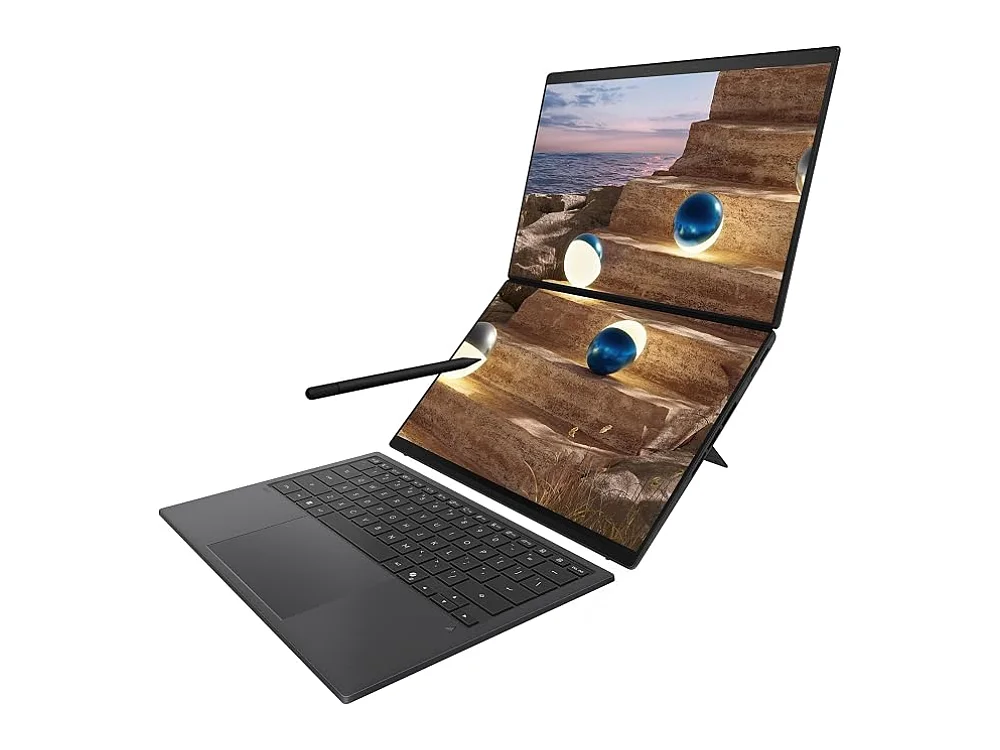 ASUS Zenbook Duo Laptop
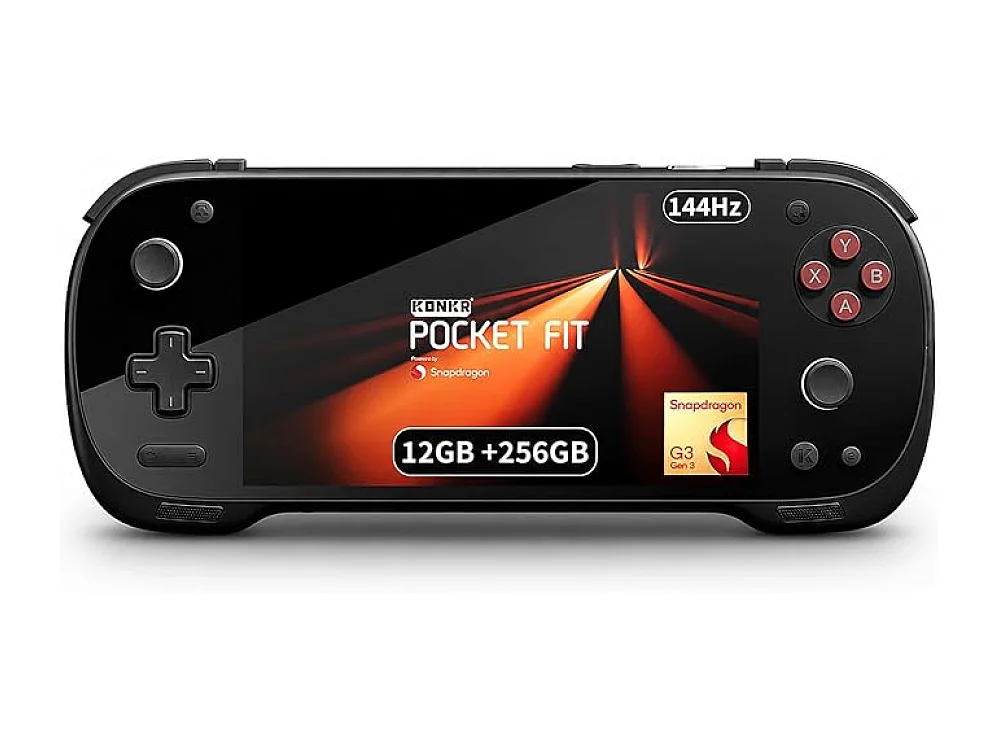 AYANEO 3
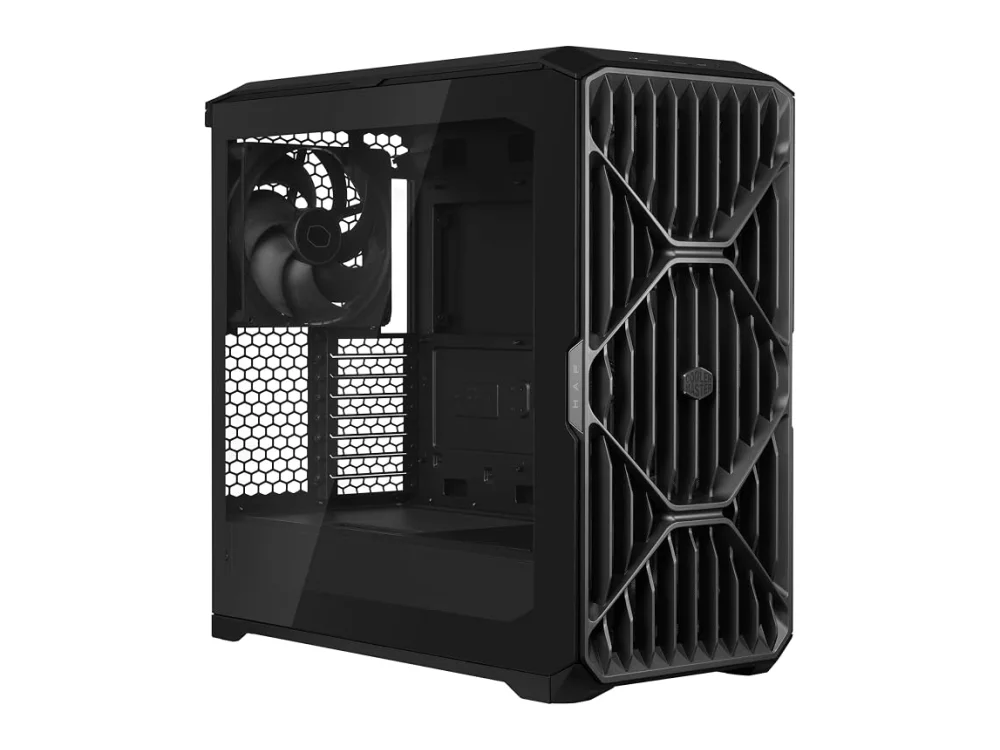 Cooler Master HAF 700Corsair Vengeance DDR5-5200 192GB
Leave a comment
Questions, corrections or your own experience: it goes to our team at comments@runonconsole.com and you get a copy.