How to Choose a Gaming Monitor: Size, Resolution & Refresh Rate

Article Overview & Key Takeaways
Choosing the right gaming monitor can boost your gaming experience dramatically. This guide walks you through size, resolution, refresh rate and panel type so you can make an informed purchase.
Gaming gear to check
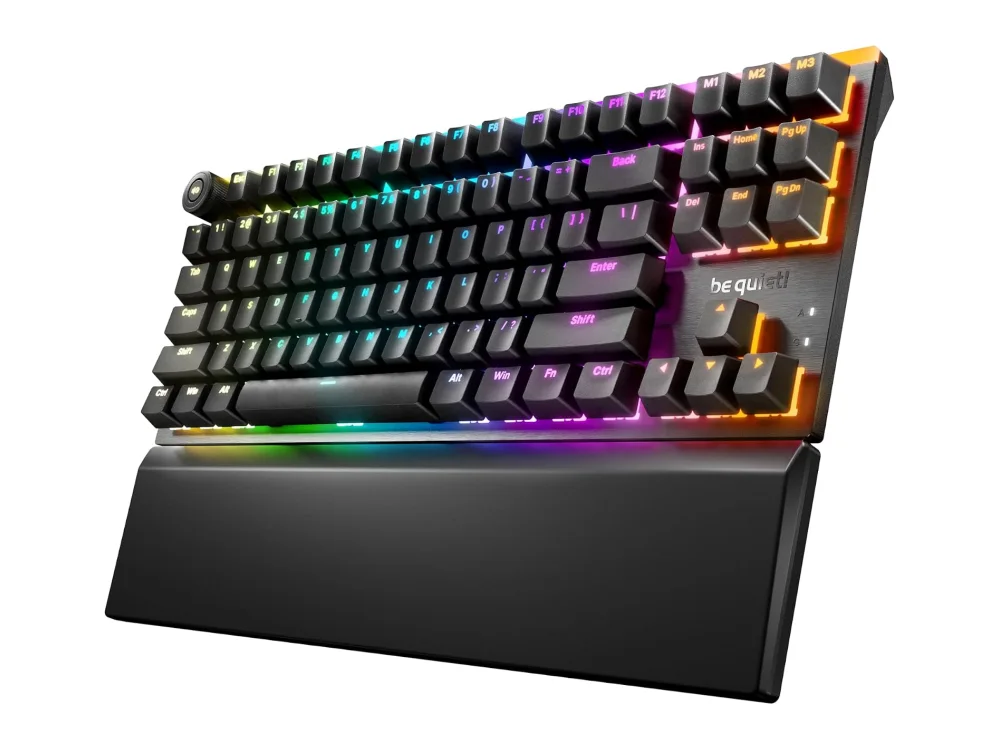 be quiet! Light Mount TKL
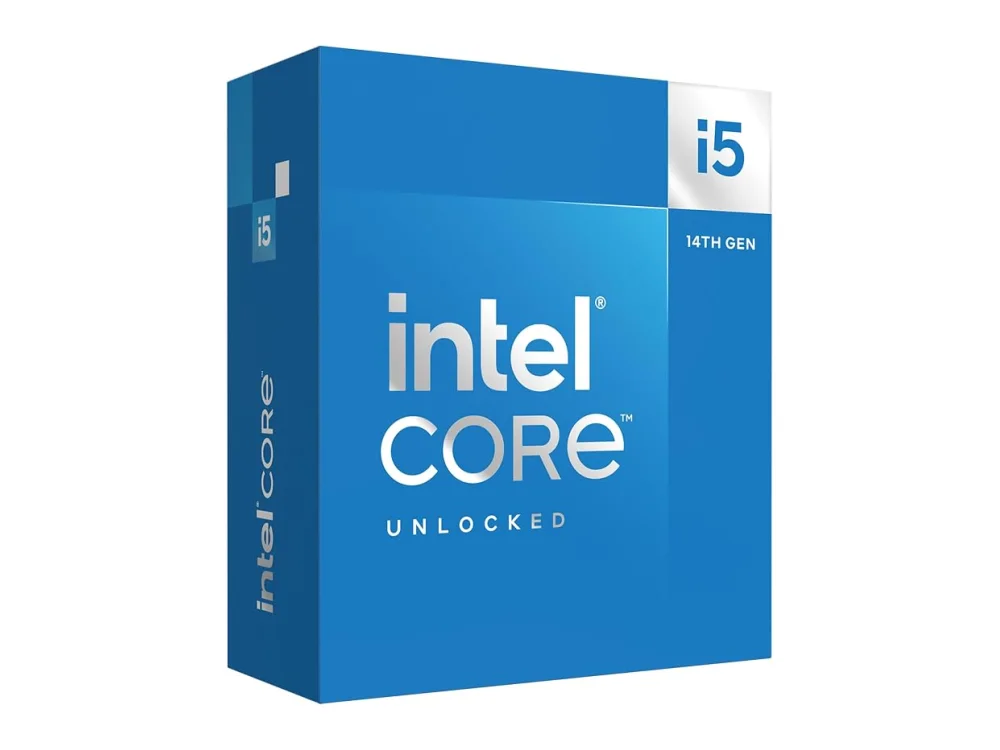 Intel Core i5-14600K
In this guide you will learn how to pick a monitor that fits your gaming style, desk space, and hardware. By the end you will be able to compare size, resolution, refresh rate and panel type with confidence and know which models are worth a deeper look.
First, check out our Gaming Monitors overview to see the range of options on the market. Understanding the basics before you start comparing specific models will save you time and prevent costly mistakes.
What you need
- A clear idea of your gaming resolution target (1080p, 1440p, 4K, etc.)
- Knowledge of your GPU’s output capabilities
- Desk space measurements for the monitor size you prefer
- Preferred panel characteristics (IPS, VA, OLED)
- A budget ceiling
Step 1: Determine the ideal screen size
Screen size is measured diagonally in inches. Bigger isn’t always better; the right size depends on your viewing distance and resolution. For a typical desk setup:
- 24–27" works well with 1080p or 1440p if you sit 2–3 feet away.
- 27–32" is comfortable for 1440p or 4K when you sit a bit farther.
- 34"+ ultrawide offers immersive field‑of‑view for simulation and RPG titles, but requires a powerful GPU.
Measure your desk depth and try a cardboard cut‑out of the desired size to visualise the footprint. A common mistake is buying a 32" 1080p panel – the pixel density becomes low and games look blurry.
Step 2: Choose the right resolution
Resolution determines how sharp the image appears. Match it to both screen size and GPU power.
| Resolution | Typical size range | GPU recommendation |
|---|---|---|
| 1920×1080 (Full HD) | 24–27" | Mid‑range GPUs (RTX 3060, GTX 1660) |
| 2560×1440 (QHD) | 27–32" | Upper‑mid GPUs (RTX 3070, RX 6700 XT) |
| 3840×2160 (4K) | 32"+ | High‑end GPUs (RTX 4080, RX 7900 XTX) |
If you already own a GPU, use the PC requirements of 2,400+ games checker to see which resolutions your card can sustain at 60 fps or higher. Avoid the trap of selecting a resolution your system can’t handle, which leads to stutter and low frame rates.
Step 3: Pick a refresh rate that matches your play style
Refresh rate (Hz) tells how many times per second the monitor redraws the image. Higher rates produce smoother motion, especially in fast‑paced shooters and competitive titles.
- 60 Hz – sufficient for casual gaming and single‑player experiences.
- 120 Hz–144 Hz – sweet spot for most competitive gamers; most modern GPUs can push 144 fps at 1080p‑1440p.
- 165 Hz–240 Hz – for elite e‑sports players who want every millisecond advantage.
Make sure the monitor supports the same adaptive‑sync technology as your GPU (G‑Sync for NVIDIA, FreeSync for AMD). A good example of a high‑refresh, G‑Sync‑compatible panel is the ASUS ROG Swift OLED PG27UCDM, which offers 144 Hz at 4K with OLED contrast.
Want to buy a gaming monitor? Here are 3 similar picks:
- ASUS ROG Swift OLED PG32UCDM Gen3: Best Overall / Premium
- ASUS ROG Swift OLED PG32UCDP: Best Dual-Mode OLED
- KOORUI GN02: Best Budget High Refresh
Open a product to see its full details, then use the Amazon button there.
Step 4: Understand panel types and their trade‑offs
Panel technology influences colour accuracy, contrast, response time and viewing angles.
- IPS (In‑Plane Switching) – excellent colour reproduction and wide viewing angles, slightly slower response times. Ideal for color‑critical games and mixed work‑play setups. The AOC 24G2 is a solid IPS option for 1080p/144 Hz gamers.
- VA (Vertical Alignment) – higher contrast ratios, deeper blacks, but can exhibit ghosting. Good for dark‑themed games.
- OLED – perfect blacks and near‑instant response, but can be pricey and may have burn‑in risk. The ASUS ROG Swift OLED PG27AQWP‑W showcases OLED’s strengths for HDR gaming.
Don’t assume a higher price always means a better panel for you. If you play mostly fast shooters, a fast‑response VA or IPS may feel snappier than a slower OLED panel.
Want to buy a gaming monitor? Here are 3 similar picks:
- LG UltraGear 45GX950A-B: Best Large Ultrawide
- MSI MPG 321URXW QD-OLED: Best 4K Gaming
- MSI MPG 341CQR QD-OLED X36: Best Ultrawide High Refresh
Open a product to see its full details, then use the Amazon button there.
Step 5: Verify compatibility with your graphics card and desk
Before you finalize a purchase, confirm that your GPU can output the chosen resolution and refresh rate over the available ports (DisplayPort 1.4, HDMI 2.1, etc.). Use the Can I run? game checker to test specific titles at your target settings.
Also, check the monitor’s VESA mount pattern (usually 100 mm) if you plan to use an arm. Ensure the monitor’s weight is within the arm’s rating.
Step 6: Compare real‑world examples
Seeing how the specs translate into an actual product helps solidify your decision.
- AOC Gaming Q27GAZD – a 27" QHD IPS panel with 144 Hz, good for mid‑range builds.
- ASRock Phantom Gaming PGO27QSA – a 27" 1440p VA monitor that emphasizes high contrast and 165 Hz.
Read the specifications, look at user‑submitted photos, and verify that the monitor’s ergonomics (tilt, swivel, height adjustment) suit your setup.
Want to buy a gaming monitor? Here are 3 similar picks:
- Samsung Odyssey OLED G73SH S32HG732S: High-End 4K Gaming
- Samsung Odyssey OLED G80SH S32HG802S: Premium 4K Alternative
- Sony INZONE M10S II: Competitive Gaming
Open a product to see its full details, then use the Amazon button there.
Step 7: Make the purchase and calibrate
Once you have chosen a model, buy from a reputable retailer that offers a solid return policy. After it arrives, spend a few minutes calibrating brightness, contrast and colour temperature. Most monitors include preset gaming modes; start with the “Standard” or “sRGB” preset and tweak from there.
Finally, run a few of your favourite games and use the built‑in FPS counter (or an overlay like MSI Afterburner) to confirm you are hitting the expected frame rates. If you notice tearing, enable G‑Sync or FreeSync in the GPU control panel.
FAQ
What size monitor is best for a 1080p resolution?
For 1080p, a 24‑27" screen provides a comfortable pixel density (≈90‑110 PPI) without visible pixelation at typical desk distances.
Do I need G‑Sync or FreeSync?
If your GPU supports adaptive sync, enabling G‑Sync (NVIDIA) or FreeSync (AMD) eliminates screen tearing and reduces stutter, especially at variable frame rates.
Is OLED worth the extra cost for gaming?
OLED delivers superb contrast and fast response, making HDR titles look amazing. However, it is more expensive and can suffer from burn‑in with static UI elements. If you prioritize deep blacks and have a high‑end GPU, OLED is a great choice; otherwise a high‑quality IPS or VA panel is more budget‑friendly.
Conclusion
Choosing a gaming monitor involves balancing size, resolution, refresh rate and panel type with your hardware and play style. By following the steps above, you can narrow down the options, avoid common pitfalls, and select a monitor that enhances every gaming session.
Keep reading
Gaming gear on Run On Console
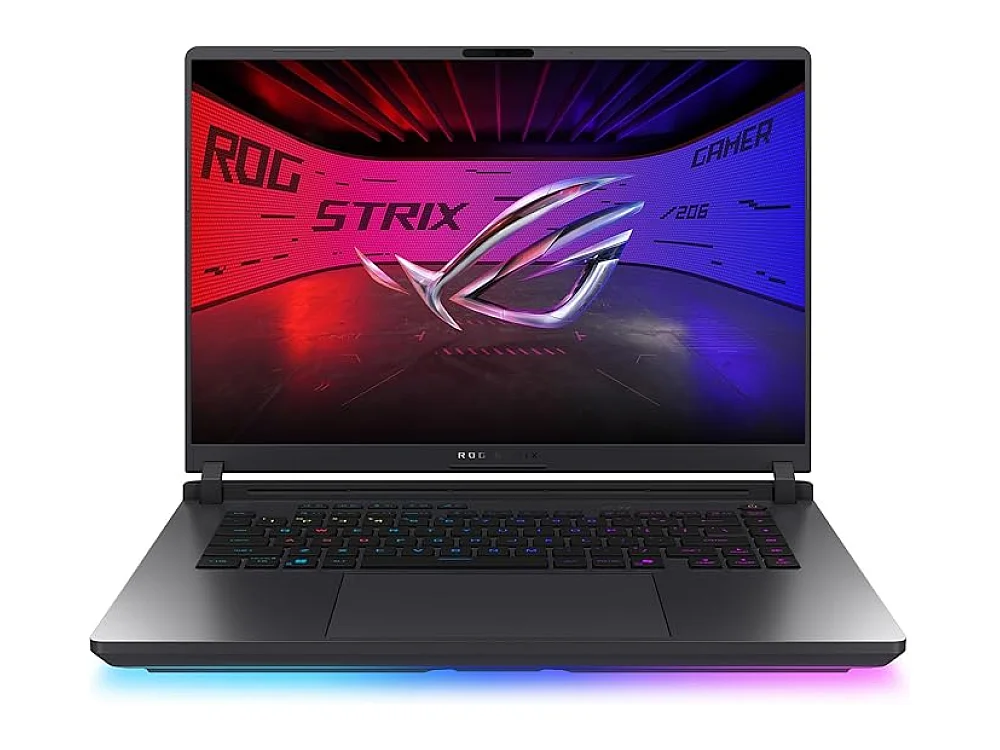 ASUS ROG Strix G16 (2026) vs ASUS ROG Strix SCAR 18 (2026)
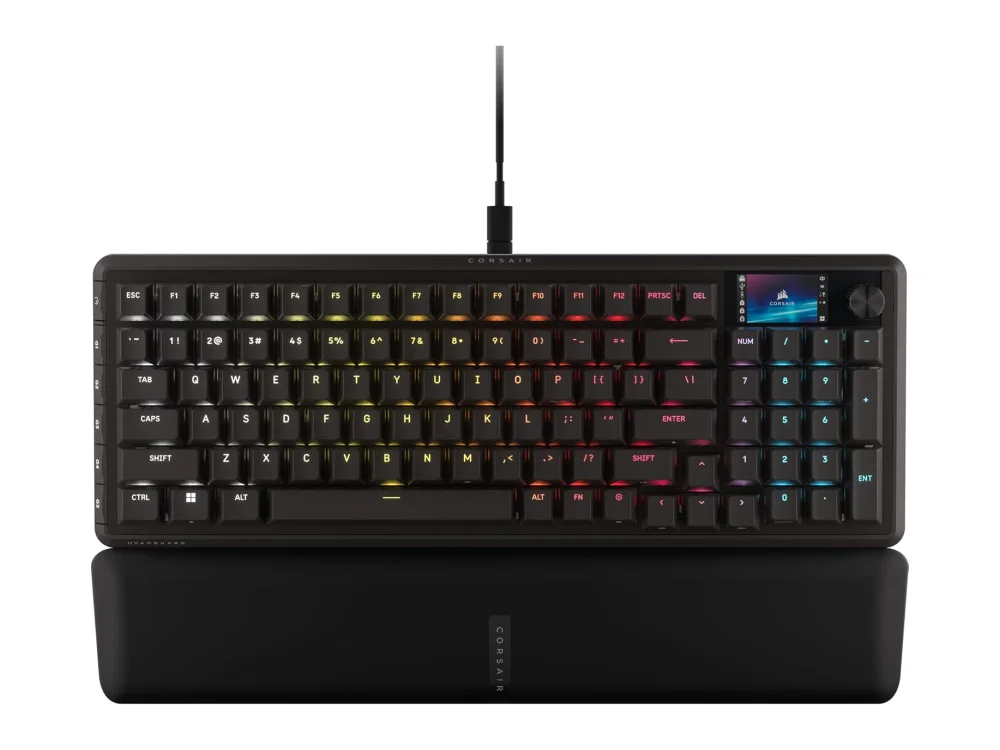 Corsair Vanguard Pro 96 vs Razer Huntsman V3 Pro TKL
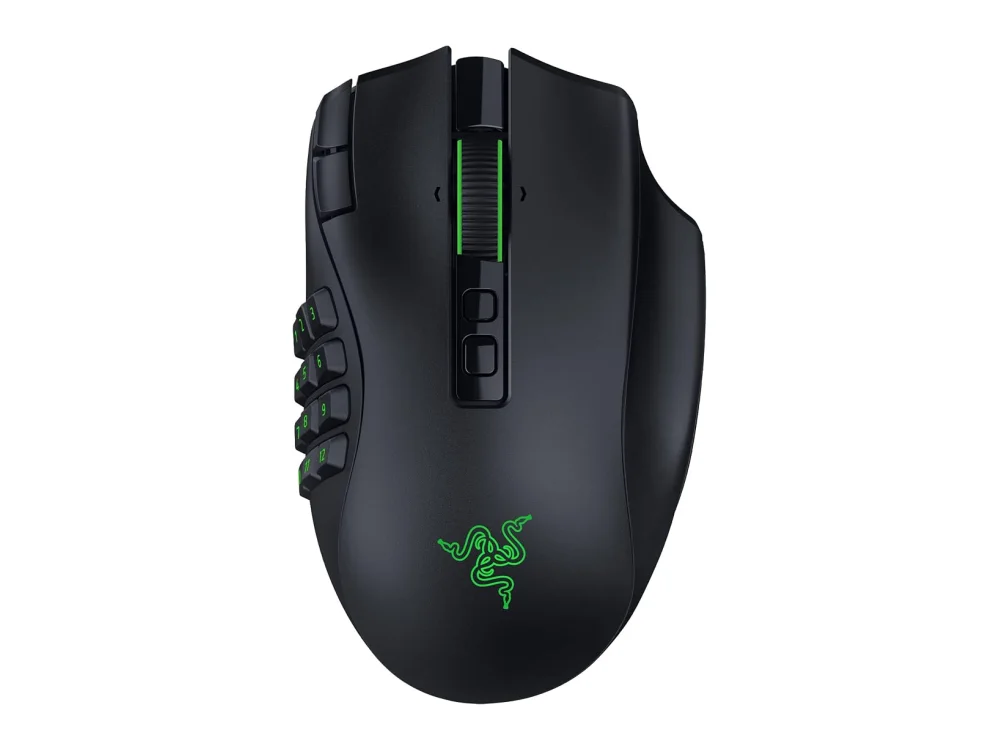 Razer Naga V3 Pro
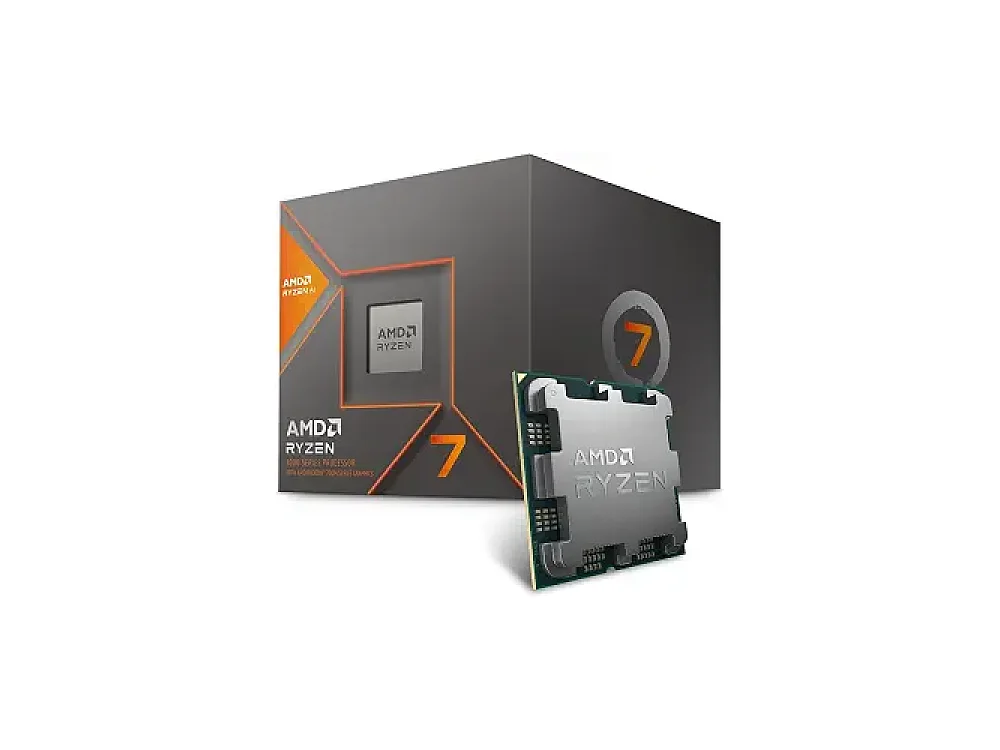 AMD Ryzen 7 8700G
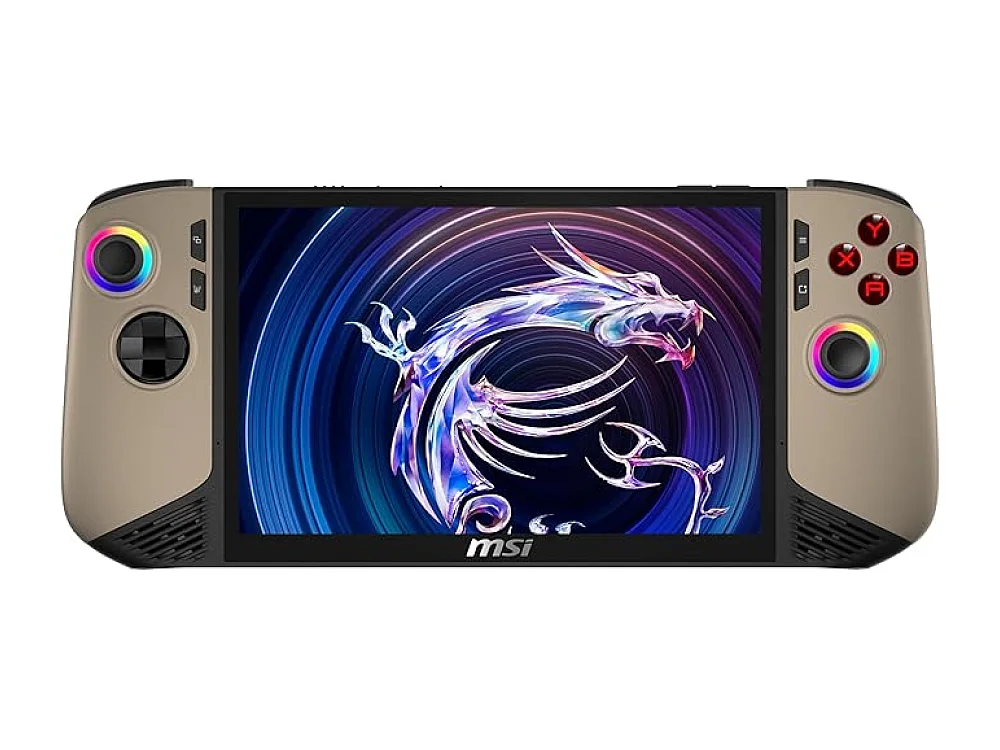 MSI Claw 8 AI+
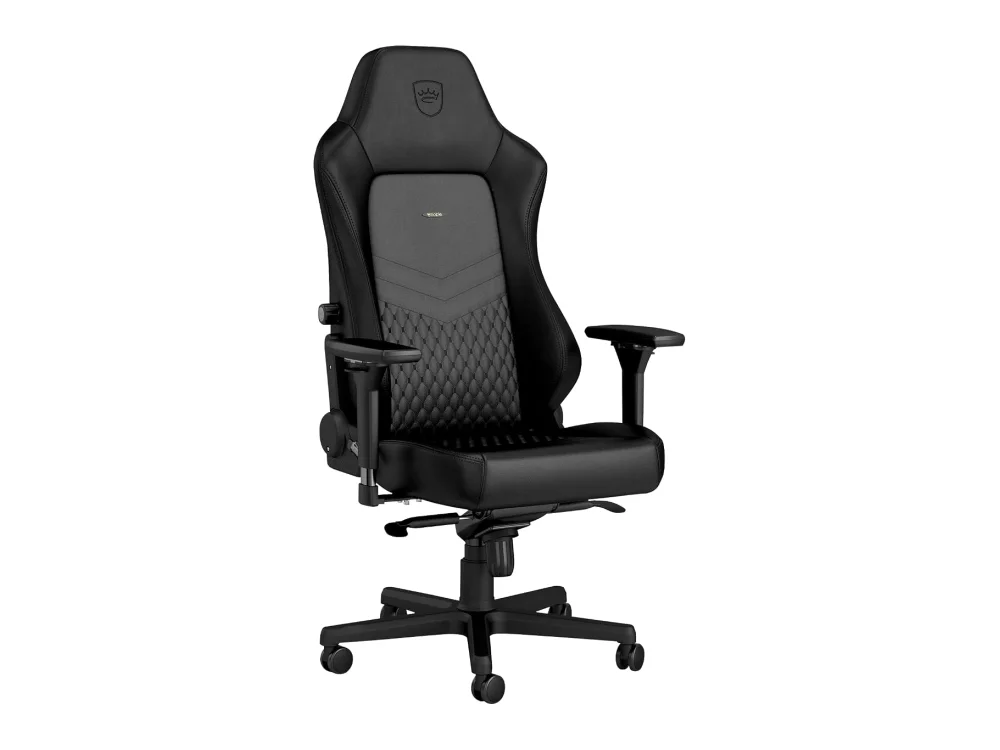 noblechairs HERO
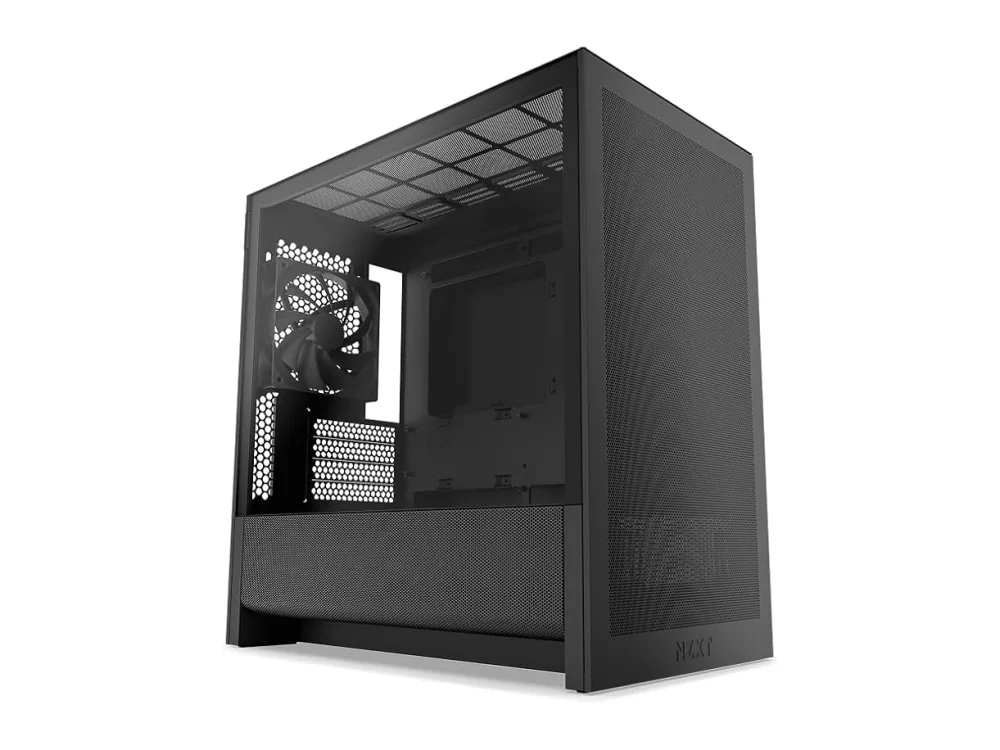 NZXT H3 Flow
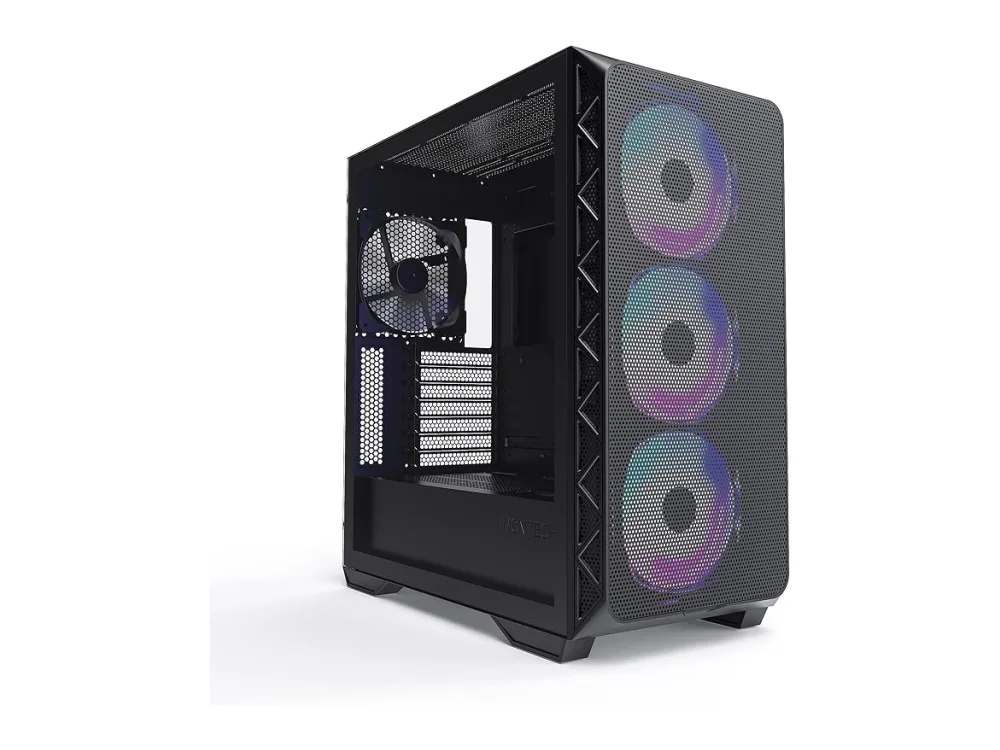 Phanteks XT Pro Ultra
Leave a comment
Questions, corrections or your own experience: it goes to our team at comments@runonconsole.com and you get a copy.